


Bias against an assigned value
Run this study
Section titled “Run this study”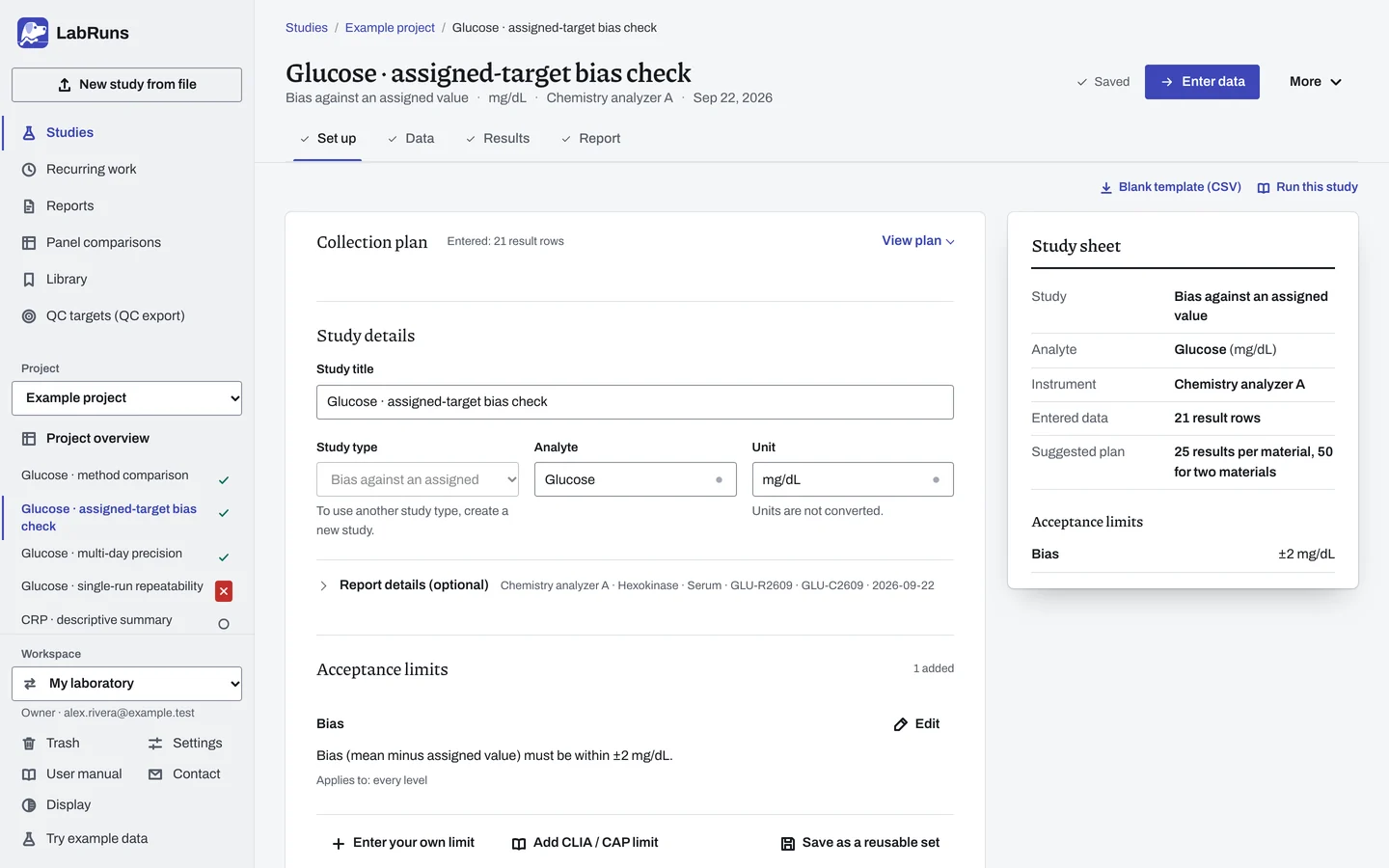
- Your question
-
How far is our average result from this material's assigned value?
- Prepare
-
Two suitable materials at relevant low and high concentrations. Each material's assigned value, unit and lot, and any stated standard uncertainty. The material's preparation and storage instructions.
- Suggested starting plan
-
- 5 measurements per day × 5 days, per material. 25 results per material, 50 for two materials.
You can reuse the raw results of a multi-day precision study on the same materials. Bias from at least 25 results over at least 5 days follows the CLSI EP15-A3 (2014) public overview.
- Calculation minimum
-
A criterion needs two results per level. Replicates from one run also give a bias confidence interval. Repeats of one material across days give the bias without a confidence interval.
-
Decide before collecting. Create the study and fill these in on Set up:
- The acceptable signed bias, relative bias or recovery. Use study-unit limits for interval-scale measurements.
- One assigned value per level, under Assigned values below.
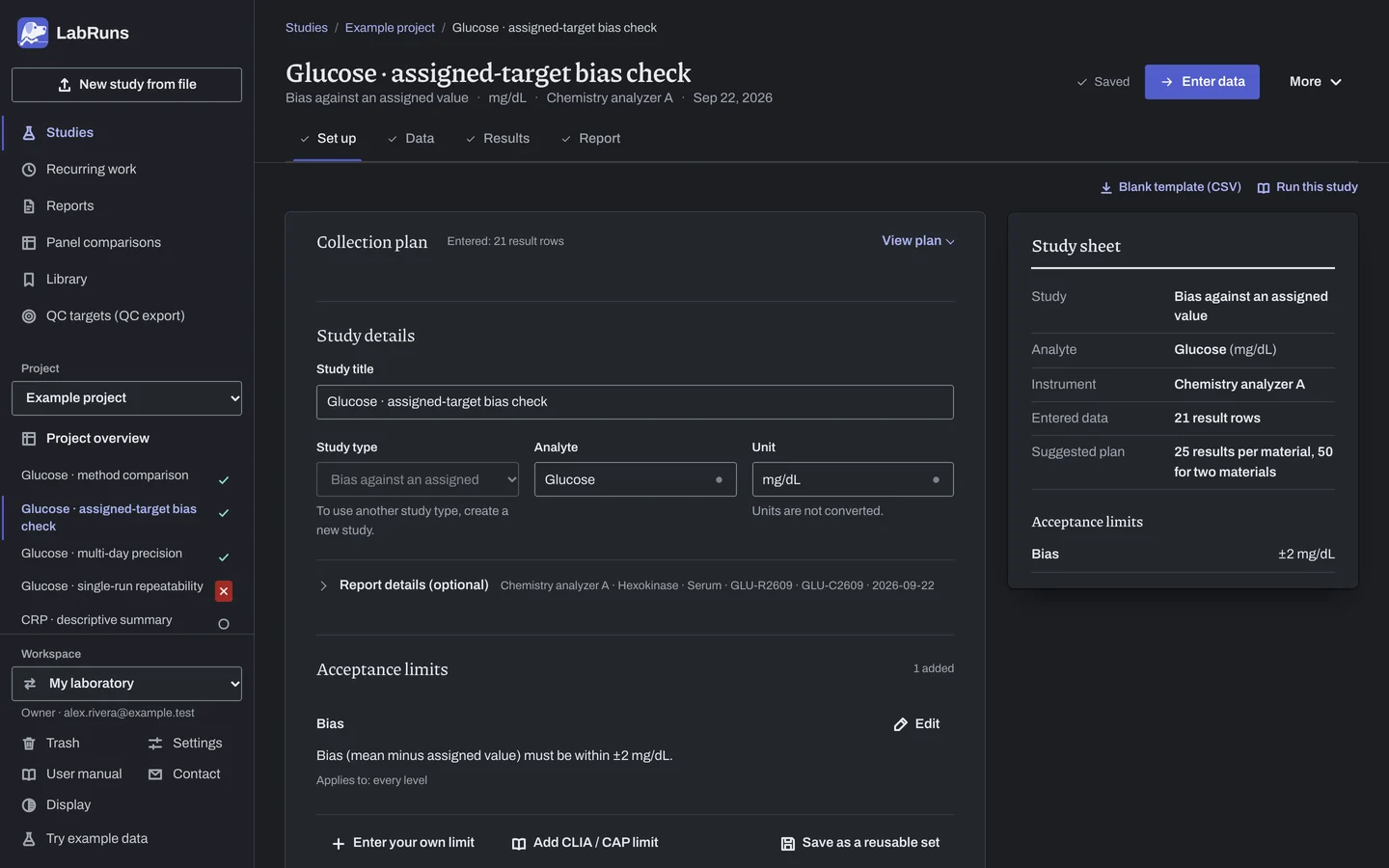
Figure 1. Set up for Glucose · assigned-target bias check. -
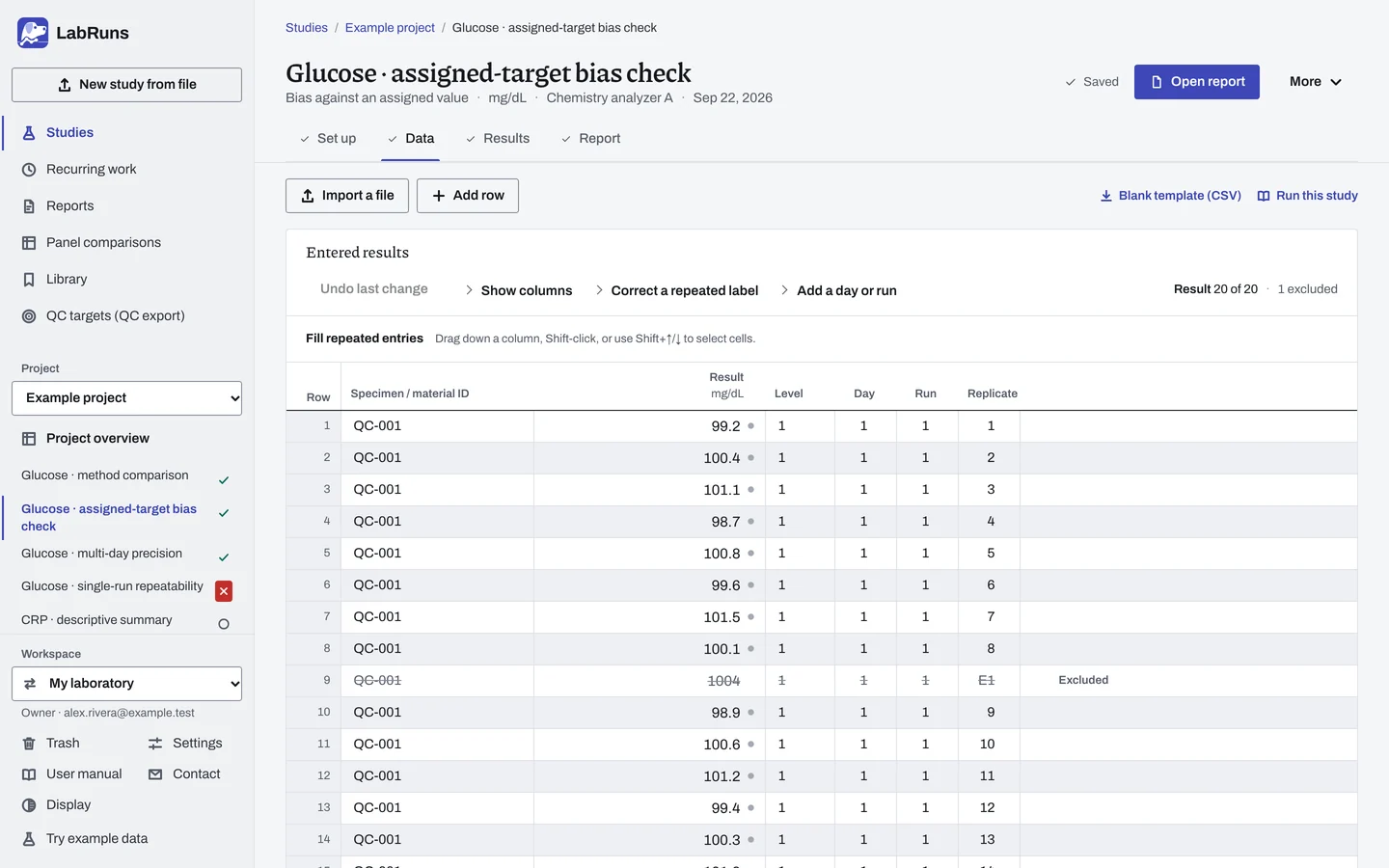
Collect and record. Collect the results as planned above and label each one with the specimen or material, level, day, run and replicate your design tracks.
-
Enter your results. Enter results and levels. Include day and run when collection spans runs. Saving fills material IDs within each level. Choose Add a day or run to copy labels and replicates for the next collection, with blank measurements. For a ready-made file, use Blank template (CSV) on Data, or download the example file.
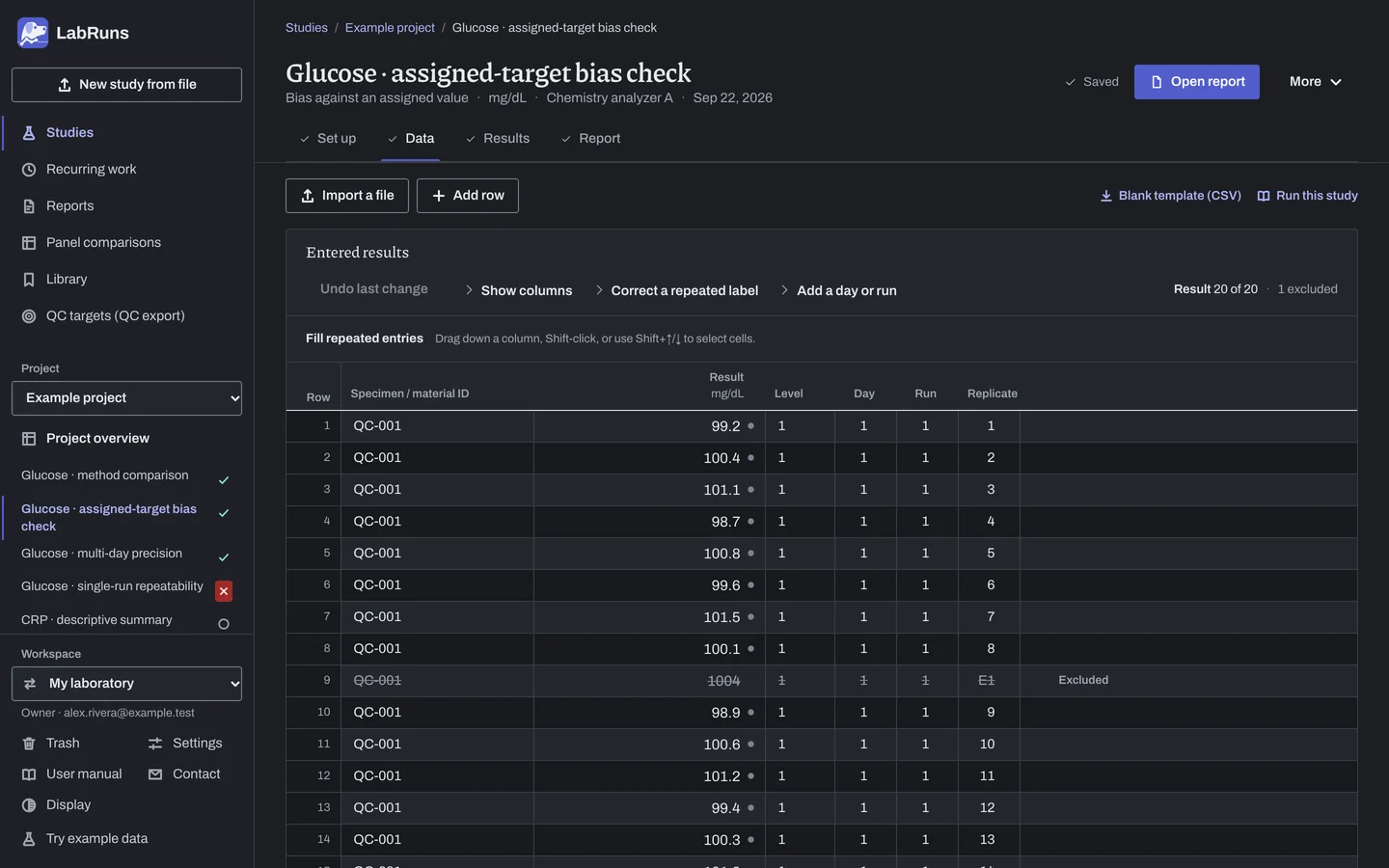
Figure 2. Data for Glucose · assigned-target bias check. -
Calculate and check. Save the study, choose Calculate results, then check:
- Each level has the planned number of included results and the right assigned value.
- The sign of the bias. Positive bias means your mean is higher than the assigned value.
- Each criterion outcome.
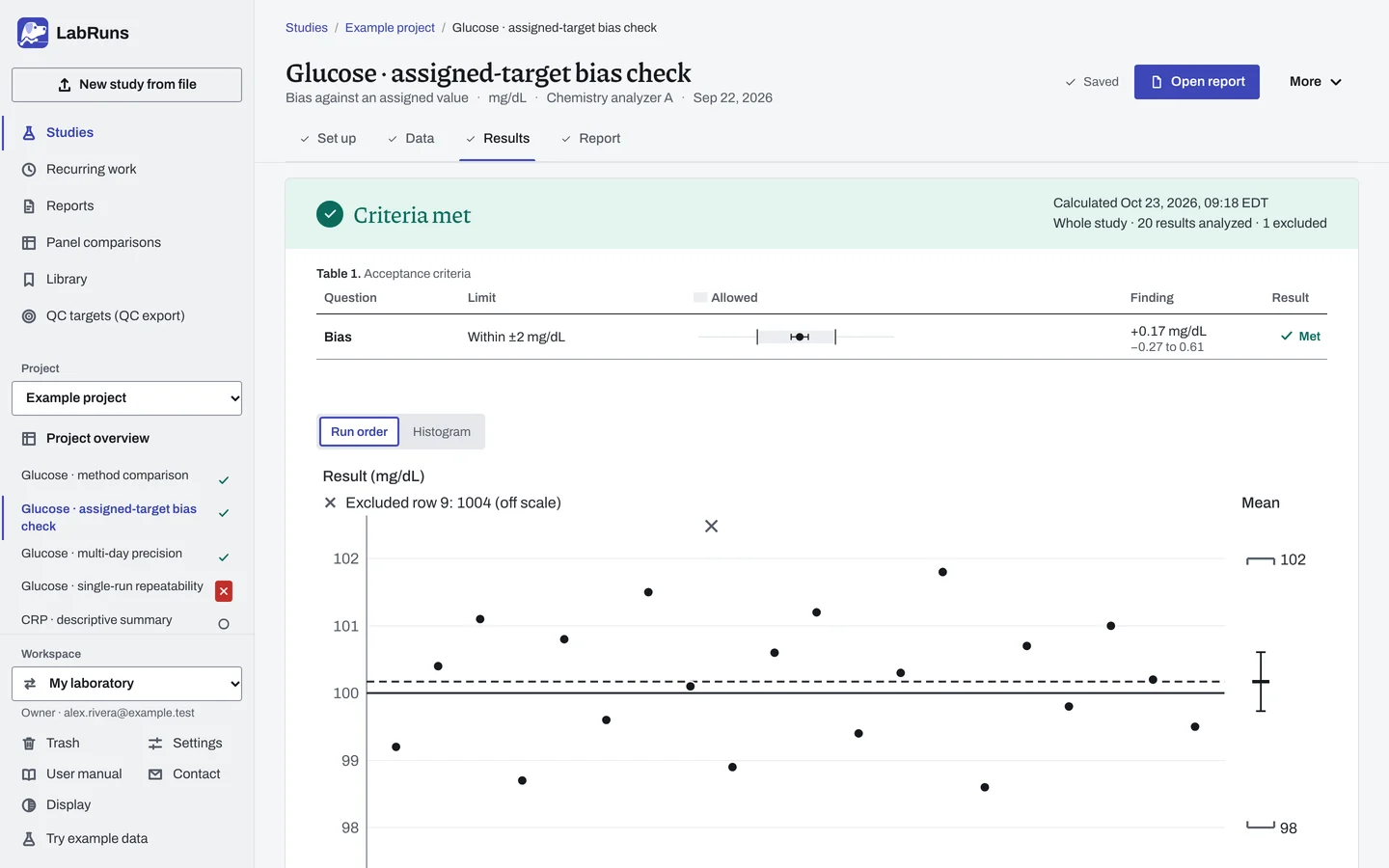
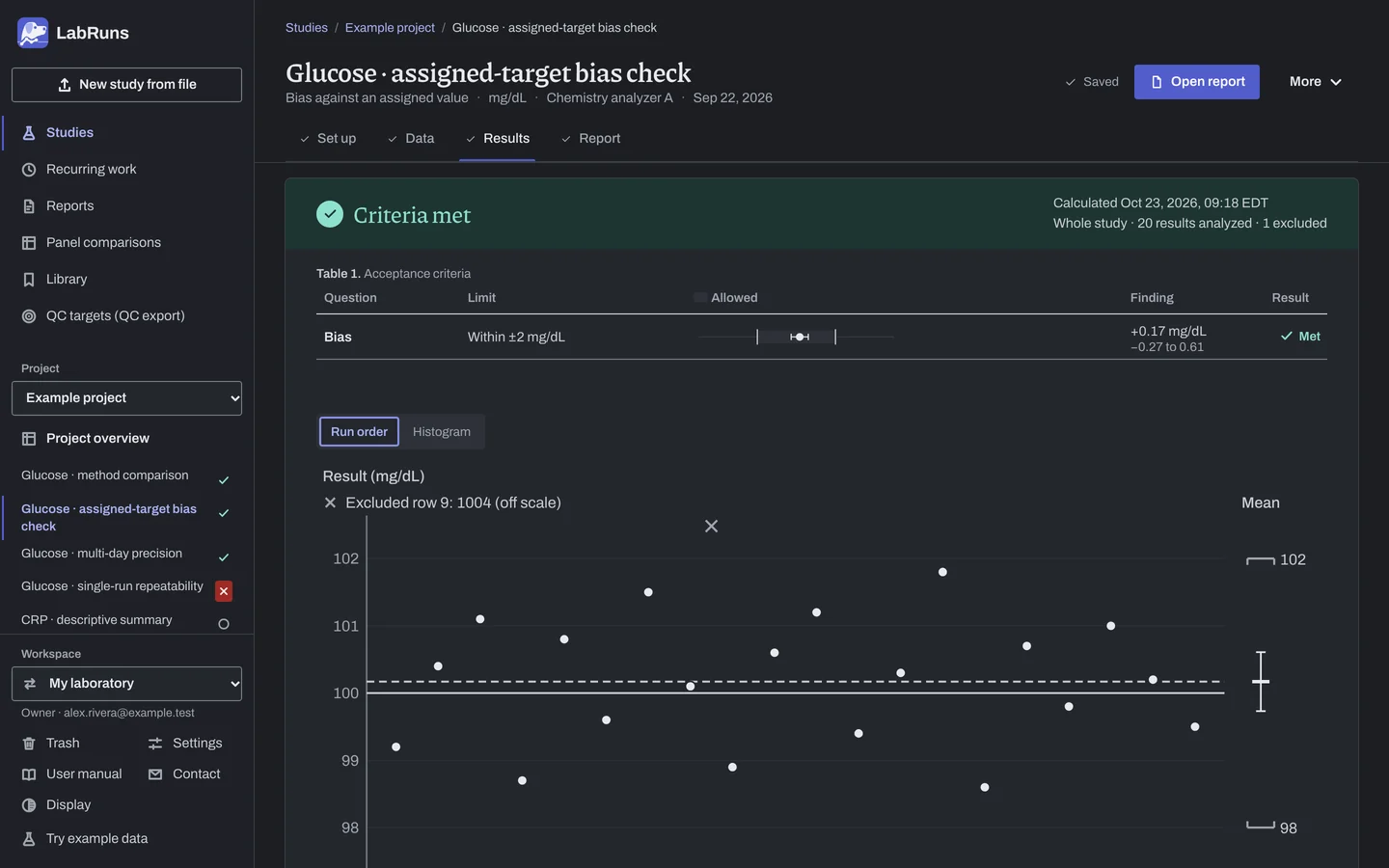
Figure 3. Results for Glucose · assigned-target bias check. -
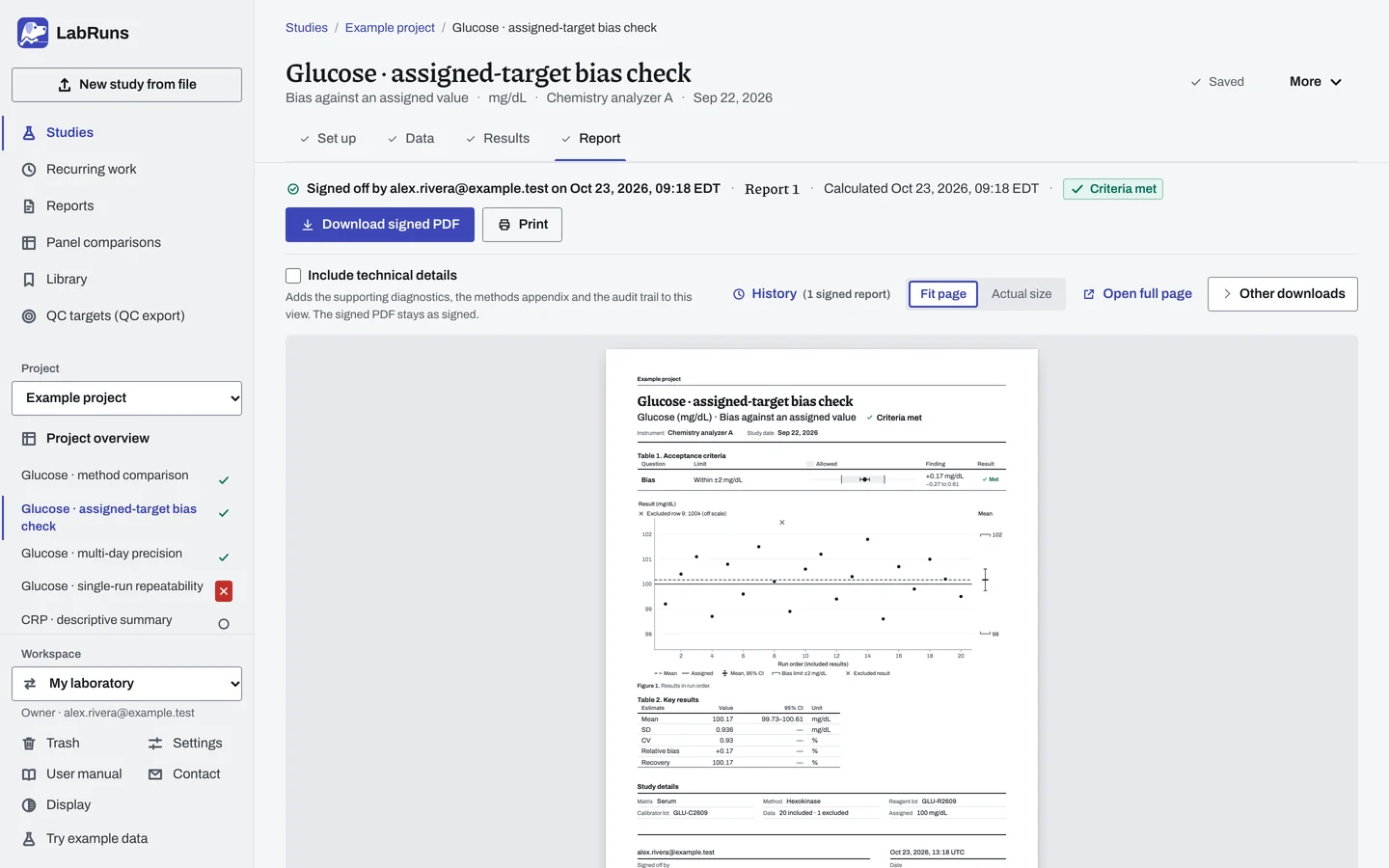
Report your decision. Open Report, look over the result and the study details, then download or print the report. Sign-off is optional.
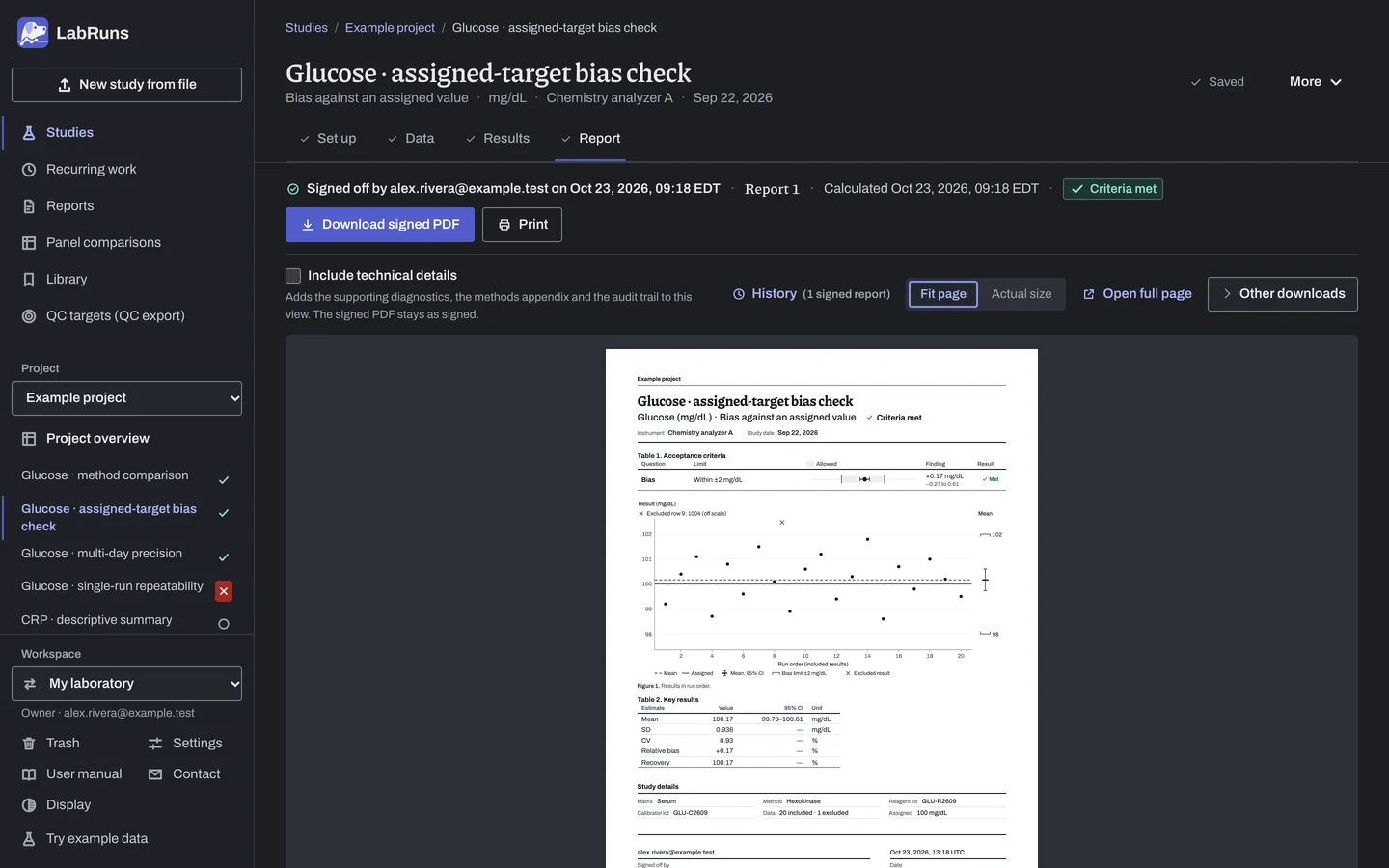
Figure 4. Report for Glucose · assigned-target bias check.
Set up
Section titled “Set up”- Choose New study. Select Bias check under Comparison and bias, enter the first level's Assigned value, then enter Analyte and Unit. Choose Create study, or Create and import data if you already have results.
- On Set up, under Acceptance limits, choose Enter your own limit and set a Bias limit. For a Relative bias or Recovery limit, choose More statistics. See Acceptance limits.
- In the Assigned values table, enter each level's Assigned value, and its Standard uncertainty (optional) if you have it. See Settings.
- On Data, choose Import a file or Add row, or, on an empty grid, set Materials (levels), Days and Measurements per day under Lay out the grid and choose Create entry rows for a row for every planned result (Laying out the grid). Record Day and Run for each result. See Columns.
- For a censored value such as
<5, enter the exact reading from the original record if available; otherwise exclude it with a reason. See Handle missing and censored values. - To continue collection, choose Add a day or run. It reuses a selected day's or run's materials and replicate labels with every measurement blank. Check the proposed row count and new label before adding. See Adding a day or run.
When a limit is not met
Section titled “When a limit is not met”- Recheck the assigned value: a typo, the wrong level, or an expanded uncertainty entered as standard (divide it by its coverage factor).
- Recheck data entry: the imported columns, decimal convention, a stray replicate.
- If the bias is real, check for an expired or mishandled CRM, calibration drift or a reagent lot change, and rerun with a fresh aliquot.
Common mistakes
Section titled “Common mistakes”- A level with results has no assigned value. The calculation can't run. Enter that level's value in Assigned values on Set up. See Calculate results.
- Replicates of one material entered under different IDs. They are treated as separate, independent specimens. Keep one material's ID on all its replicates, even when that means no interval; give a different ID only to a separate specimen.
- A Mean or Median limit reads Undecided after you correct an assigned value. The limit was built on the old value. Edit the limit on Set up, save and recalculate.
- Pass only when within both on an interval scale. Its percentage can't be calculated, so it can't be met. Use a study-unit limit.