


Stability
Run this study
Section titled “Run this study”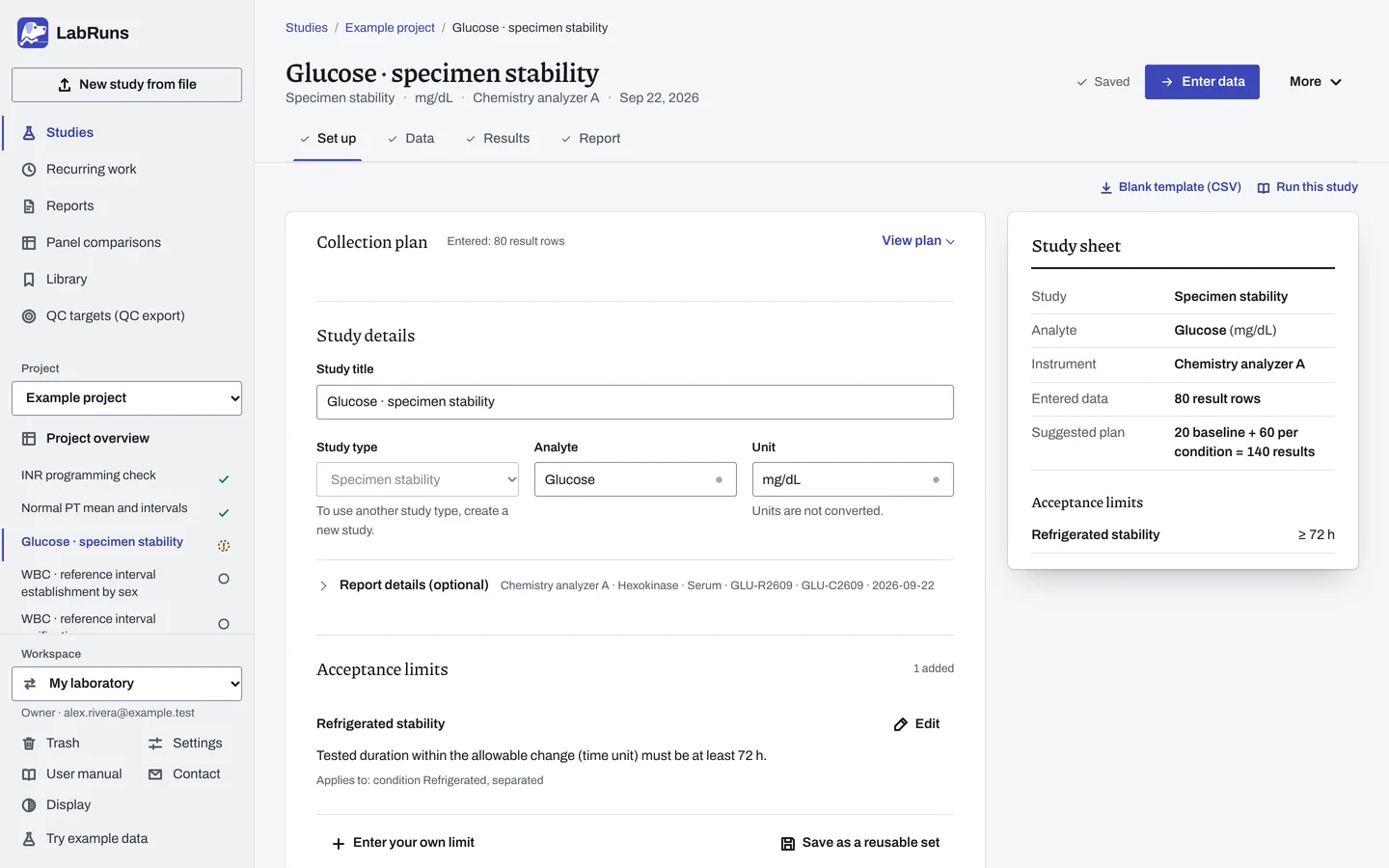
- Your question
-
For how long do results stay within your allowable change under each storage condition?
- Prepare
-
Materials representative of the intended use. Enough aliquots for every condition and time, allocated at baseline, or different specimens for each time. Temperature and handling records, including separation and freeze–thaw.
- Suggested starting plan
-
- Same materials at every time: 10 specimens in duplicate at baseline, then at 3 later times under each of 2 conditions. 20 baseline + 60 per condition = 140 results.
- Different specimens at each time: 10 different specimens in duplicate at baseline, then 10 new specimens at each of 3 later times under each of 2 conditions. 70 specimens, 140 results: 20 baseline + 60 per condition.
Choose later times before, at and beyond the duration you want to support. The number of specimens depends on how much their changes vary and on the allowable change. For reagent or control stability, decide what counts as an independent unit.
- Calculation minimum
-
An interval needs two materials measured at baseline and the tested time. With different specimens at each time, you need 2 at baseline and 2 at each time. These minimum counts can give intervals too wide to decide.
-
Decide before collecting. Create the study and fill these in on Set up:
- What is stored, each condition and the intended duration.
- The allowable change, in units or %.
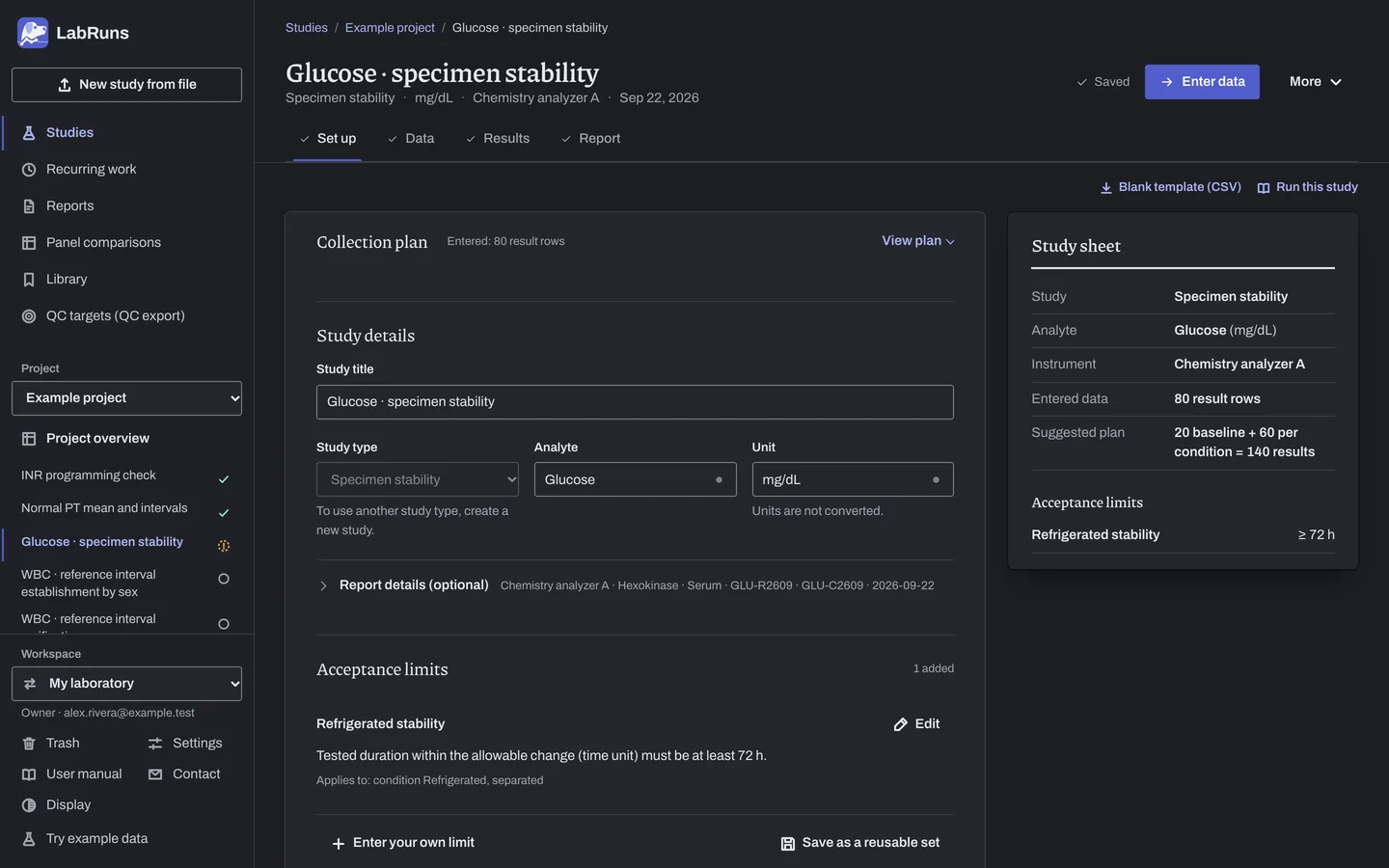
Figure 1. Set up for Glucose · specimen stability. -
Collect and record. Collect the results as planned above and label each one with the specimen or material, level, day, run and replicate your design tracks.
-
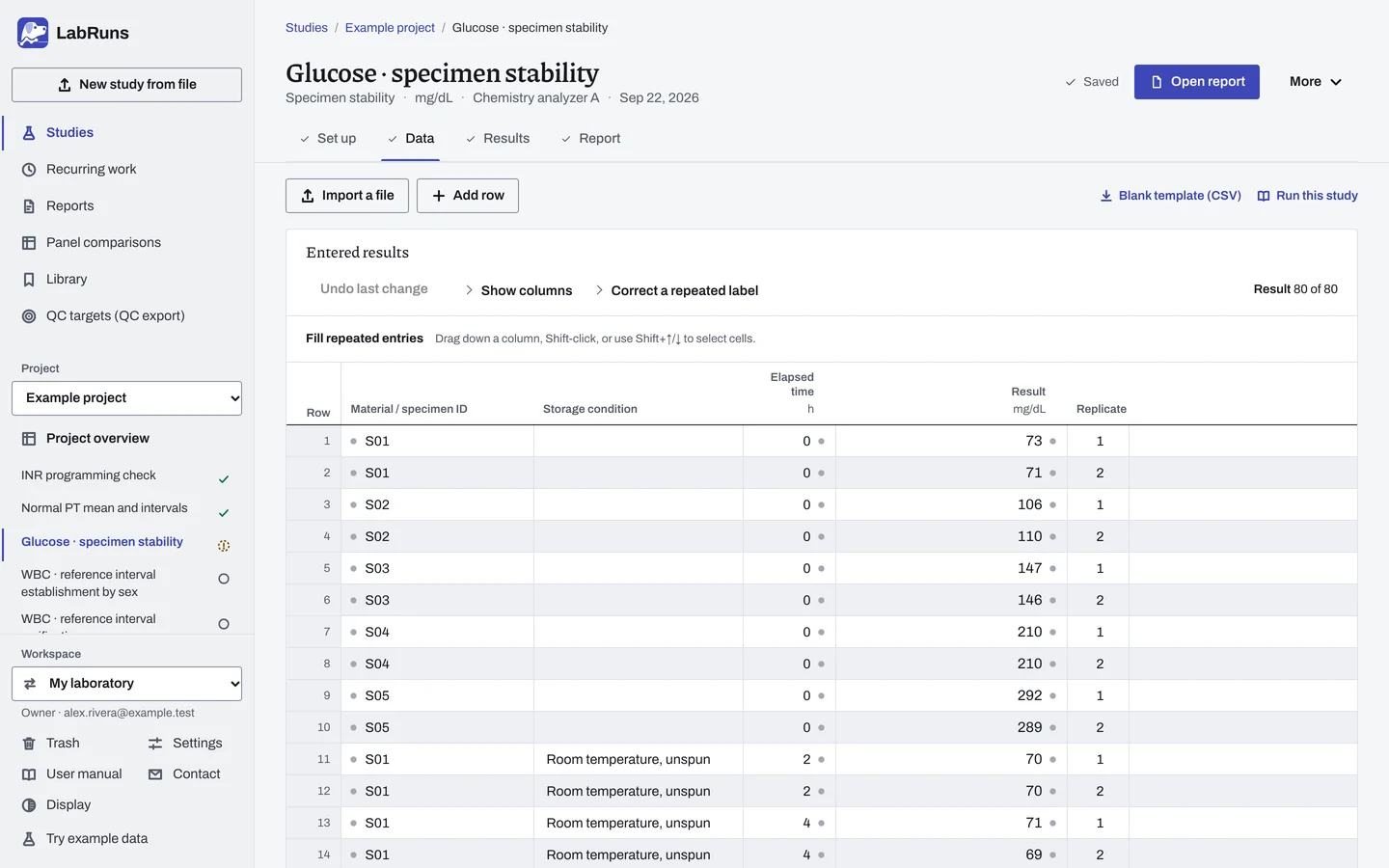
Enter your results. Enter specimen ID, condition, elapsed time, result and replicate. Leave the condition blank for a shared baseline. Keep one ID for one material across times; give a different specimen a new ID. For a ready-made file, use Blank template (CSV) on Data, or download the example file.
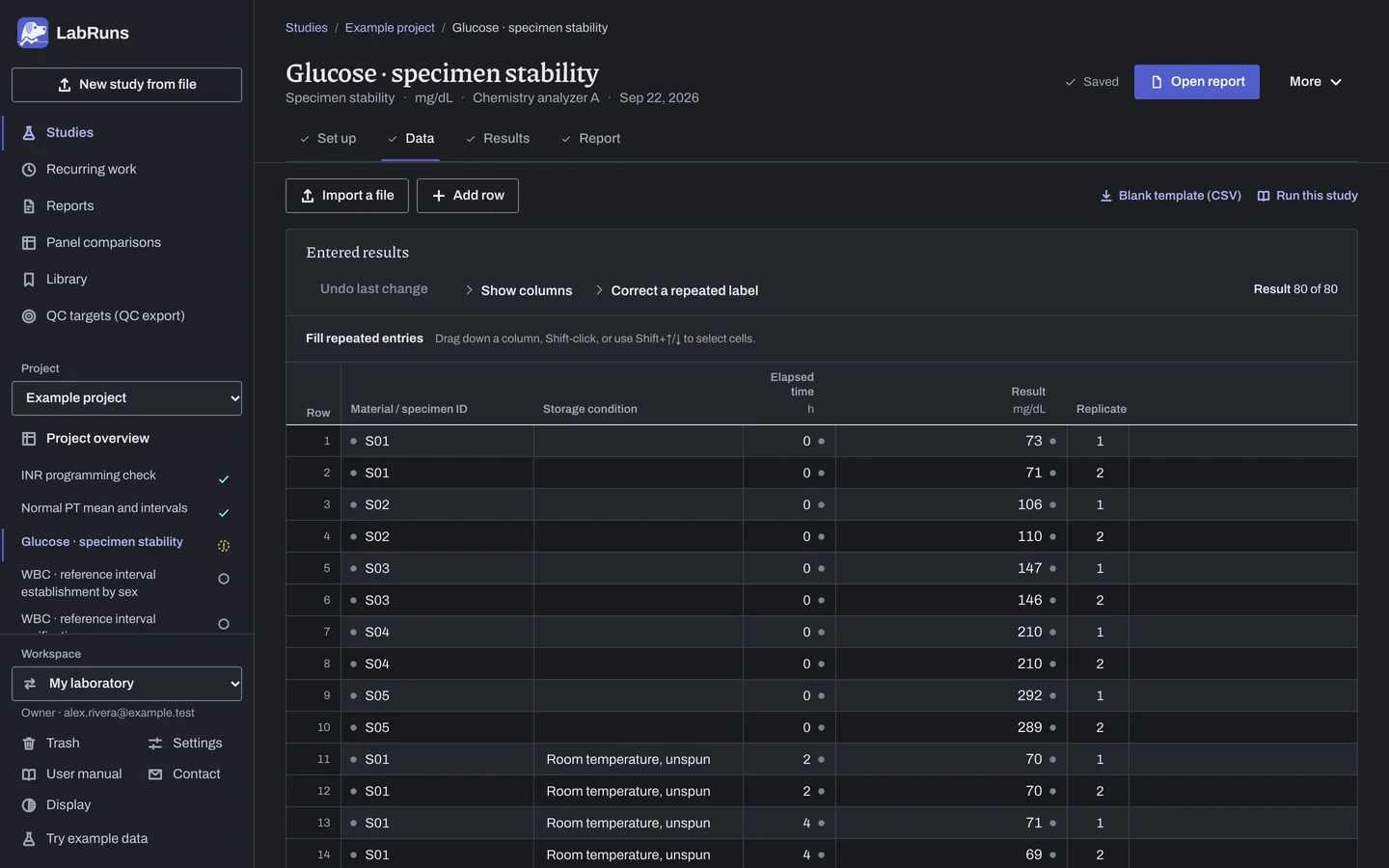
Figure 2. Data for Glucose · specimen stability. -
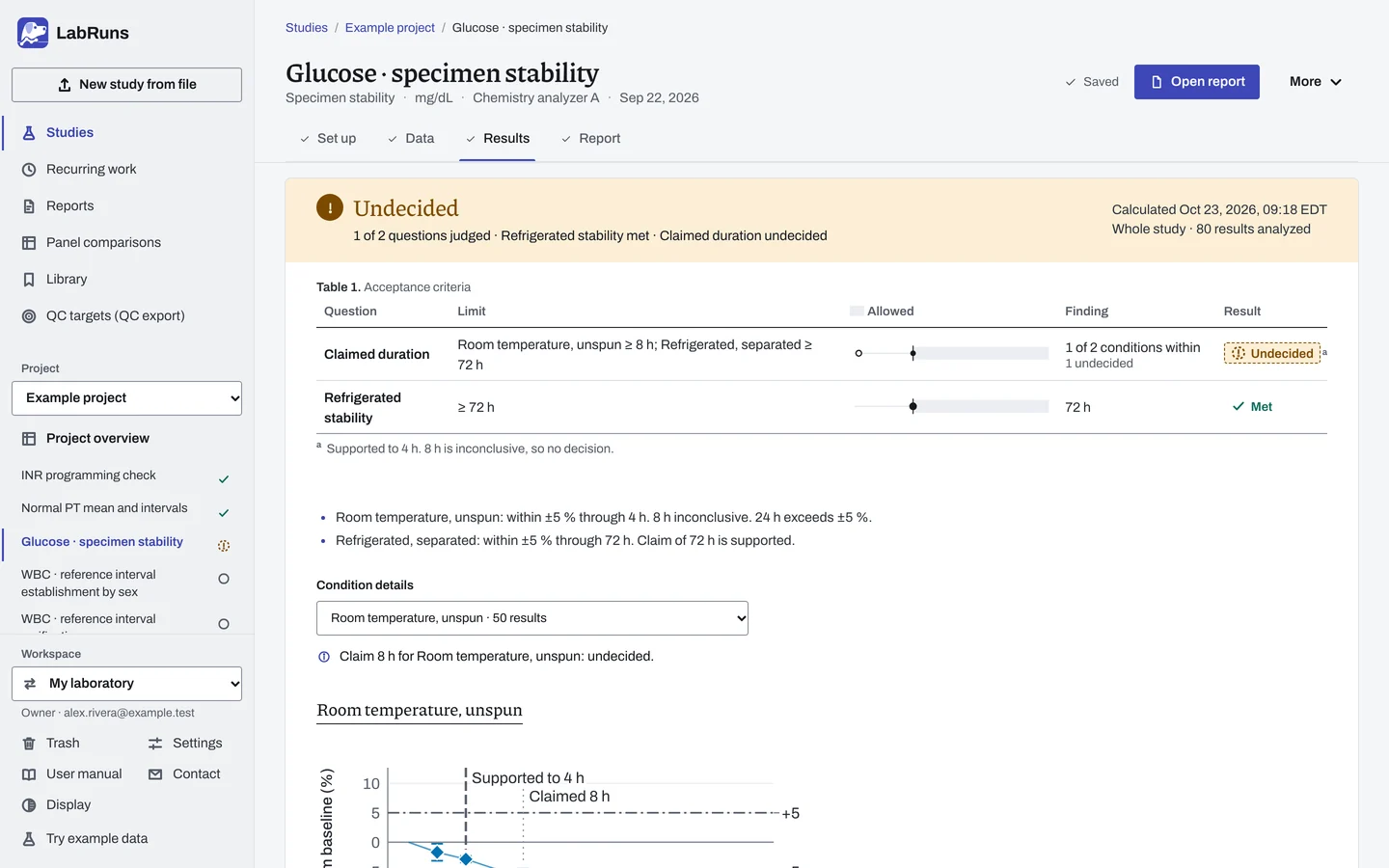
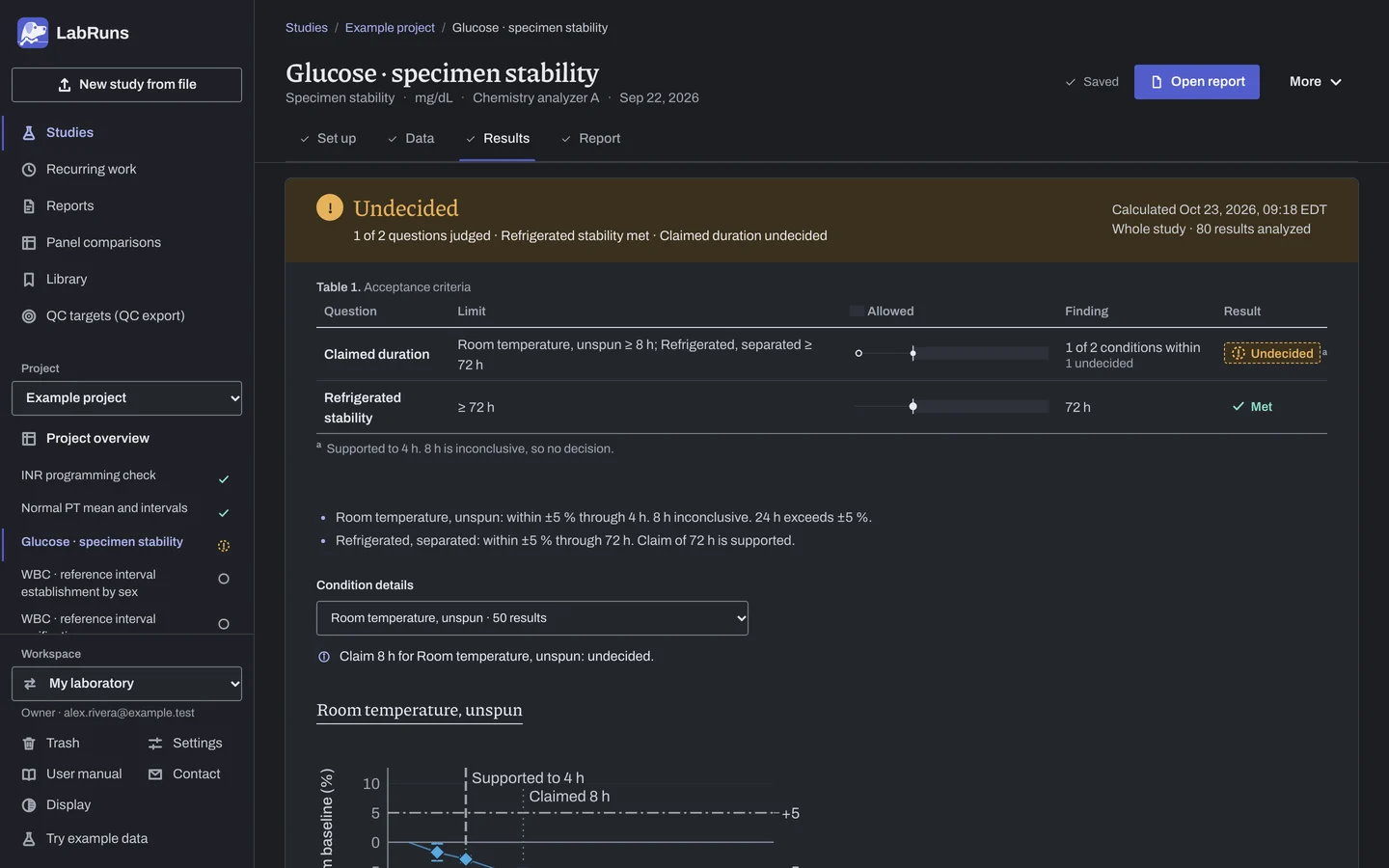
Calculate and check. Save the study, choose Calculate results, then check:
- Changes and intervals under each condition against your limit.
- Supported duration stops before the first time that exceeds the limit, is inconclusive or has no estimate, even if a later time passes.
- Only times you tested are supported.
Figure 3. Results for Glucose · specimen stability. -
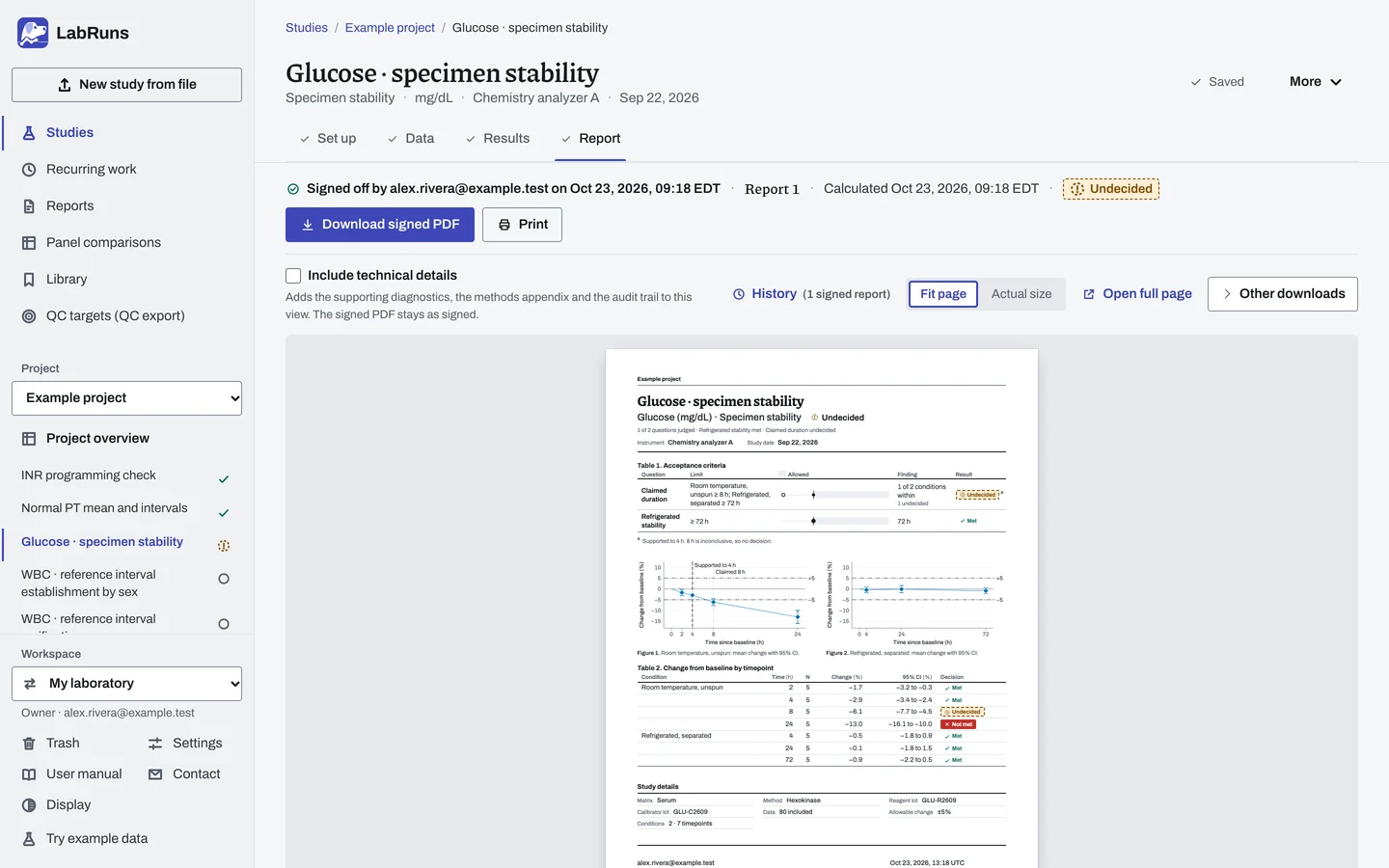
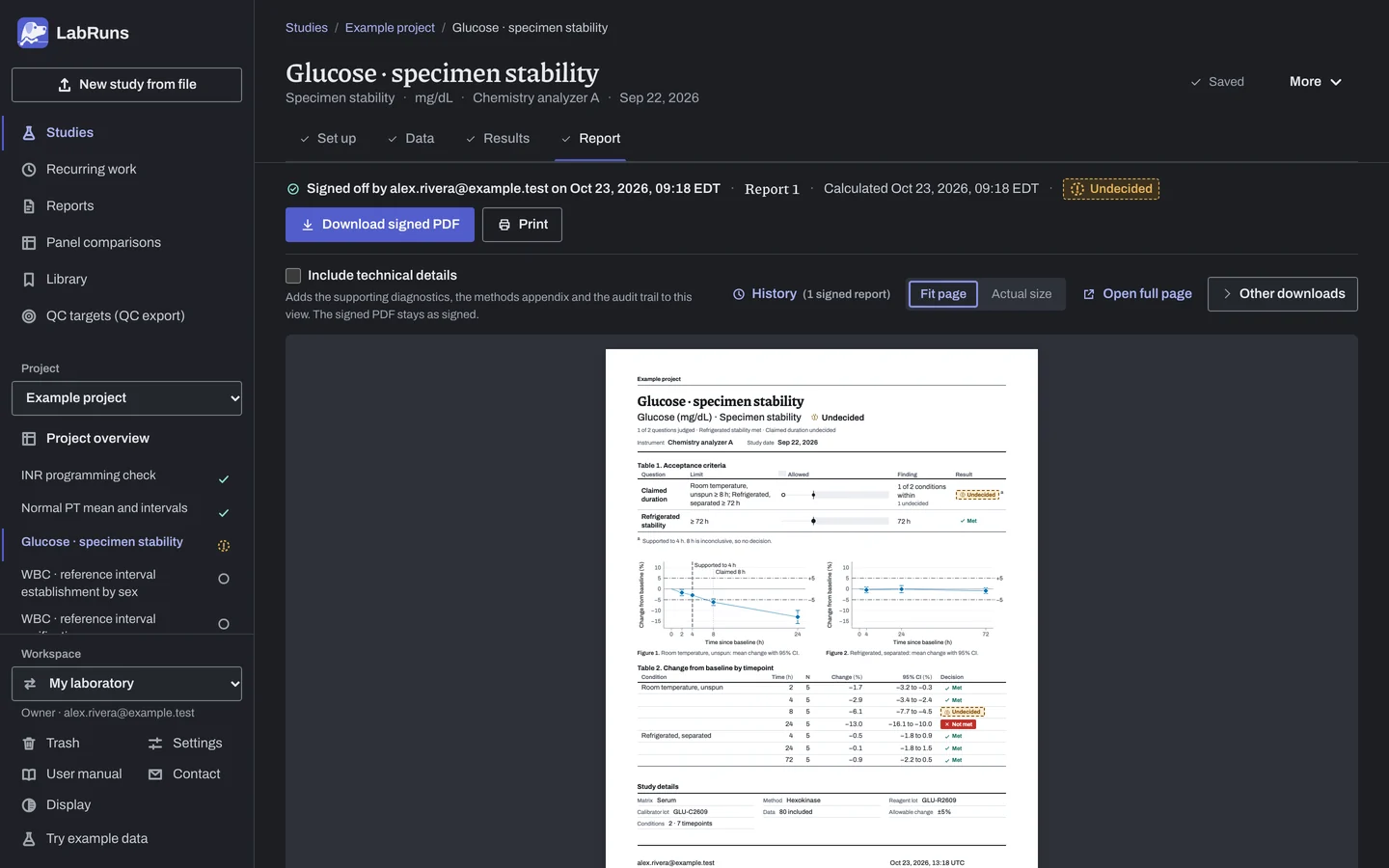
Report your decision. Open Report, look over the result and the study details, then download or print the report. Sign-off is optional.
Figure 4. Report for Glucose · specimen stability.
Set up
Section titled “Set up”- In your project choose New study. Under Study type, select Stability under Sample and material effects.
- Enter a Time unit such as days if it isn't h, and choose What is stored. Optionally enter Largest acceptable change from baseline (%).
- Enter Analyte and Unit. Choose Create study, or Create and import data if you already have results.
- Optionally, on Set up, under Acceptance limits, choose Enter your own limit, then Tested duration within the allowable change, and enter the shortest acceptable duration in the time unit, such as 72. Keep All conditions under Applies to, or choose one condition and add a separate limit for each condition that needs a different duration. Before results are entered, leave Applies to condition blank for all conditions, or type the condition name as it will appear in the results. See Set acceptance limits.
- Under Stability settings, check the Stability type and Time unit.
- Choose Allowable change set as (In the study unit, Percentage change from baseline, Either (the larger allowance) or Both must be met) and enter Allowable change (%) or the amount in the study unit, such as Allowable change (mg/dL). For Either (the larger allowance) or Both must be met, enter both. See Allowable change.
- If baseline isn't time 0, open Baseline time and enter it.
- Under Storage and handling conditions, each condition in your results is listed. Optionally enter a Claimed duration beside a condition to have it checked as part of the study result.
- On Data, choose Import a file or type into the grid, one row per result. For paired data, use the same material ID at baseline and every time; for independent data, give each specimen its own ID. Leave the condition blank on baseline rows to share one baseline across all conditions. See Columns and Importing and mapping.
Add later times
Section titled “Add later times”- Import a file with only the new readings, and leave Replace the current rows unticked.
- For paired data, keep the same material IDs; for independent data, use new IDs for each later condition and time.
- If the dialog says rows are already in this study, choose Import an intentional repeat only if they are new measurements.
When a limit is not met
Section titled “When a limit is not met”- Exceeds at an early time: check the time, result and condition name. If they are right, the material changed. Shorten the claim or retest under tighter conditions.
- Undecided at every time: the intervals cross the limit. Measuring the same materials at every time, with one ID each, usually narrows them, and so do more materials.
- Undecided (no CI) at every time: a time has fewer than 2 materials or specimens. Add a second material or specimen at baseline and at each time.
- Not met: a time up to the required or claimed duration exceeds the limit, or the duration is beyond the longest tested time. Investigate the change, or shorten the claim to the supported duration. When the time where support ends is inconclusive or has no estimate, the duration is Undecided; collect more evidence at that time before extending the claim.
Common mistakes
Section titled “Common mistakes”- Specimen stability and reagent, calibrator or control stability in one study. Keep them in separate studies.
- A later time with no condition. Enter the condition on every non-baseline row.
- A time before baseline. Enter elapsed times on the same clock as the Baseline time.
- A replicate label used twice for one material, condition and time. Give each repeat a different label.
- Only baseline rows, with no storage condition in the data. Enter the later results with their conditions.
- A material without a baseline in a paired design. It is left out of the change. Measure each material at baseline.
- A limit for a condition name that matches no condition in the data. It is not evaluated, and the study can't reach Criteria met. Choose the condition as it appears in the results.
- A censored result such as
<0.01or>1000. Enter the exact reading from the original record if available; otherwise exclude the row with a reason. See Handle missing and censored values.