


Dilution verification
Run this study
Section titled “Run this study”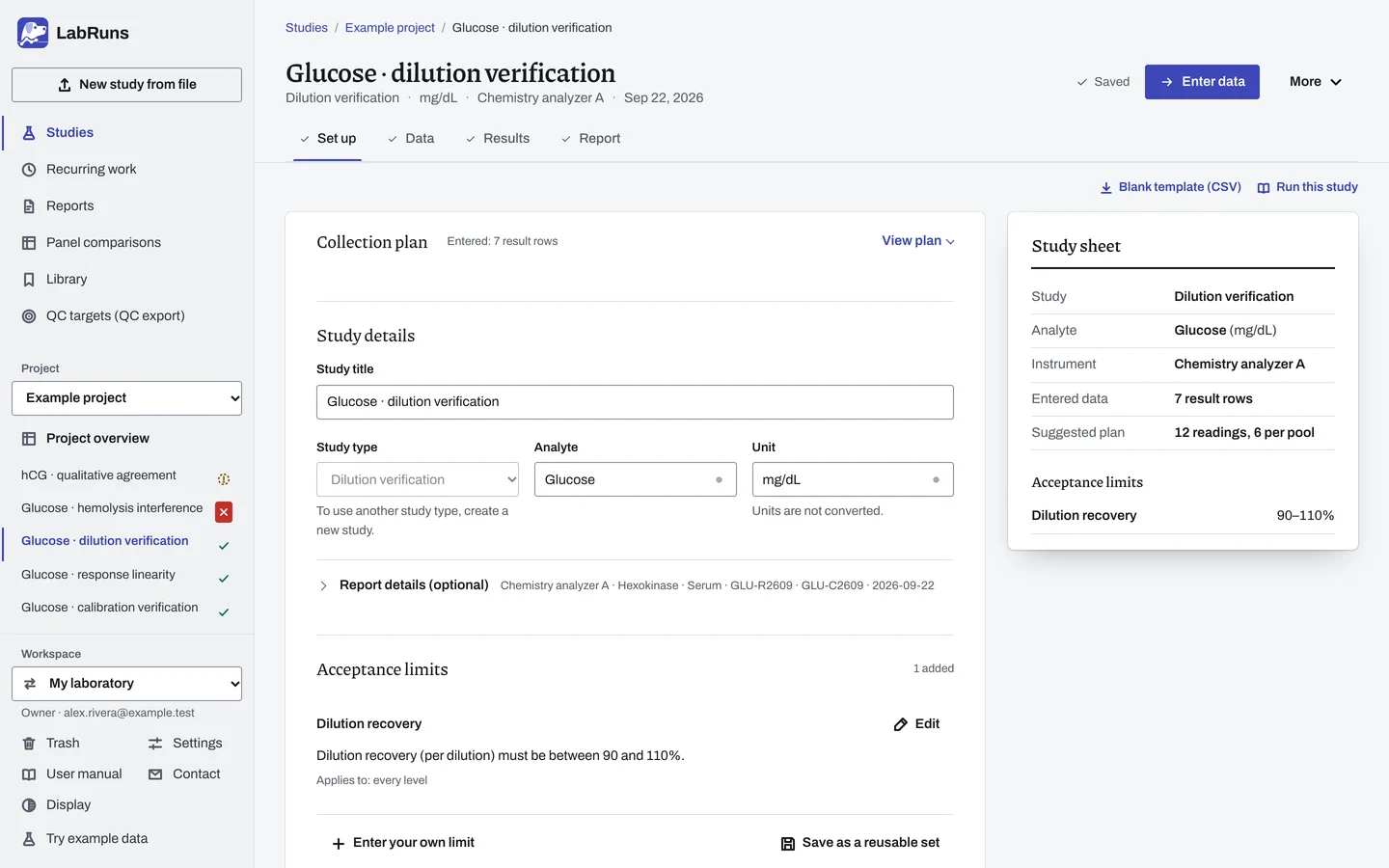
- Your question
-
Do diluted high samples recover their expected concentration after correction?
- Prepare
-
High specimens or pools, each with a documented expected undiluted concentration from an independent source. The assay's validated measuring limits. The intended diluent and dilution factors.
- Suggested starting plan
-
- 2 high pools × 3 intended factors × 2 separately prepared dilutions. 12 readings, 6 per pool.
Choose pools across the high concentrations you intend to report, and factors that bring each reading inside the validated measuring interval. Checking an extended interval follows CLSI's public dilution guidance.
- Calculation minimum
-
Deciding criteria needs two recoveries per level.
-
Decide before collecting. Create the study and fill these in on Set up:
- The acceptable recovery band (%).
- The expected neat value for each specimen or level, under Assigned values below.
- The reportable range before dilution.
- The dilution procedure, with actual volumes or a decimal factor and every step of a serial dilution.
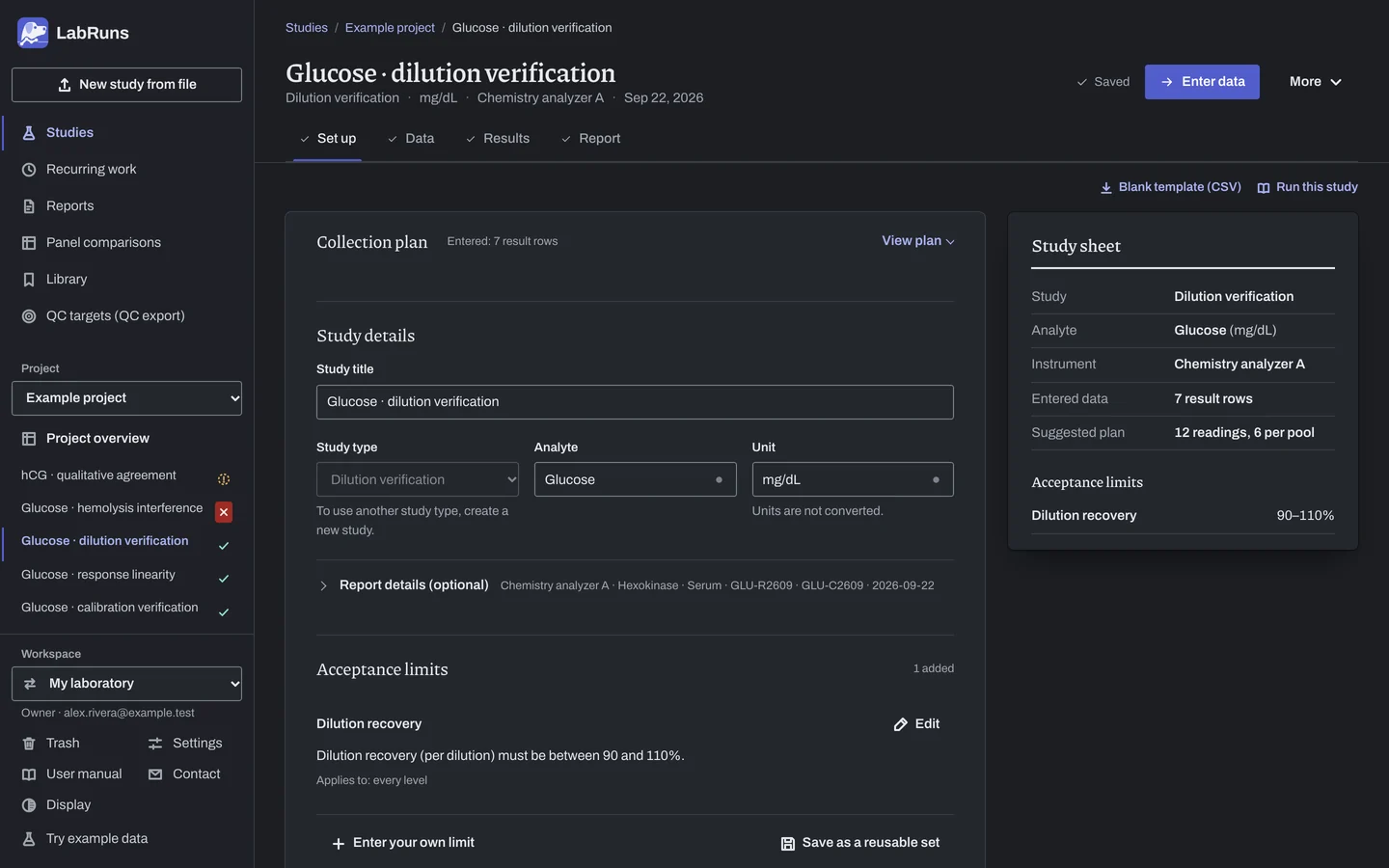
Figure 1. Set up for Glucose · dilution verification. -
Collect and record. Collect the results as planned above and label each one with the specimen or material, level, day, run and replicate your design tracks.
-
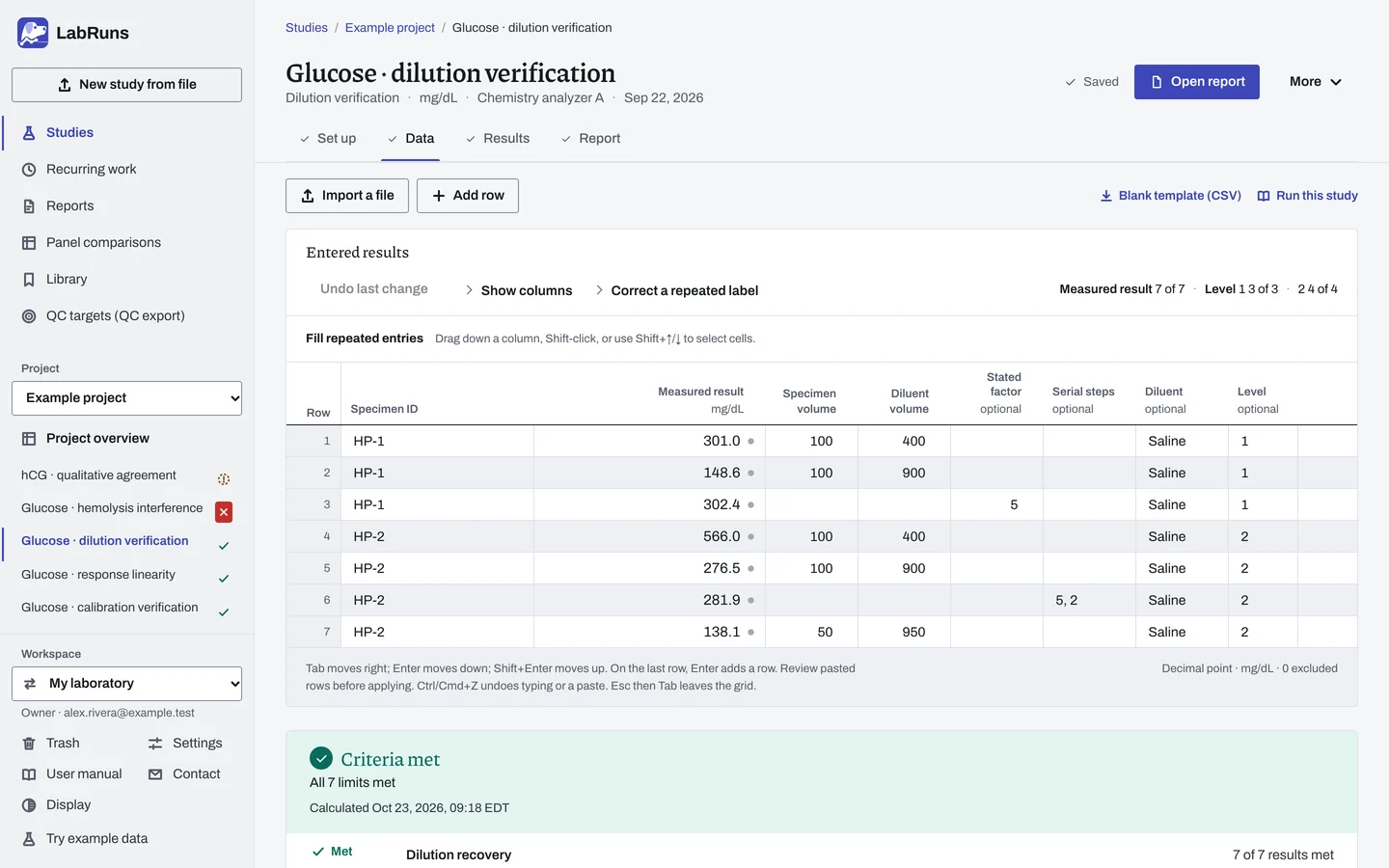
Enter your results. Enter the specimen ID, the measured reading and the two volumes (or a stated factor) on each row. A blank level uses the specimen ID. Enter readings before multiplying by the factor. For a ready-made file, use Blank template (CSV) on Data, or download the example file.
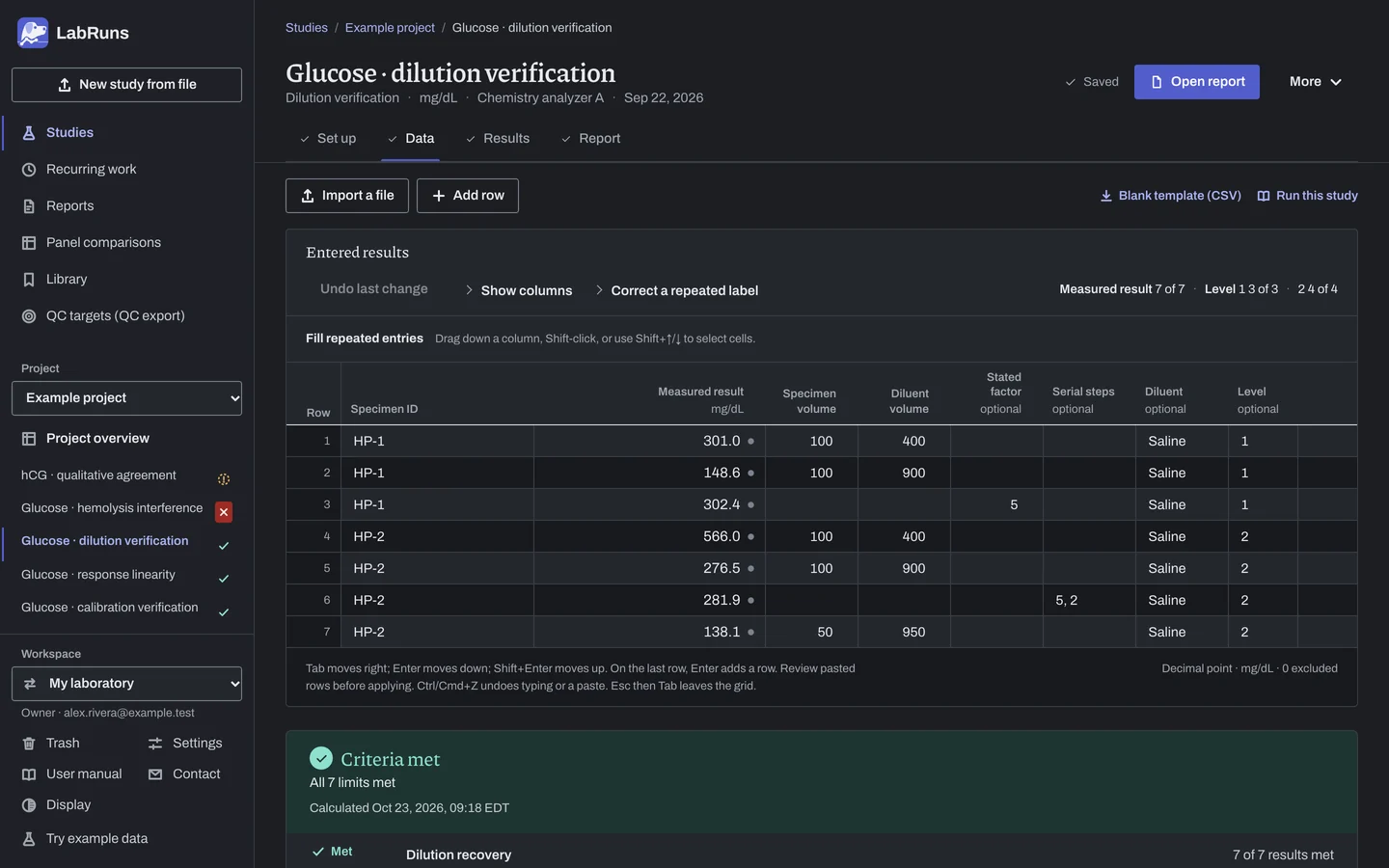
Figure 2. Data for Glucose · dilution verification. -
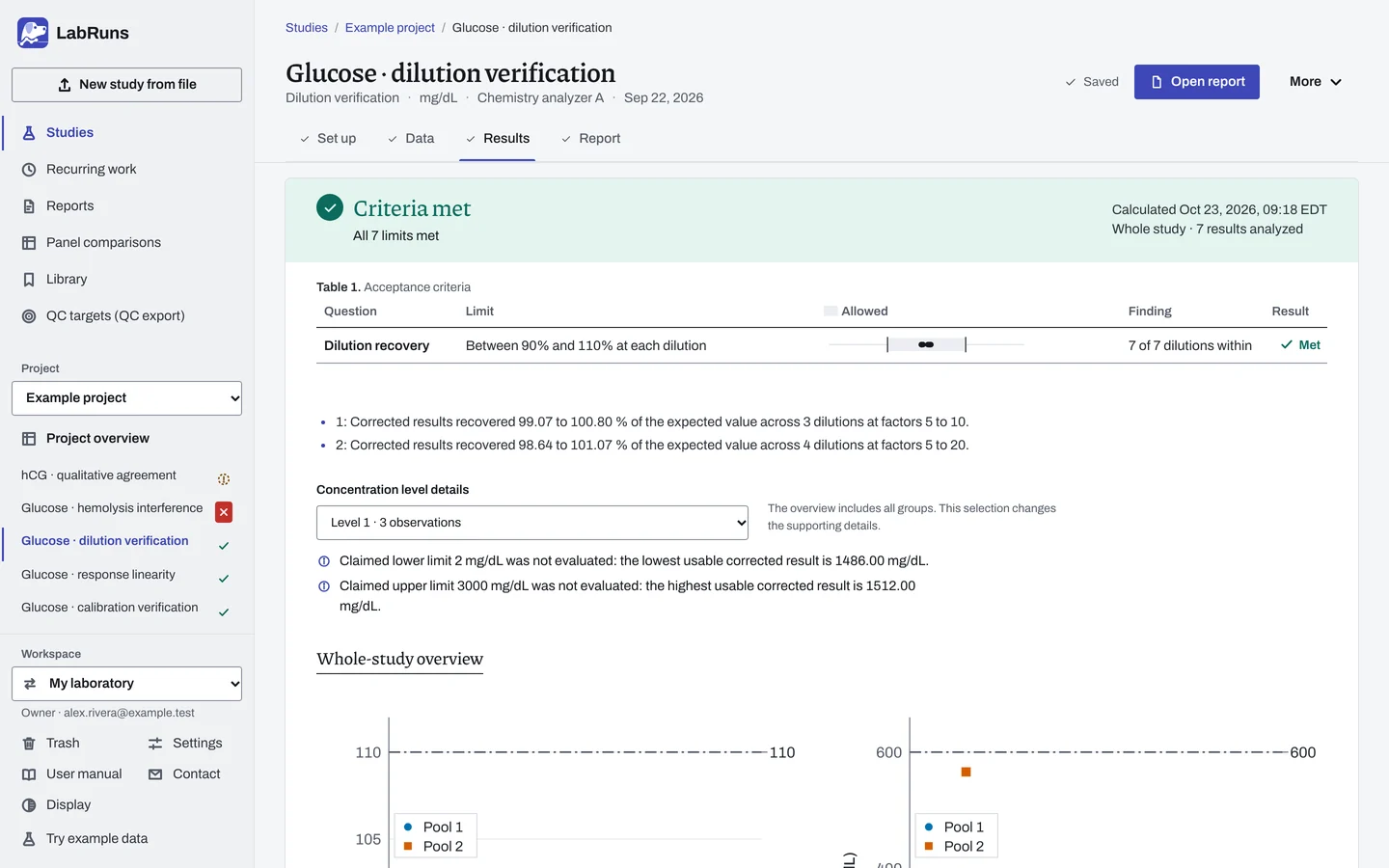
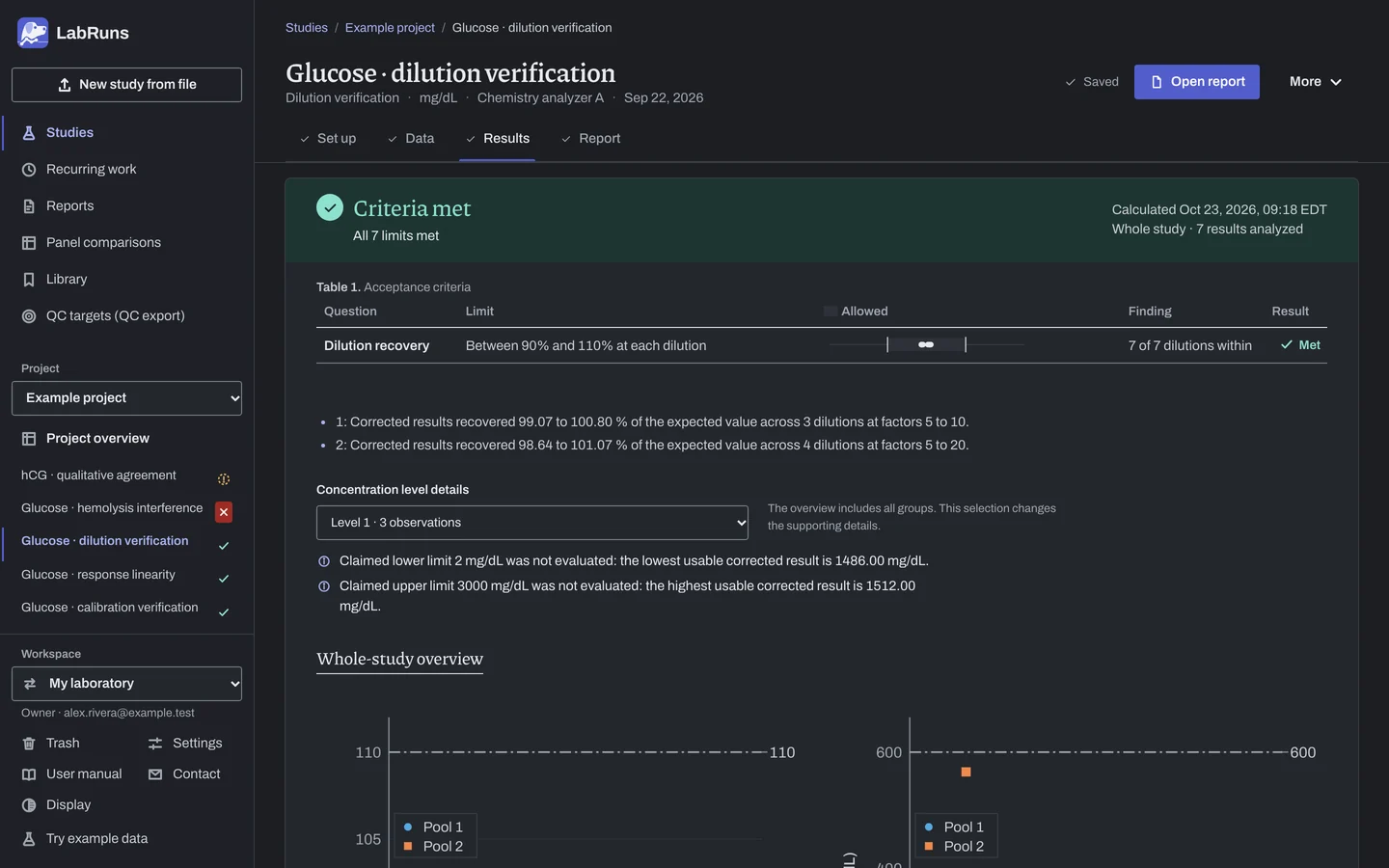
Calculate and check. Save the study, choose Calculate results, then check:
- Each corrected value, recovery and interval status.
- Investigate failing recoveries and readings outside the measuring interval.
- A pass covers only the concentrations you tested.
Figure 3. Results for Glucose · dilution verification. -
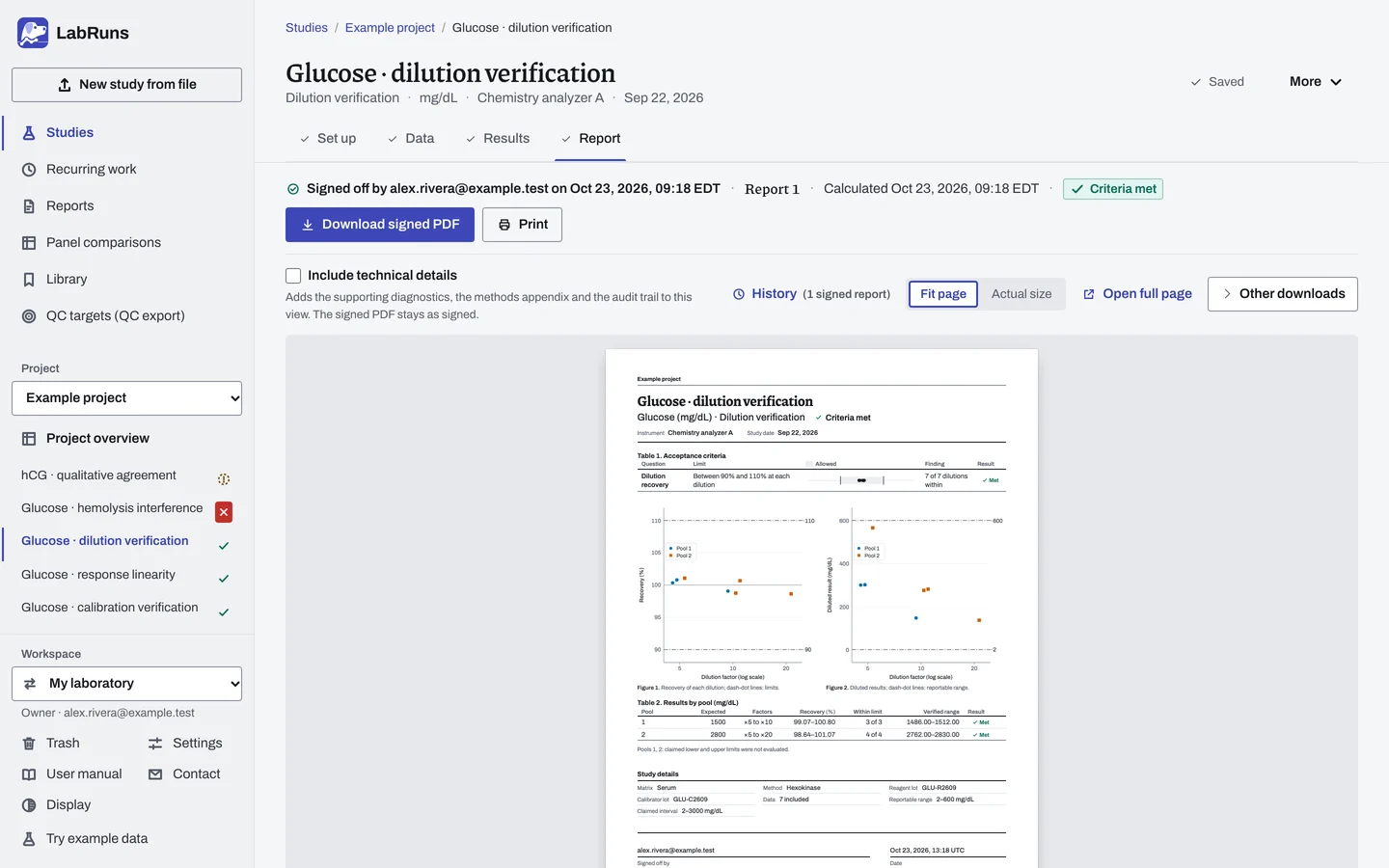
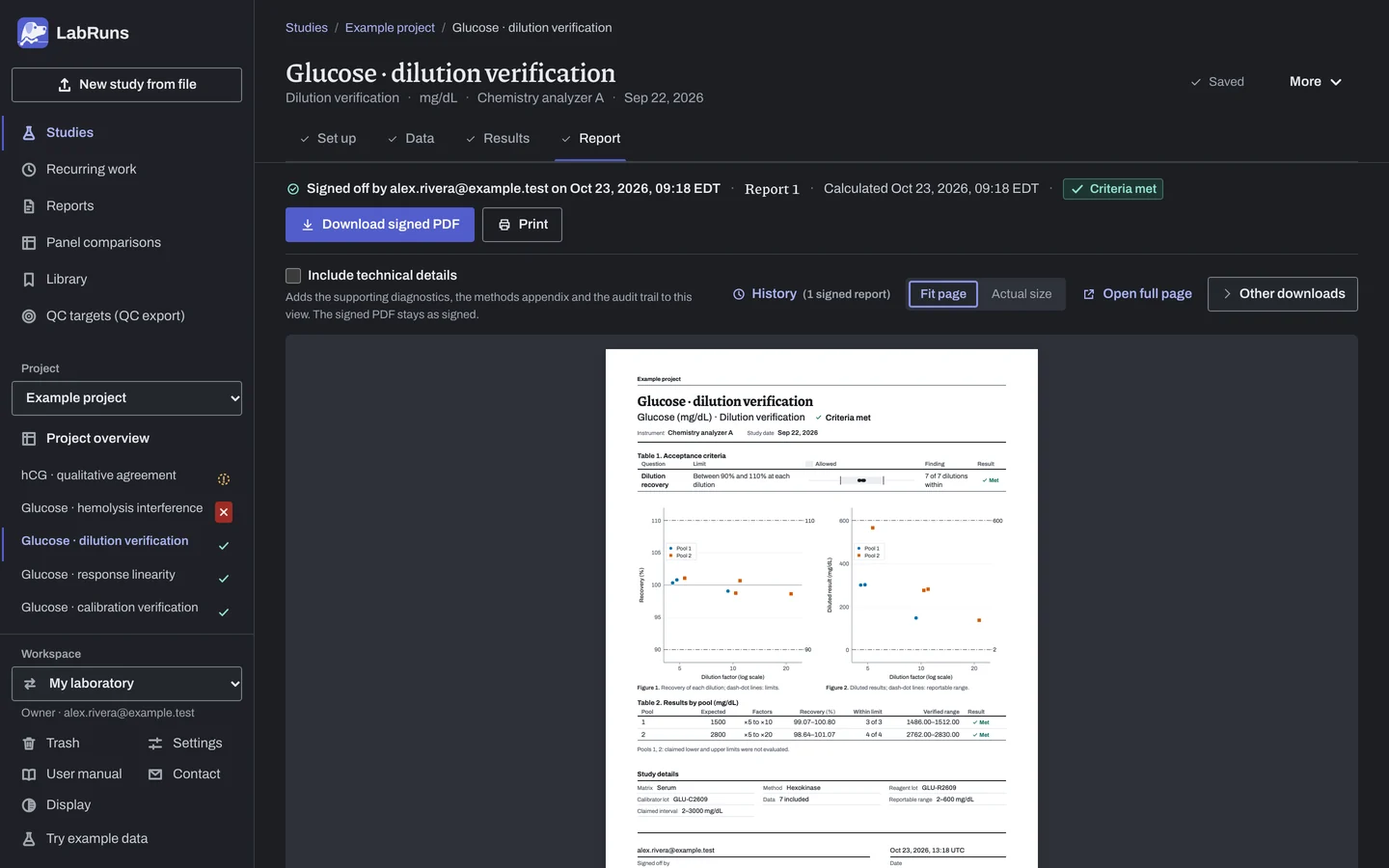
Report your decision. Open Report, look over the result and the study details, then download or print the report. Sign-off is optional.
Figure 4. Report for Glucose · dilution verification.
Set up
Section titled “Set up”- Choose New study, select Dilution verification under Measuring range, enter Lowest reportable value before dilution, Highest reportable value before dilution and Expected value of the undiluted sample, then Analyte and Unit, and choose Create study, or Create and import data if you already have results.
- On Set up, under Acceptance limits, choose Enter your own limit, then Dilution recovery, and enter Lowest acceptable recovery (%) and Highest acceptable recovery (%). Leave one empty for a one-sided limit. To limit it to one level, choose that level under Applies to. See Set acceptance limits.
- Under Assigned values, enter the expected neat concentration of each high specimen or pool in Assigned value, beside its Level. Each pool is one level. The expected value from New study is level 1. A row appears for each level in your results, and Add assigned value adds one. Rows without a level are grouped by Specimen ID: enter the expected value beside each specimen ID, and Remove level 1 if no row uses it.
- Under Reportable range, check Lower reportable range limit and Upper reportable range limit. To see how much of a claimed range was verified, enter both Claimed lower limit and Claimed upper limit.
- On Data, choose Import a file or Add row, and enter one row per dilution: the Specimen ID or Level, the Measured result before correction, and the dilution as Specimen volume and Diluent volume, a Stated factor or Serial steps. See Columns and Import a file.
When a limit is not met
Section titled “When a limit is not met”- Recheck data entry. Enter the measured reading, before correction. Check that the volumes, factor or steps match what you pipetted, and check the decimal convention.
- Check the expected value. If every dilution at one level is off in the same direction, recheck that level's expected neat value.
- Retest. Repeat any dilution that read outside the reportable range at a factor that brings it inside.
Common mistakes
Section titled “Common mistakes”- Ratio notation such as
1:5. It is ambiguous: it can mean factor 5 or factor 6. Enter volumes or a decimal factor, for example5for a 1-in-5 dilution. - A row with no volumes, stated factor or serial steps, or only one of the two volumes. Give both volumes, a stated factor or the serial steps.
- Two ways of giving the factor that disagree. Correct one so they agree, or keep only one.
- A factor below 1. Enter the overall dilution factor;
1means undiluted. - A row with neither a specimen ID nor a level. Give it one.
- A level with no assigned value. Enter its expected neat concentration under Assigned values.
- A missing reportable range, or a lower limit at or above the upper. Correct the Reportable range on Set up.
- Only one claimed limit. Enter both or neither.
- A censored result such as
>600. Enter the exact reading from the original record if available; otherwise exclude it with a reason. See Correct or exclude a result.