


Descriptive summary
Run this study
Section titled “Run this study”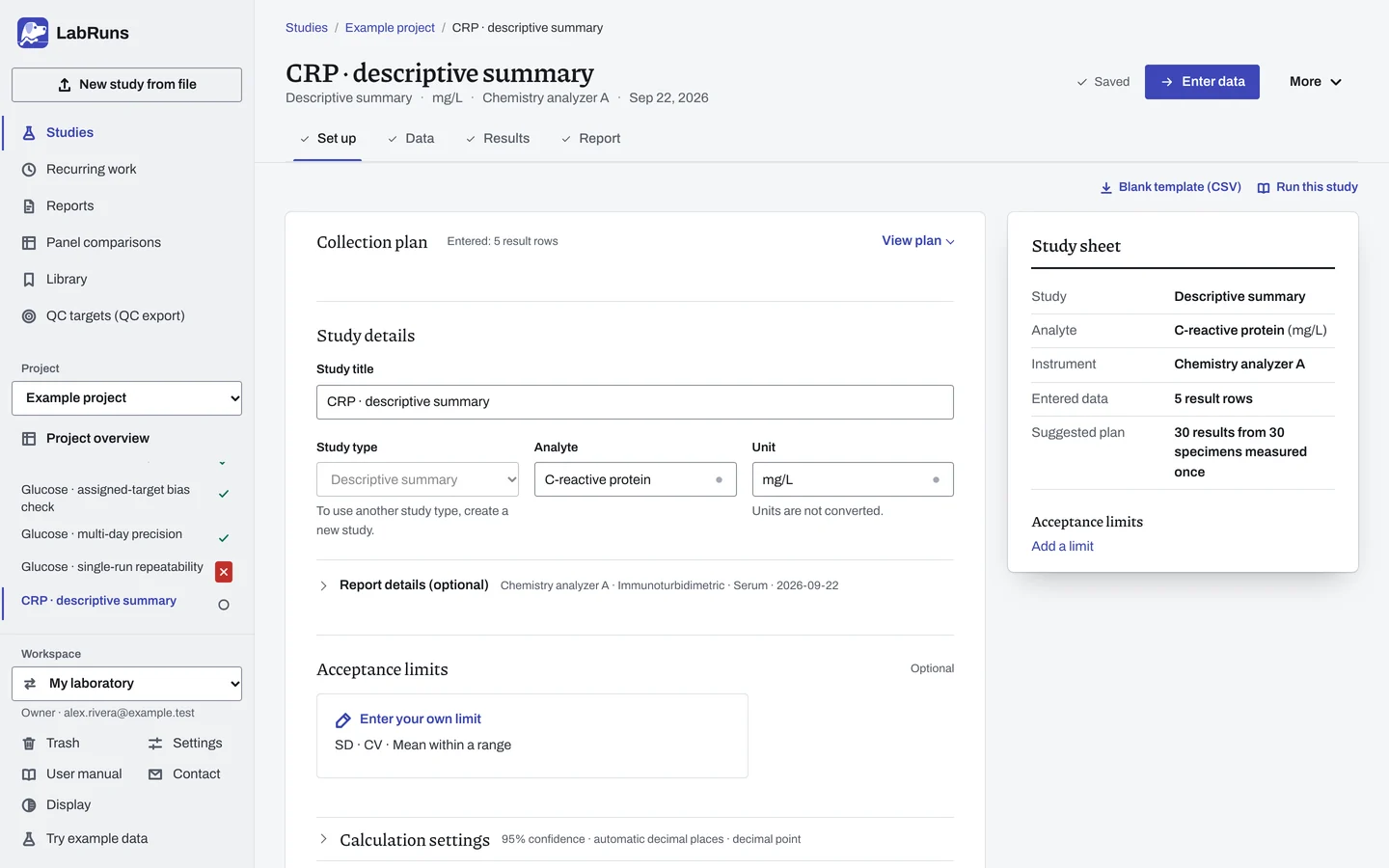
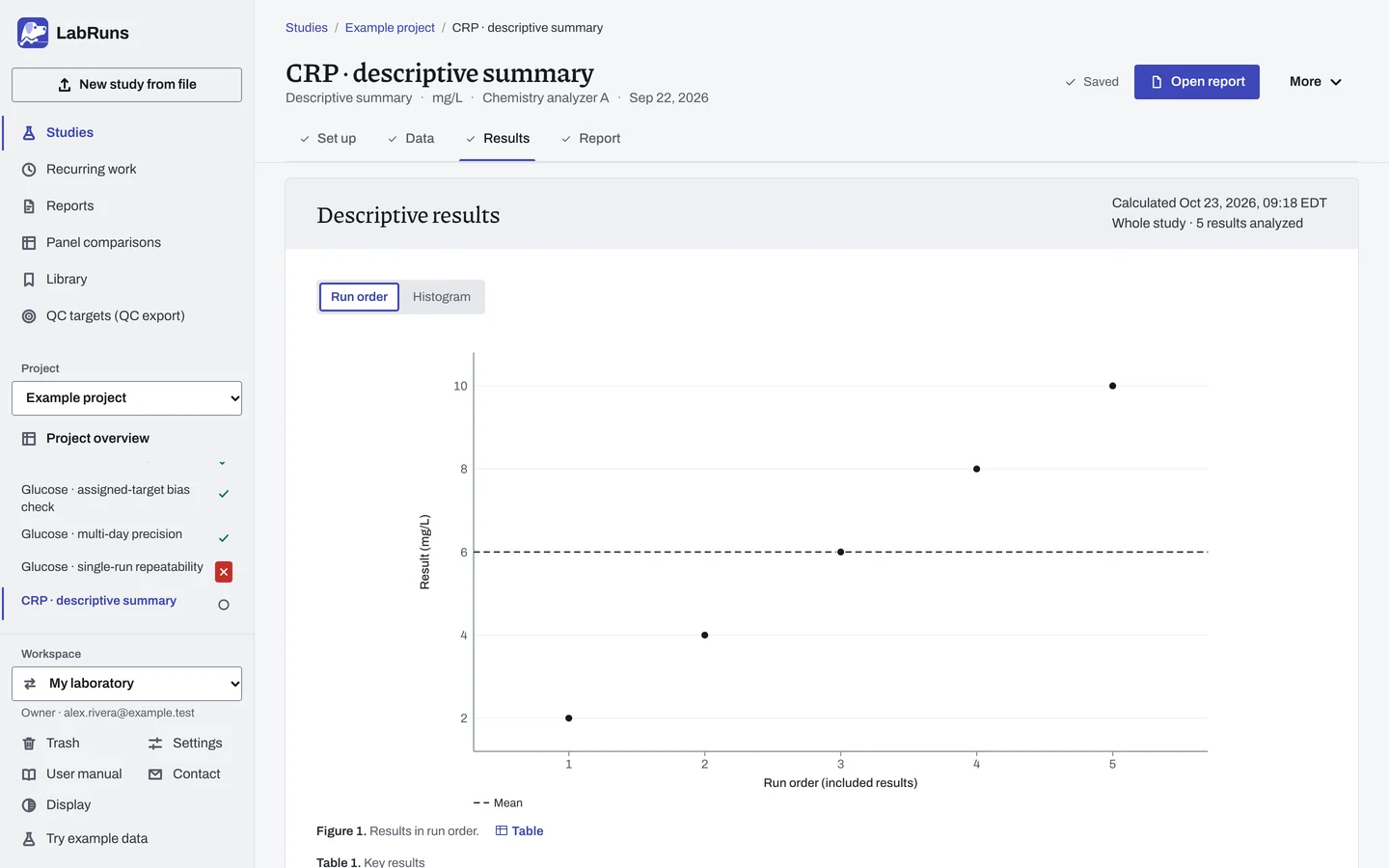
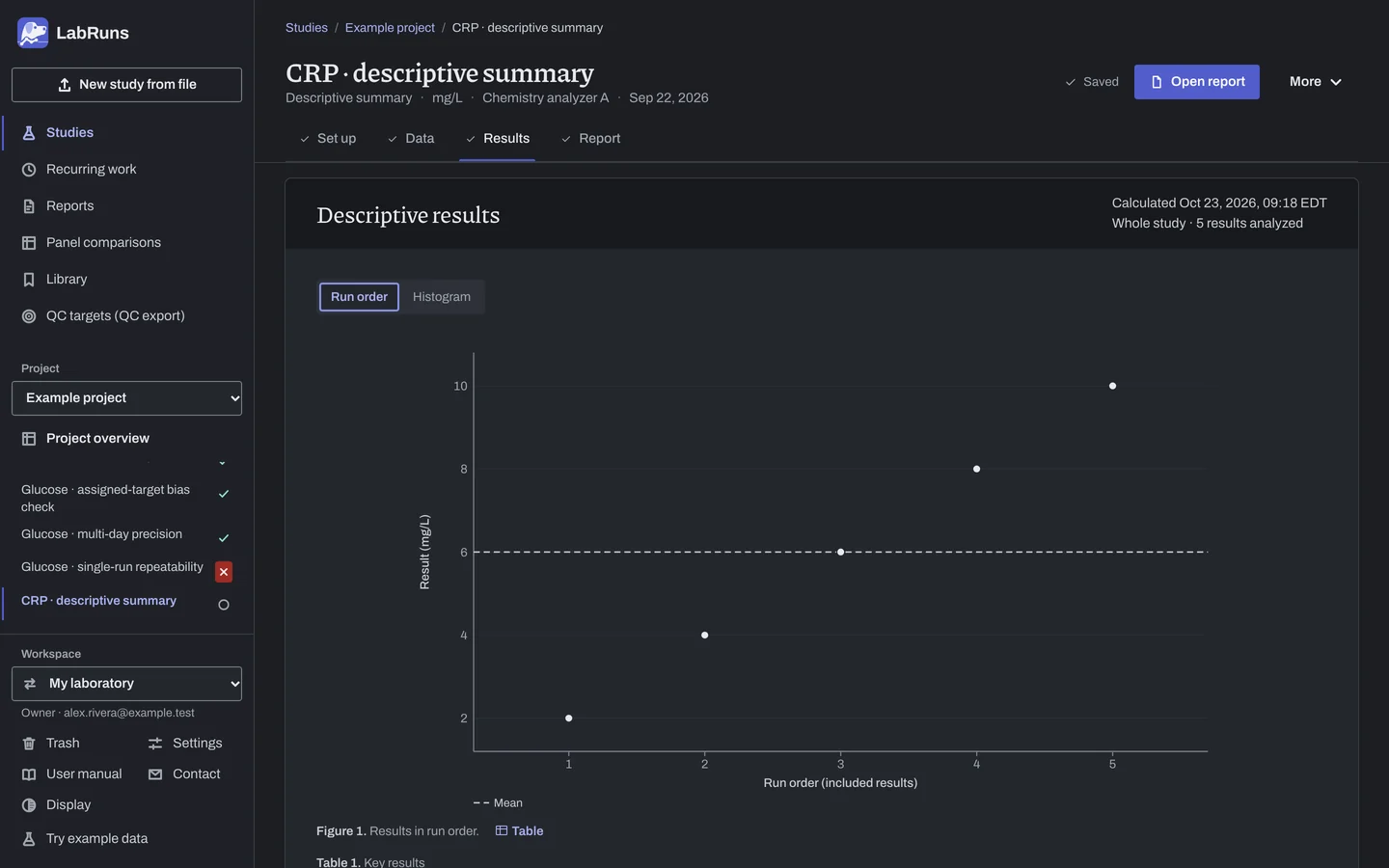
- Your question
-
What are the mean, median and spread of these results?
- Prepare
-
The numeric results you want to describe, one per row. The analyte and its unit.
- Suggested starting plan
-
- Every result you want described. 30 results from 30 specimens measured once.
Keep unlike populations in separate levels.
- Calculation minimum
-
One result gives a summary. SD needs 2 results, and an acceptance criterion needs 2 different specimen IDs.
-
Decide before collecting. Create the study and fill these in on Set up:
- Which results belong in the summary.
- Any mean, median, SD or CV limit. Leave criteria empty if you only need a description.
Figure 1. Set up for CRP · descriptive summary. -
Collect and record. Collect the results as planned above and label each one with the specimen or material, level, day, run and replicate your design tracks.
-
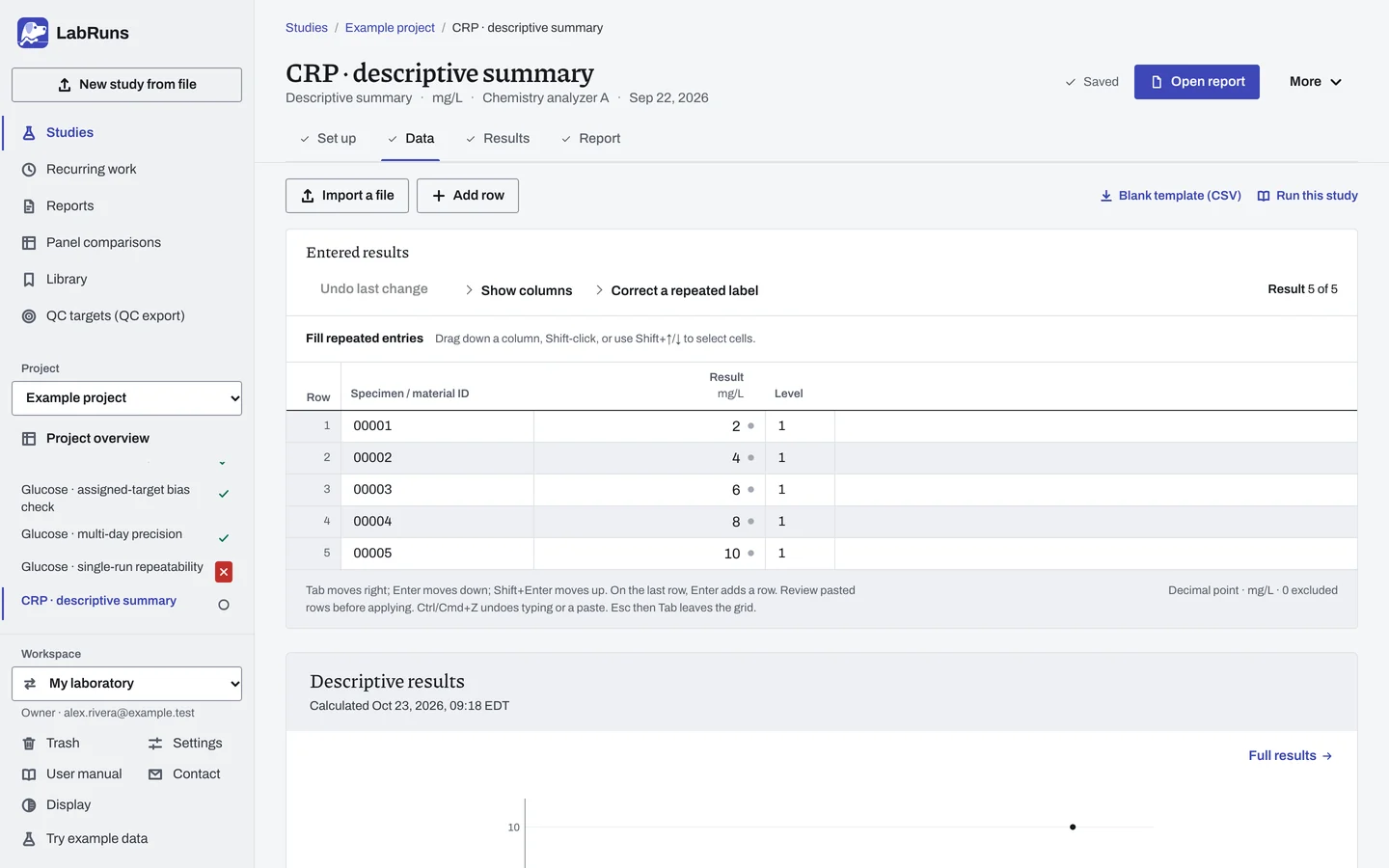
Enter your results. Enter each result and, where needed, its level. Type a specimen ID only where one specimen is measured more than once; results without one are numbered S1, S2… when you save. For a ready-made file, use Blank template (CSV) on Data, or download the example file.
Figure 2. Data for CRP · descriptive summary. -
Calculate and check. Save the study, choose Calculate results, then check:
- Units, decimal convention and the included count.
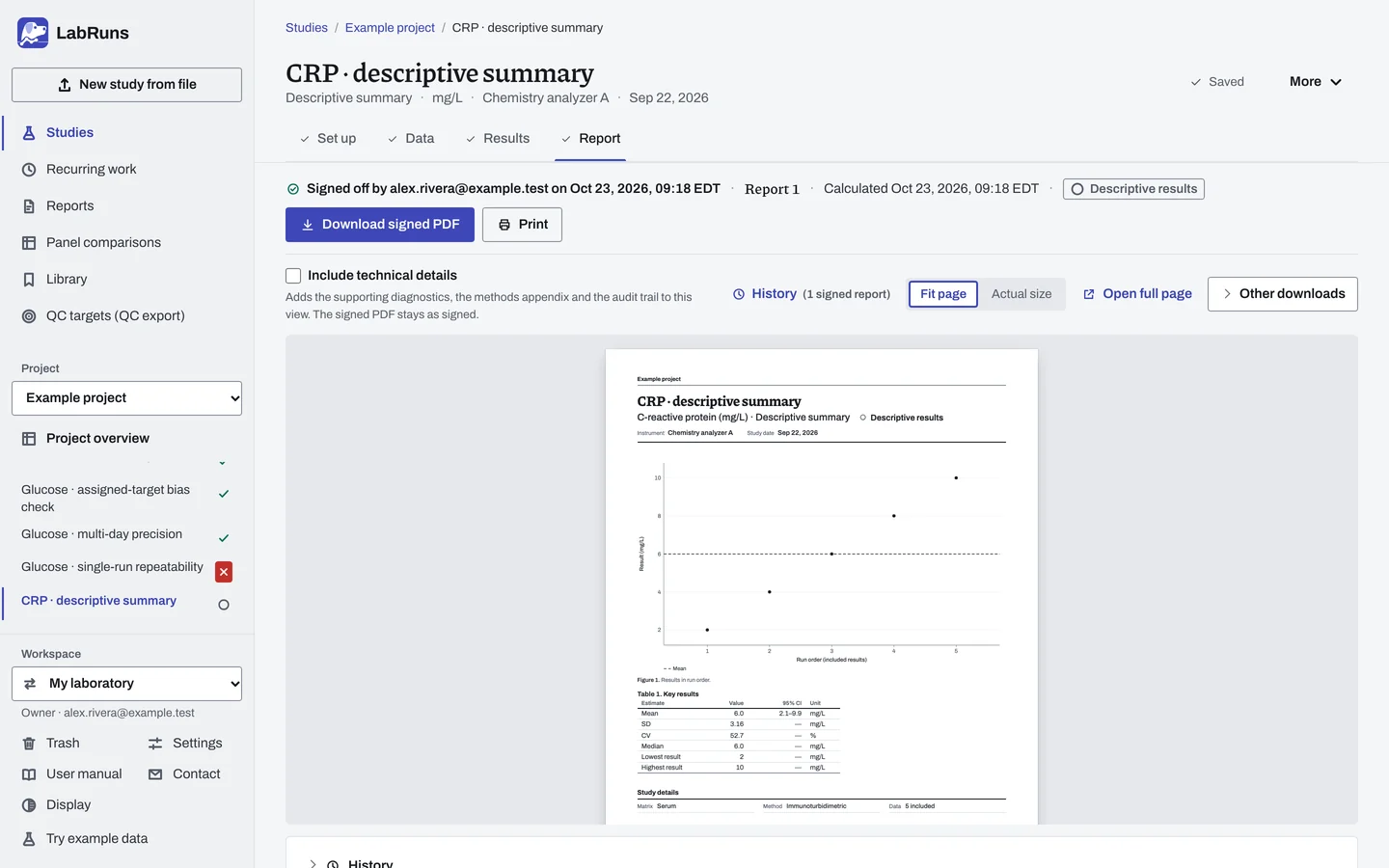
- Mean and median alongside SD, range and the plots; for positive ratio-scale results, geometric mean and multiplicative spread.
- Investigate unusual values; give a reason for any exclusion.
- Use the confidence interval of the mean only when the results are independent.
Figure 3. Results for CRP · descriptive summary. -
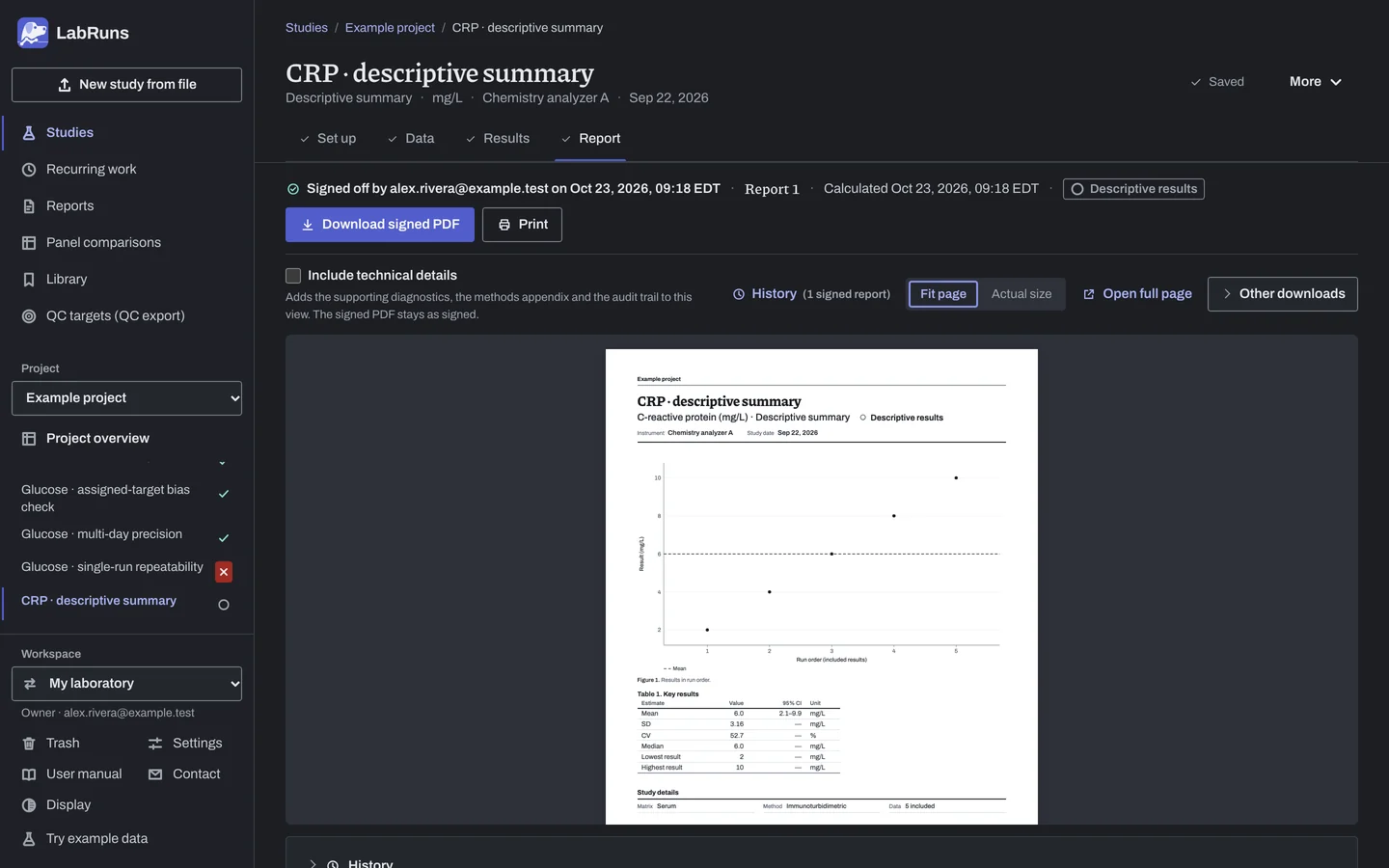
Report your decision. Open Report, look over the result and the study details, then download or print the report. Sign-off is optional.
Figure 4. Report for CRP · descriptive summary.
Set up
Section titled “Set up”- Choose New study, select Descriptive summary under Summaries, enter Analyte and Unit, and choose Create study, or Create and import data if you already have the results.
- To decide against a limit, choose Enter your own limit under Acceptance limits on Set up. See Acceptance limits.
- On Data, choose Import a file or Add row, or, on an empty grid, set Specimens under Lay out the grid, choose Create entry rows and type the results. Blank template (CSV) downloads the columns this study needs. See Import a file and Columns.
- Correct a censored value such as
<5to its exact value if you have one, or exclude the row with a reason. See Handle missing and censored values. - Choose Calculate results. See Calculate results.
When a limit is not met
Section titled “When a limit is not met”- Recheck data entry for a misplaced decimal, a wrongly imported column or the wrong decimal separator. Check whether specimen IDs repeat and whether the scale is set correctly.
- If the spread is real, that is the finding. Check the Run order plot on Results for drift or an odd result.
Common mistakes
Section titled “Common mistakes”- CI reads "Not estimated": the notes give the reason, such as repeated IDs, one result or identical values.
- One ID on every row: replicate measurements of one material belong in Repeatability.
- CV not estimated: check Measurement scale under Calculation settings, and look for negative results.
- Calculation stops: correct or exclude each marked row (see Validation messages), fill in the analyte and unit, and include at least one row.