


Reference interval verification
Run this study
Section titled “Run this study”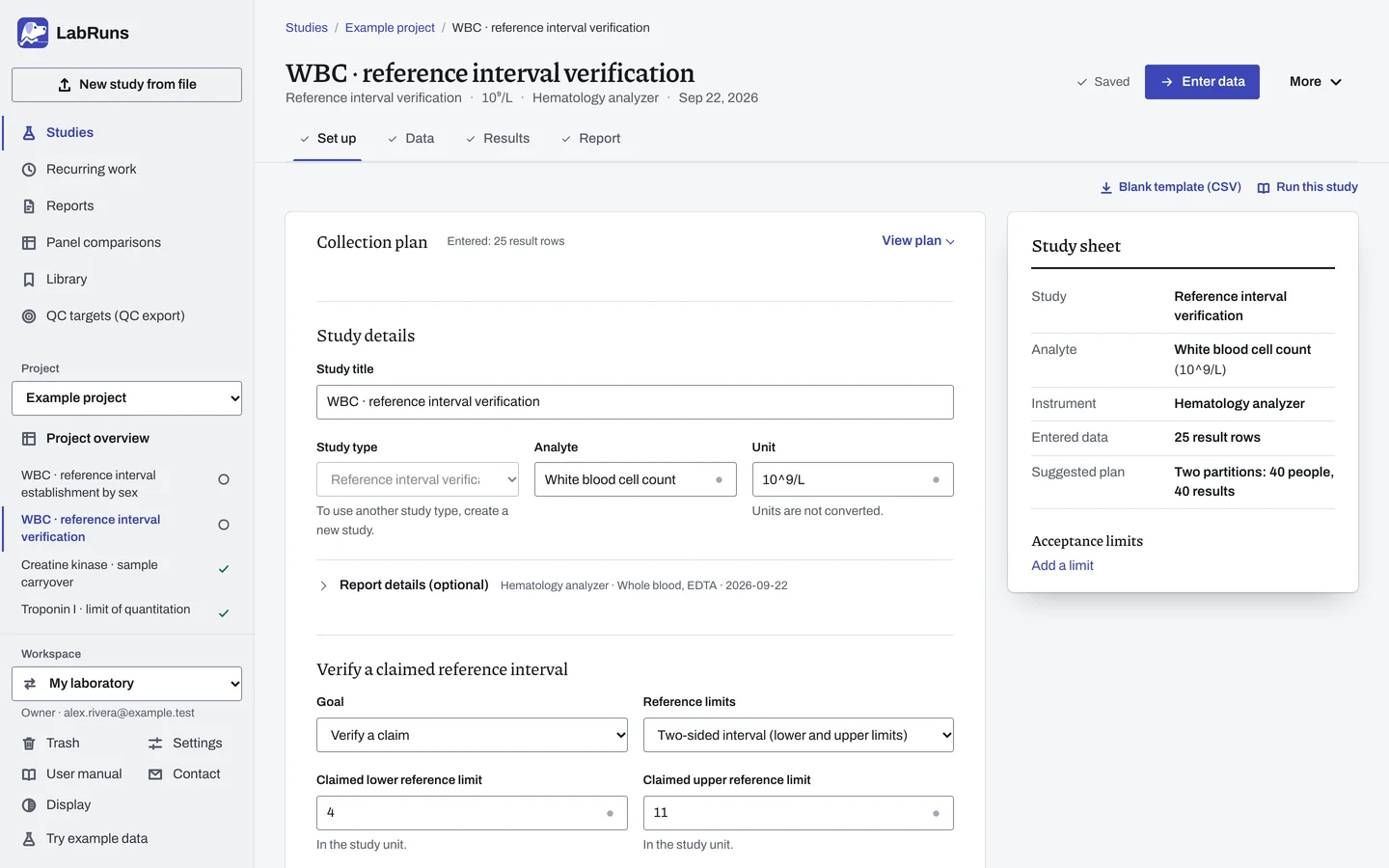
- Your question
-
Does an existing reference interval fit eligible healthy people from the population you serve?
- Prepare
-
The claimed limits and their unit. Who is eligible, and the preparation, collection and handling conditions. Healthy subjects, each with one coded ID and one partition.
- Suggested starting plan
-
- 20 different eligible subjects per partition, 1 result each. Two partitions: 40 people, 40 results.
A suggested rule accepts with at most 2 of 20 outside and rejects with 3 or more. Record your laboratory’s rule under Set up. Each person counts once. The 2-of-20 criterion follows CLSI EP28-A3c (2010) §11.2, validation using small numbers of reference individuals.
- Calculation minimum
-
One subject gives a result, and a criterion needs 2.
-
Decide before collecting. Create the study and fill these in on Set up:
- The claimed limits (two-sided or one-sided).
- Who is eligible, and any separate partitions.
- The required count and the acceptance/rejection rule.
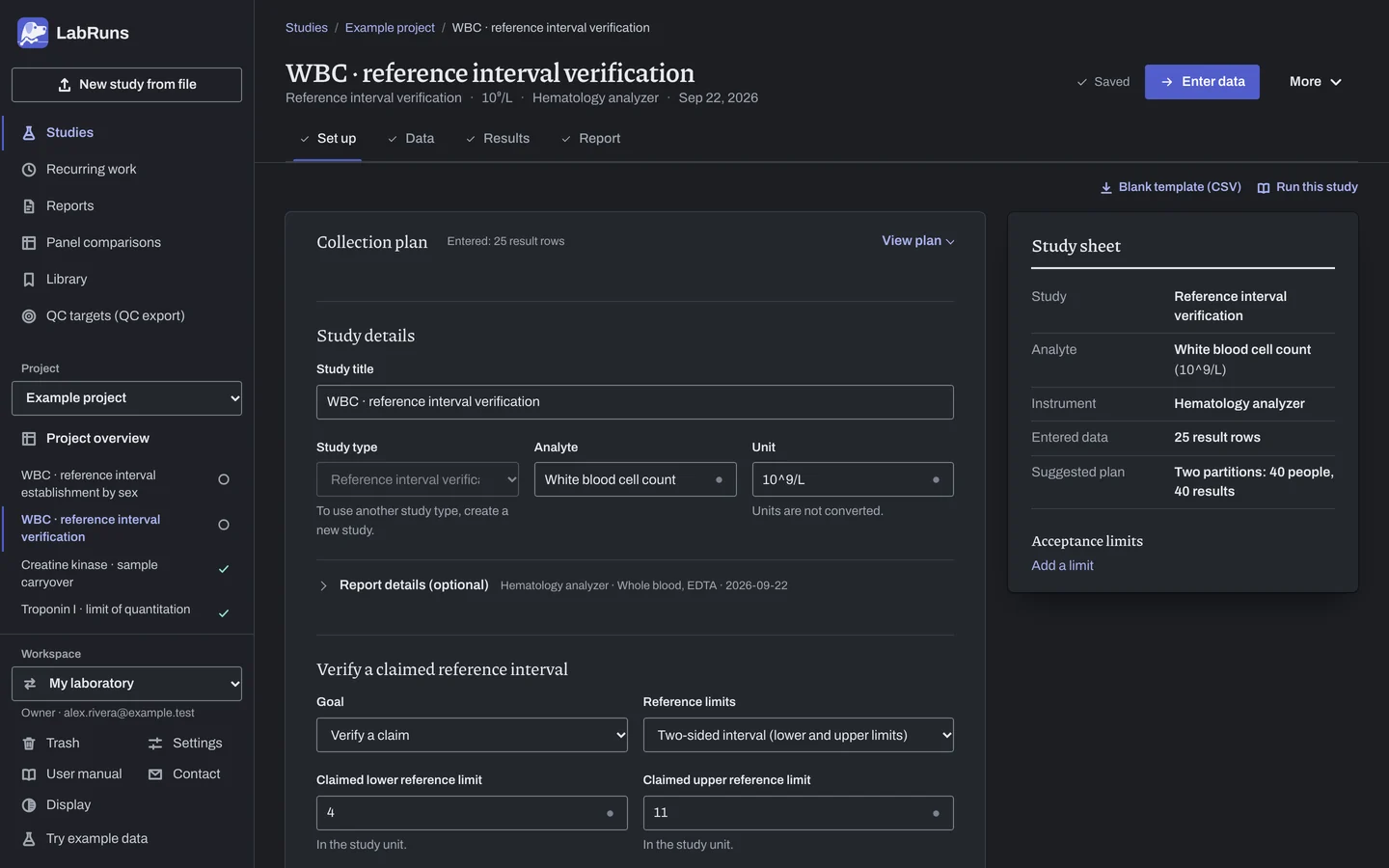
Figure 1. Set up for WBC · reference interval verification. -
Collect and record. Collect the results as planned above and label each one with the specimen or material, level, day, run and replicate your design tracks.
-
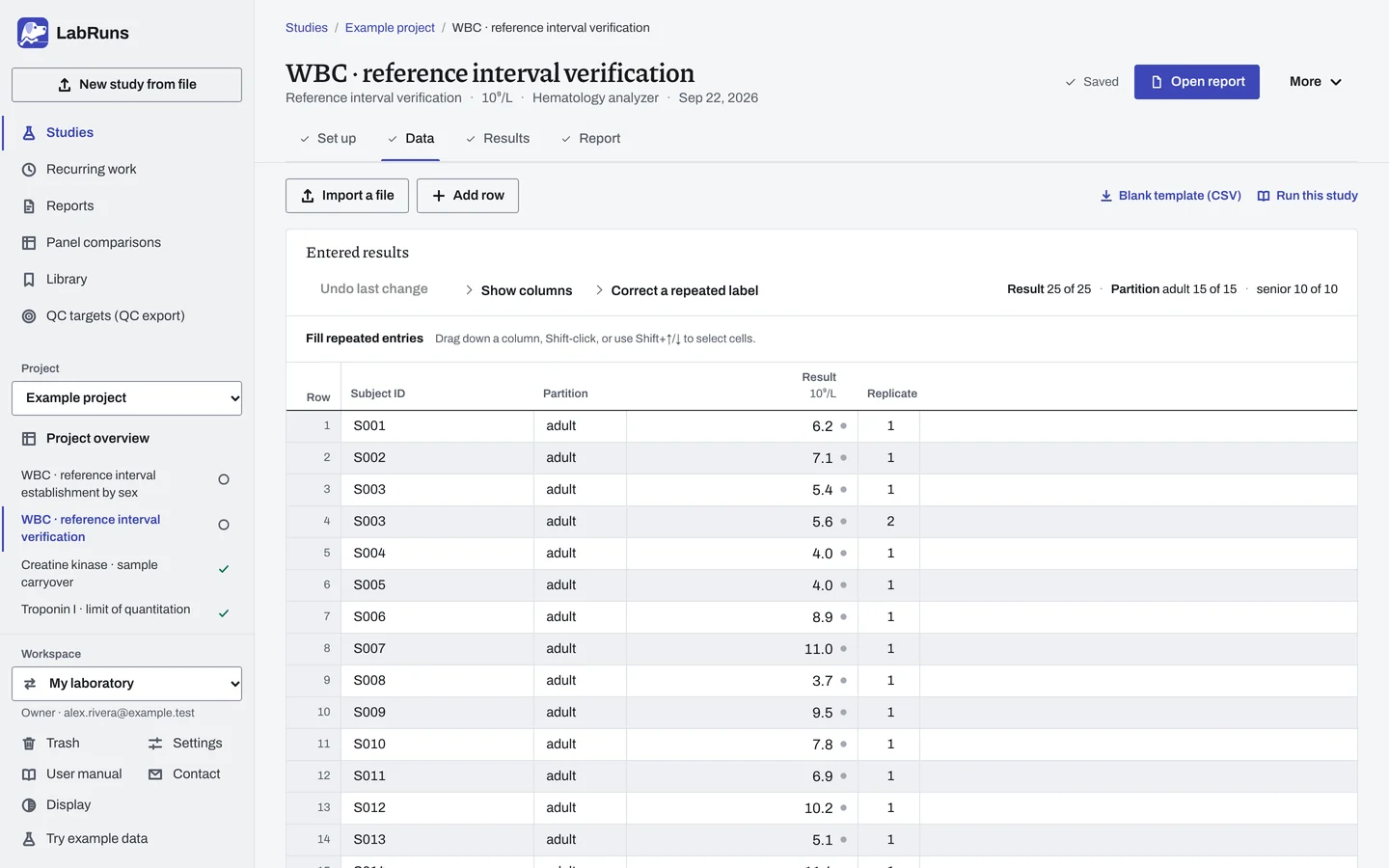
Enter your results. Enter one result per subject: subject ID, partition and result. Check repeat IDs. Exclude an ineligible subject with a reason. For a ready-made file, use Blank template (CSV) on Data, or download the example file.
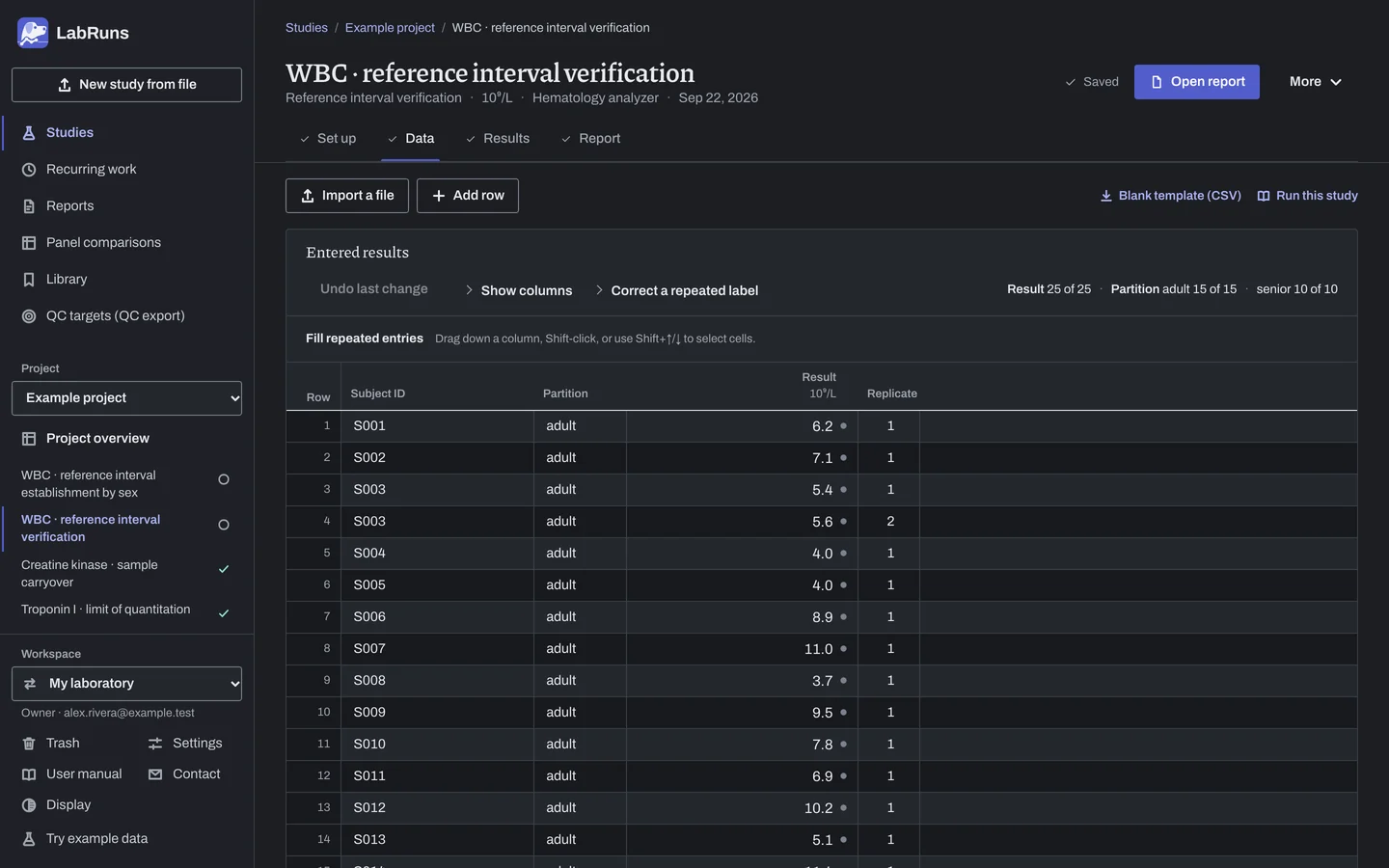
Figure 2. Data for WBC · reference interval verification. -
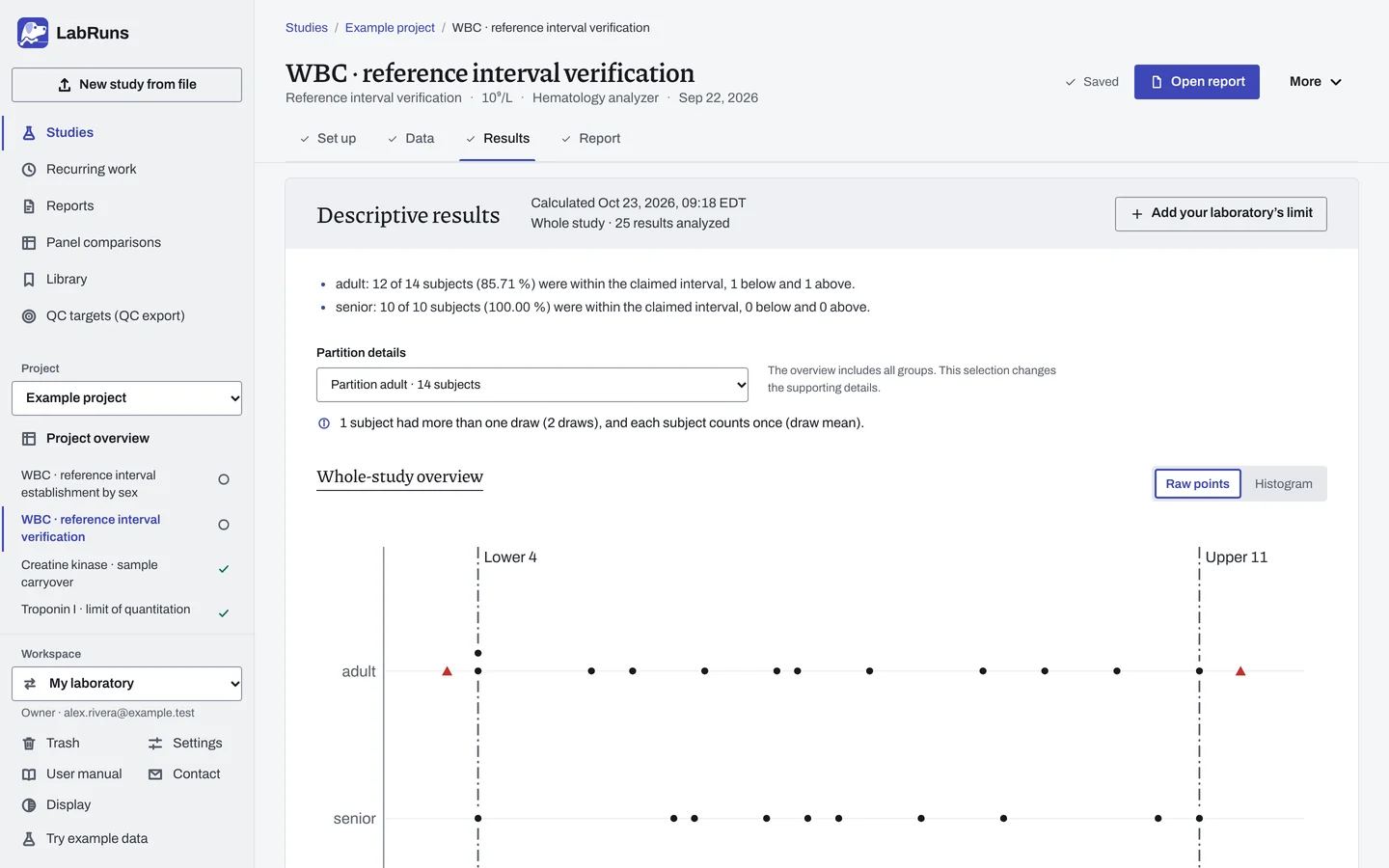
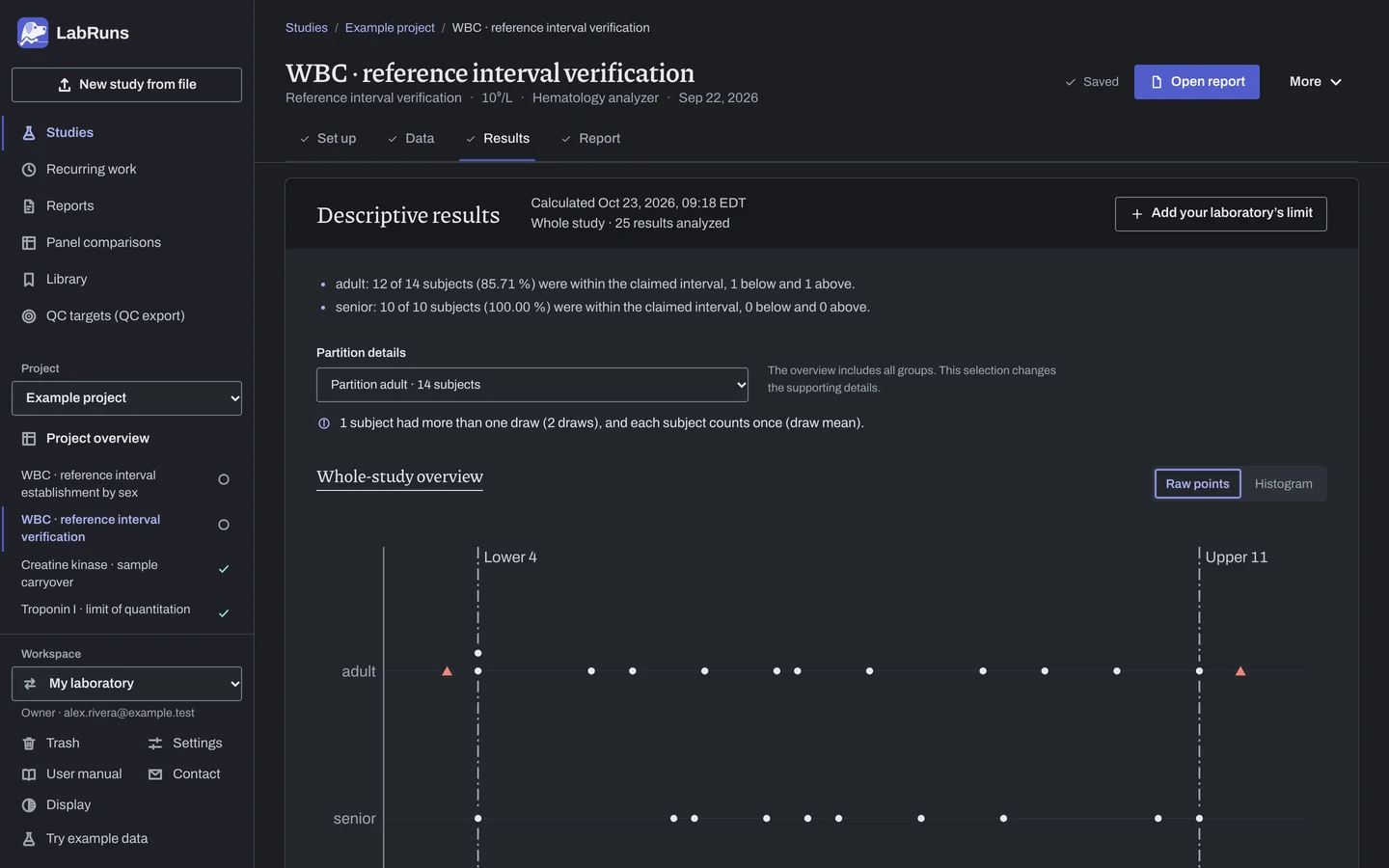
Calculate and check. Save the study, choose Calculate results, then check:
- Below, within and above counts for each partition.
- Each stage counts subjects in entry order: all subjects so far, or only its own new subjects, as set on Set up.
- Without a criterion or complete staged rule, the result is descriptive.
Figure 3. Results for WBC · reference interval verification. -
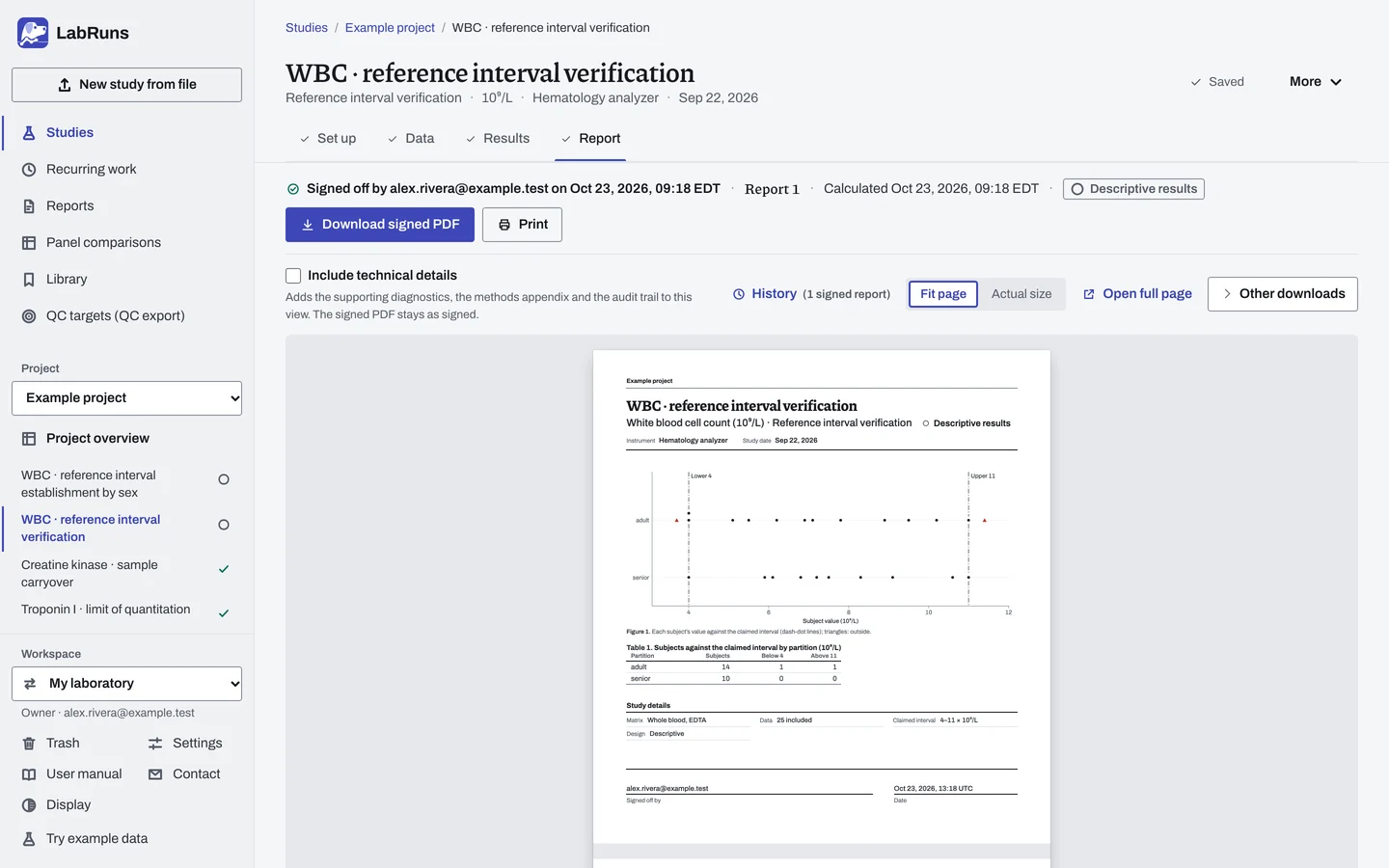
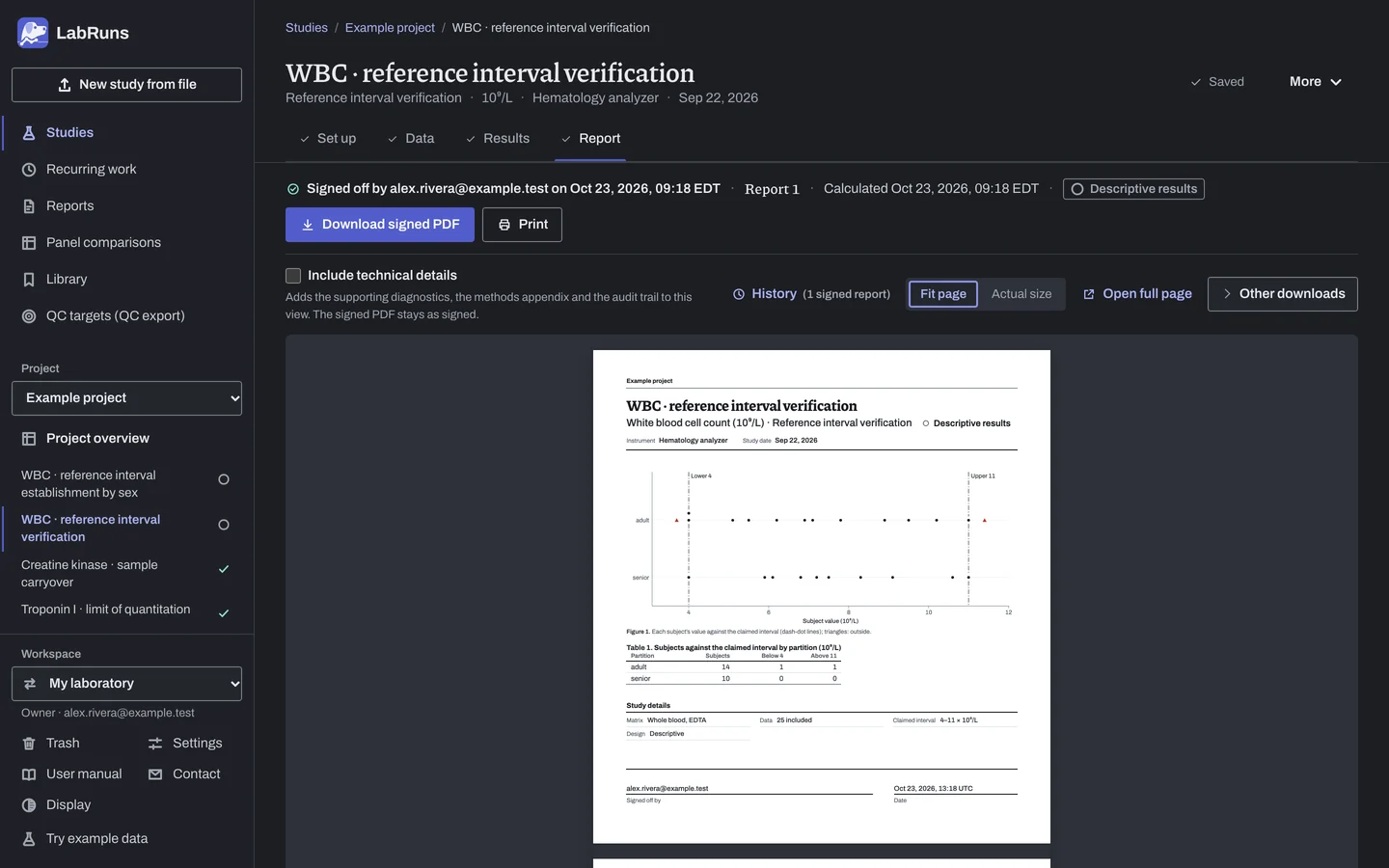
Report your decision. Open Report, look over the result and the study details, then download or print the report. Sign-off is optional.
Figure 4. Report for WBC · reference interval verification.
Set up
Section titled “Set up”- In your project choose New study. Under Study type, select Verify a reference interval under Reference intervals.
- Choose Reference limits: two-sided, one-sided lower or one-sided upper. Enter the Claimed lower reference limit and Claimed upper reference limit for a two-sided check, or only the one limit for a one-sided check.
- Enter Analyte and Unit. Choose Create study, or Create and import data if you already have results.
- On Set up, check the claimed limits and the staged rule: Subjects tested, Accept when ≤ this many outside and Reject when ≥ this many outside. Keep the starting stage or change its numbers. Choose Add stage for each further check. It counts All subjects so far unless you choose This stage’s new subjects only under Subjects counted. Leave the stages blank to report counts only. See Staged rule.
- To check the share of subjects inside the interval, under Additional acceptance limits (Acceptance limits when the stages are blank), choose Enter your own limit and Share of results inside the interval, then enter the Smallest acceptable share inside (%). See Acceptance limits.
- On Data, enter one row per draw with the coded Subject ID, the Partition if you use partitions, and the Result, or choose Import a file (see Importing and mapping). To type into blank rows, set Partitions and Subjects per partition under Lay out the grid and choose Create entry rows. See Columns.
When a limit is not met
Section titled “When a limit is not met”- Criteria not met: check the claimed limits and unit against the source, the partition column, and each subject's eligibility. If all are right, this cohort does not meet your acceptance rule. Follow your planned next stage, or collect a new reference population for Reference interval establishment.
- Inconclusive under the rule: if it asks for more subjects, test them and recalculate. If the rule is incomplete, fix the staged-rule fields.
- Values flagged for review: check the record behind each flag. To remove a subject, exclude the row with a reason; see Correct or exclude a result.
Common mistakes
Section titled “Common mistakes”- Claimed limits left blank. Enter both limits for a two-sided check, or the one limit for a one-sided check, on Set up.
- Analyte or unit left blank. Enter them before you calculate.
- One subject entered in two partitions. Put each subject in one partition.
- A cohort with no eligible subjects. Enter at least one included subject.
- Marked rows, for example an exclusion without a reason. Fill in the reason.
- A censored value such as
<0.01in Result. Enter the exact reading from the original record if available; otherwise exclude the row with a reason.