


Near-cutoff precision
Run this study
Section titled “Run this study”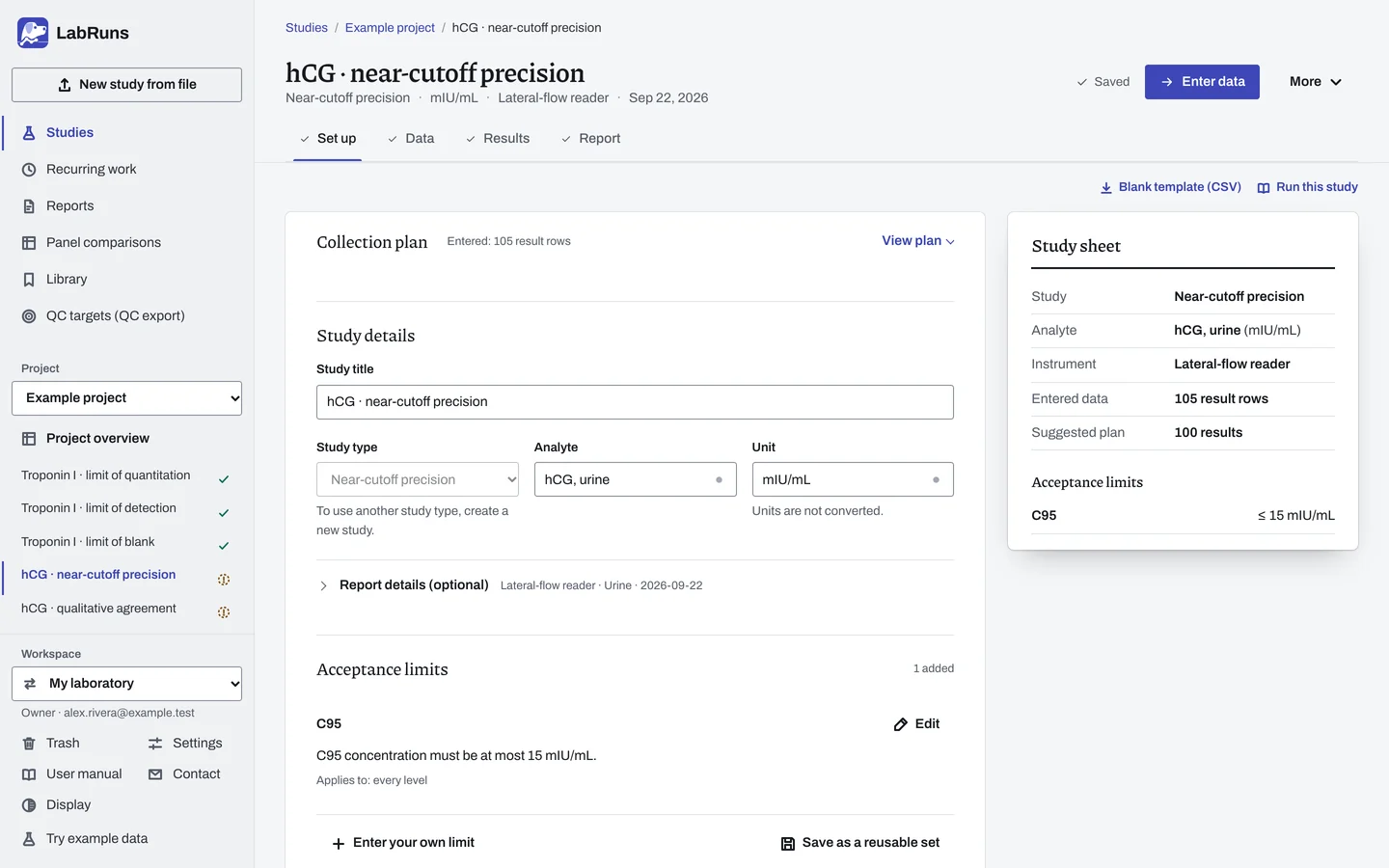
- Your question
-
Where does the result change from negative to positive (C5, C50 and C95)?
- Prepare
-
Samples with assigned concentrations spanning the positive/negative transition, and the concentration source. A short pilot to locate the transition. One sample ID for each concentration.
- Suggested starting plan
-
- 5 concentrations × 20 replicate tests. 100 results.
Set the lowest level where nearly every test is negative and the highest where nearly every test is positive, beyond the expected C5 and C95. Put three levels between them, one at the expected midpoint. Twenty tests per concentration is a practical start. Precise C5 and C95 may need more.
- Calculation minimum
-
A curve needs 3 concentrations with reportable results, some of them mixed positive and negative. With fewer, you still see hit rates.
-
Decide before collecting. Create the study and fill these in on Set up:
- Which labels mean invalid or equivocal. The negative and positive labels are taken from your results.
- The concentration scale.
- Any acceptable C5, C50 or C95 limits. Keep the assay's existing cutoff as a reference.
Figure 1. Set up for hCG · near-cutoff precision. -
Collect and record. Collect the results as planned above and label each one with the specimen or material, level, day, run and replicate your design tracks.
-
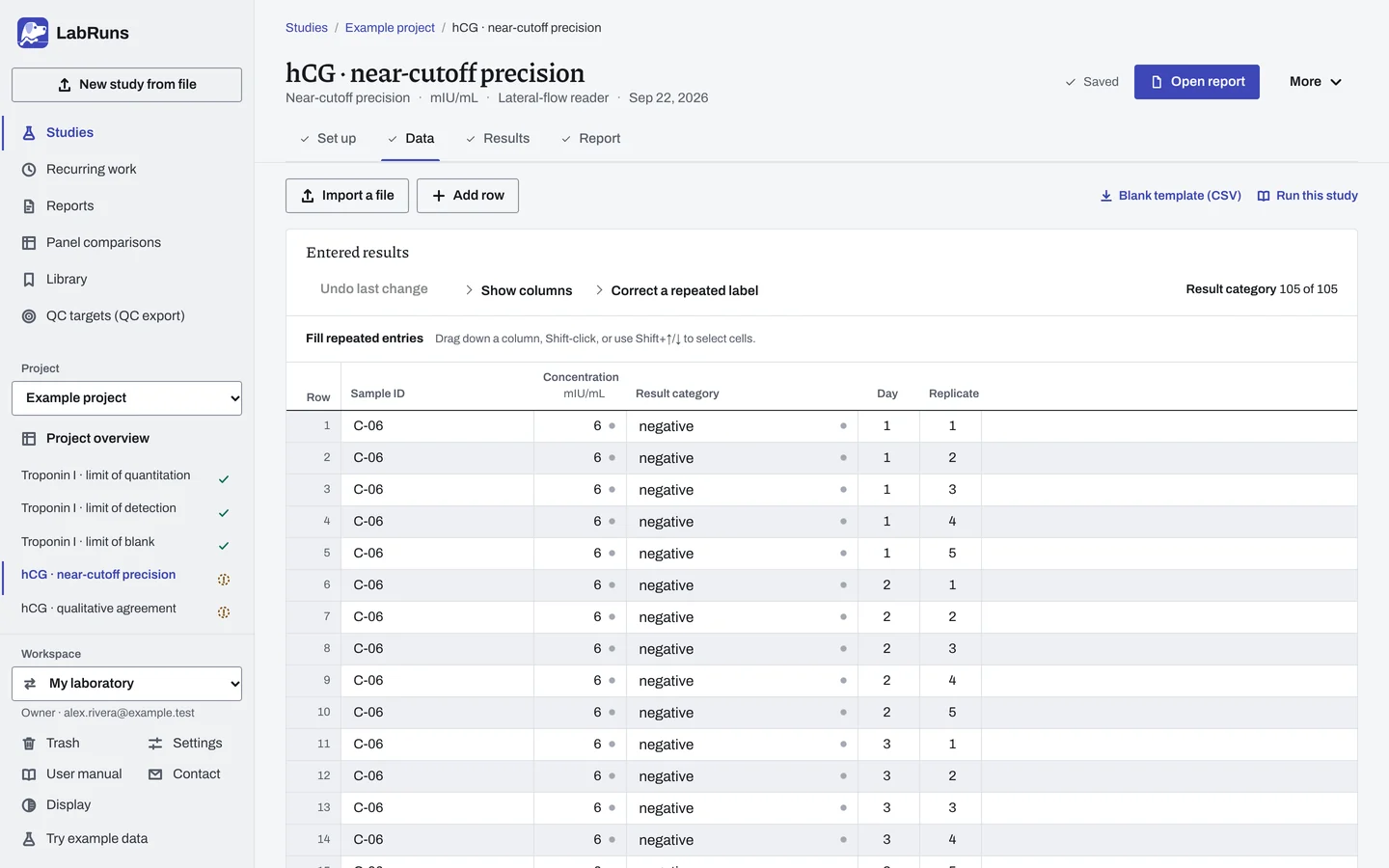
Enter your results. Enter sample ID, concentration and result category for every test, including invalids. For a ready-made file, use Blank template (CSV) on Data, or download the example file.
Figure 2. Data for hCG · near-cutoff precision. -
Calculate and check. Save the study, choose Calculate results, then check:
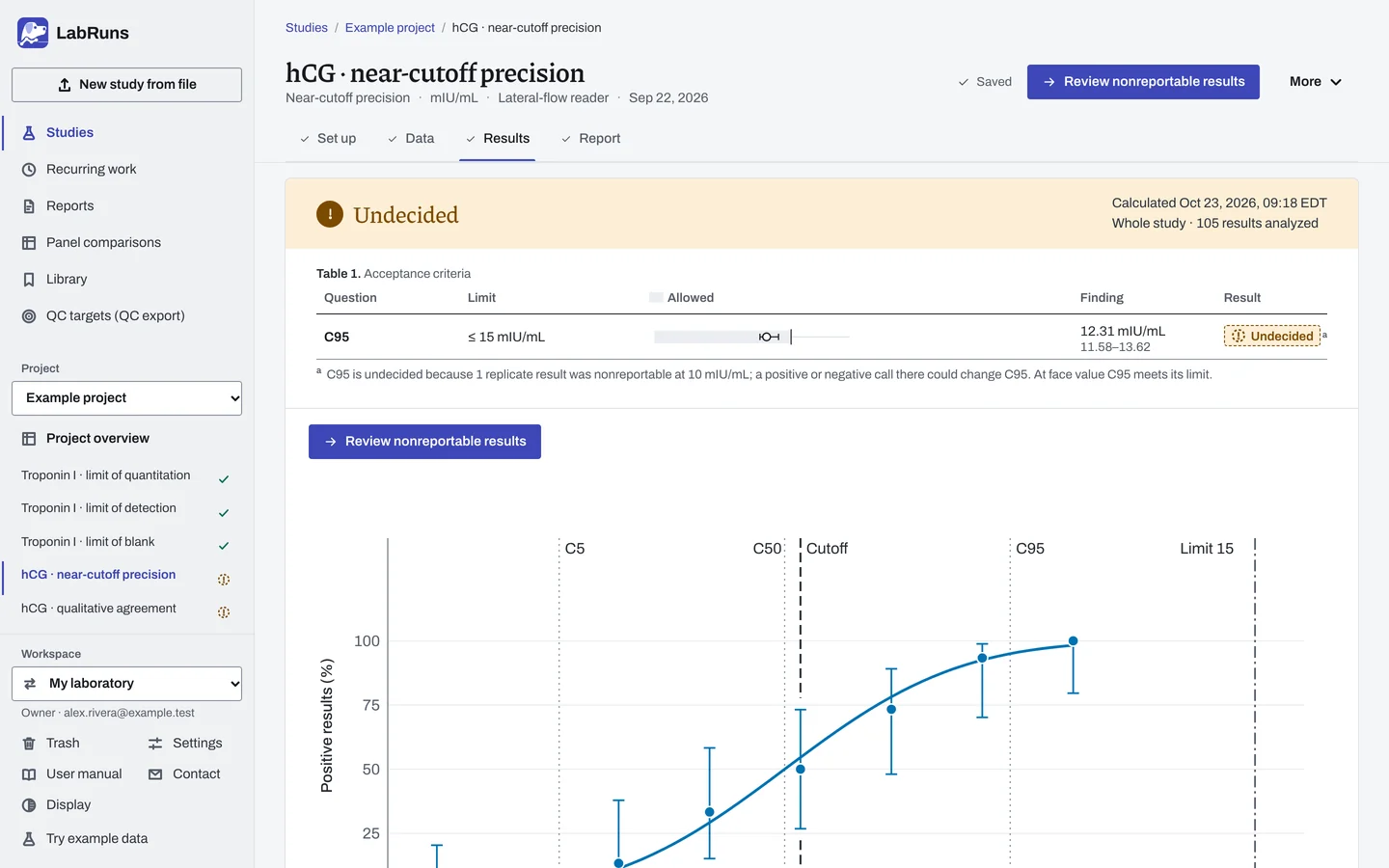
- Reportable counts at each concentration. Any included nonreportable result leaves C5, C50 and C95 criteria undecided.
- C5 and C95 inside the tested span. Outside it, they are not supported.
- Wide or open-ended intervals mean the transition is poorly located. Add concentrations inside any gap.
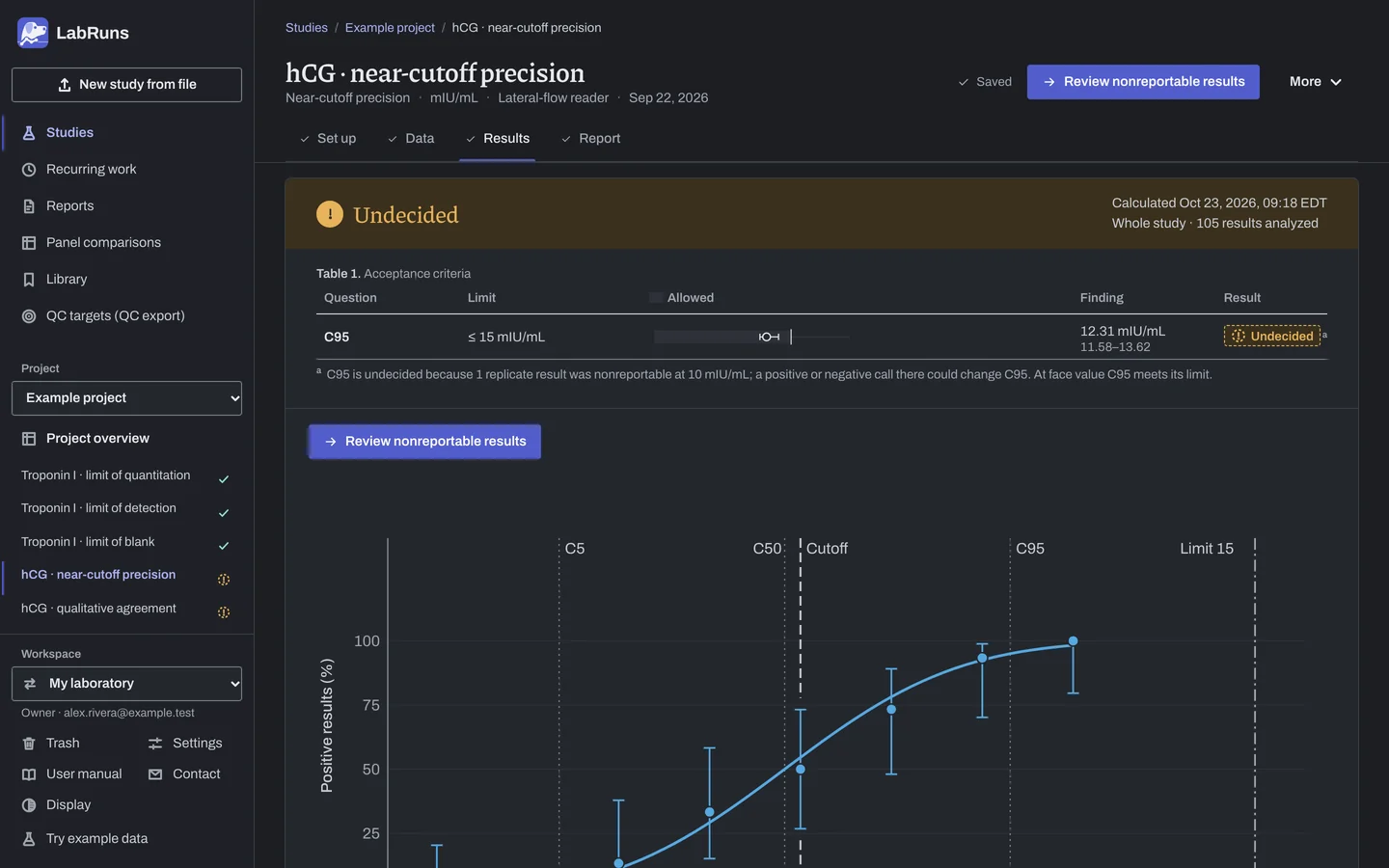
Figure 3. Results for hCG · near-cutoff precision. -
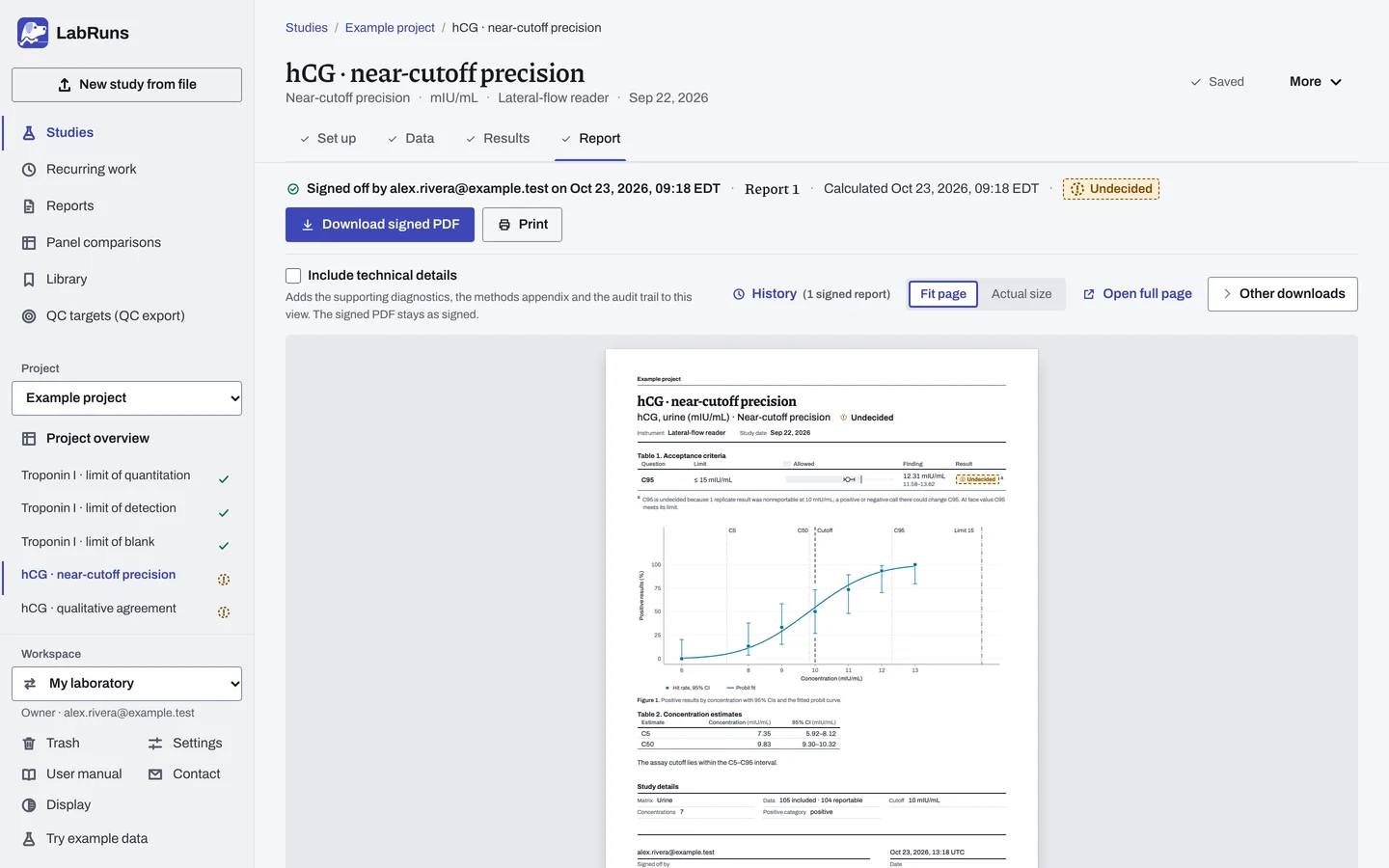
Report your decision. Open Report, look over the result and the study details, then download or print the report. Sign-off is optional.
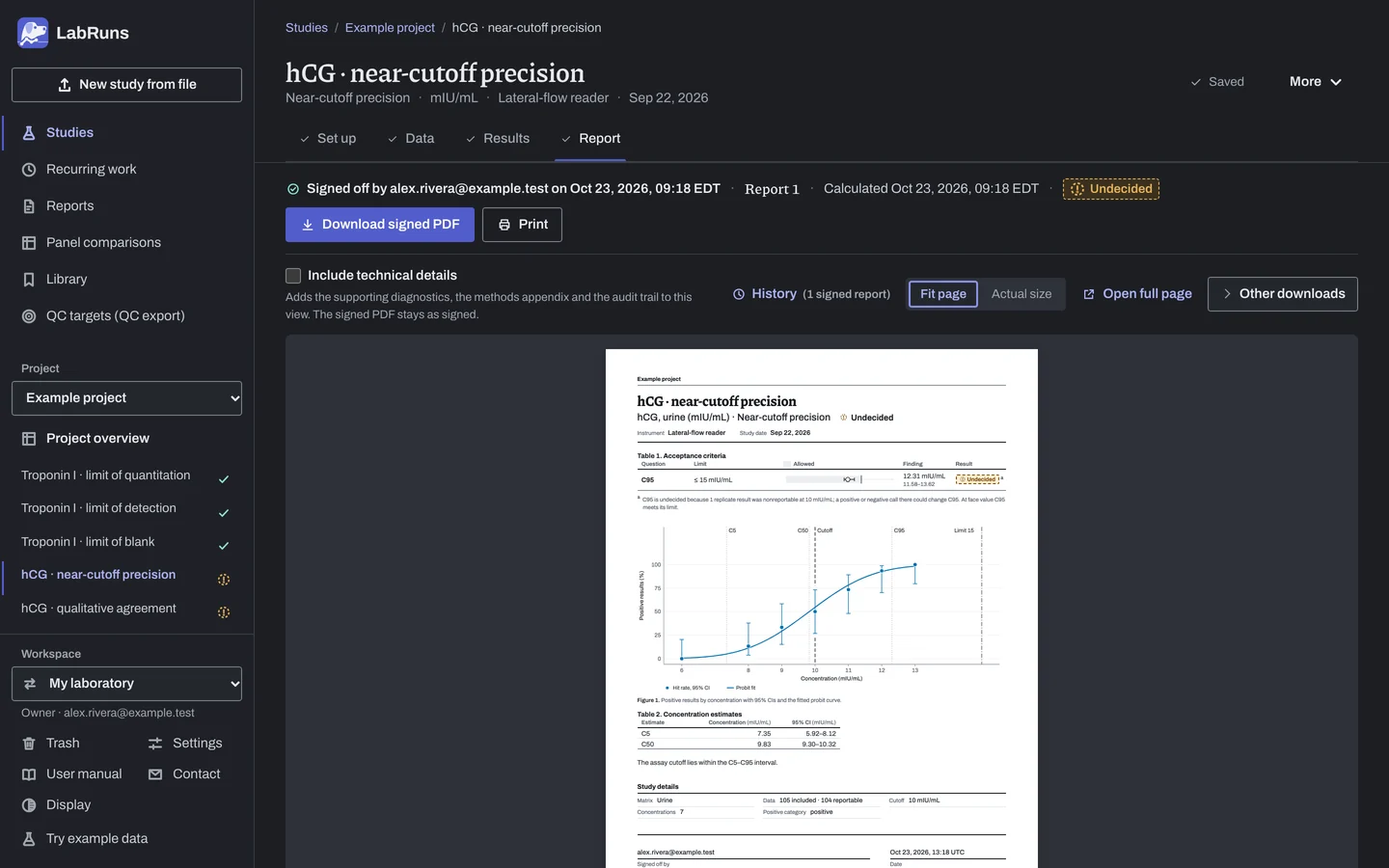
Figure 4. Report for hCG · near-cutoff precision.
Set up
Section titled “Set up”- In your project choose New study. Under Study type, select Near-cutoff precision under Qualitative tests.
- Enter Analyte and Unit. Choose Create study, or Create and import data if you already have results.
- On Set up, under Acceptance limits, choose Enter your own limit and set a range for C50 concentration, C5 concentration or C95 concentration. See Acceptance limits.
- Under Qualitative performance, check Positive category and Result categories · declared order (exactly two). If the other category is the positive one, change Positive category. See Settings.
- Check Nonreportable labels.
- Choose the Concentration scale before you look at results: Linear concentration, or log10 concentration (values above 0) for concentrations spaced by multiplication (1, 2, 4, 8) or spanning a wide range.
- To compare the estimates with the assay's cutoff, enter Assay cutoff (optional).
- Check Confidence level in Calculation settings.
- On Data, enter one row per replicate test, or choose Import a file (see Importing and mapping). Blank template (CSV) gives a matching empty file. See Columns.
- If Labels found in the data appears on Set up, choose Add to categories or Add to nonreportable for each label.
When a limit is not met
Section titled “When a limit is not met”- Criteria not met: recheck concentrations, unit, Positive category and Concentration scale.
- Undecided or no curve (separation): add concentrations between the all-negative and all-positive levels, or beyond an extreme estimate, and retest.
- Before reporting, look for few replicates per concentration, no concentration with a hit rate between about 20 % and 80 %, or a cutoff outside C5–C95.
Common mistakes
Section titled “Common mistakes”- A third label in the results, such as
grey zone. The study keeps its two categories and offers the label under Labels found in the data on Set up; choose Add to nonreportable, or correct the row. - An estimate marked outside studied range. Extend the concentration range on that side.
- The log10 scale with a concentration or cutoff of zero or less. The log10 scale is not accepted then; use concentrations and a cutoff above 0, or Linear concentration.
- A sample ID warning at several concentrations. Rows are grouped by concentration. Check the sample IDs.
- A concentration such as
<0.01. Enter the exact concentration from the material's assignment if available; otherwise exclude the row with a reason; see Correct or exclude a result.