


Reagent lot comparison
Run this study
Section titled “Run this study”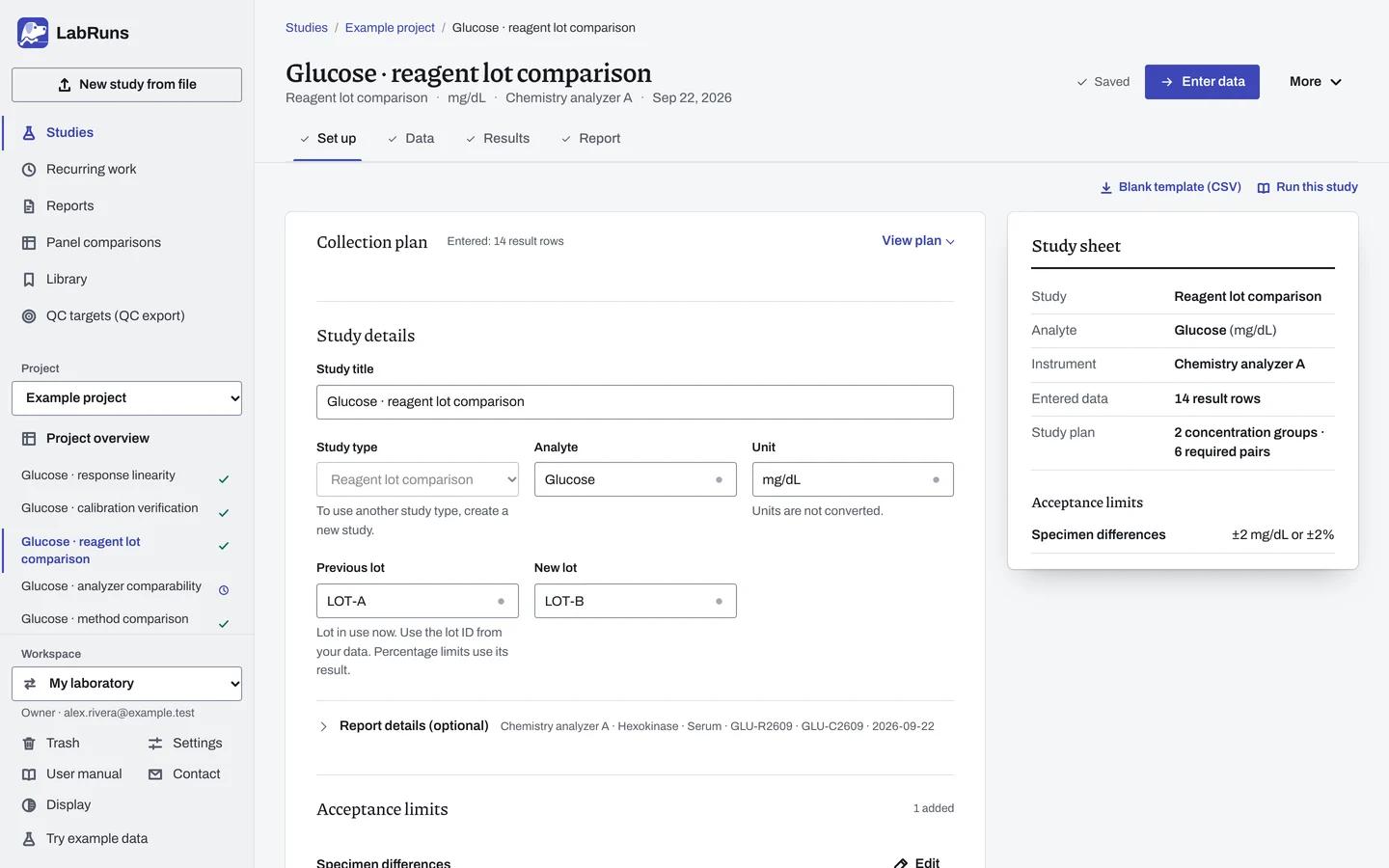
- Your question
-
Does a new reagent or calibrator lot change patient results by more than you can accept?
- Prepare
-
Independent patient specimens in every important concentration group. Both lots, with appropriate calibration and QC. Measure within the specimens' stability window. Optional QC results, alongside the patient specimens.
- Suggested starting plan
-
- 3 concentration groups × 20 specimens, each measured once on both lots. 60 specimens, 120 results.
Choose enough independent specimens to cover each important concentration group and the method's variability. For example, with a paired-difference SD of 2 units, 20 specimens per group give a 95% interval of about ±0.94 units around the mean difference. Calculated with the NIST mean-interval formula.
- Calculation minimum
-
Calculation needs at least 2 paired specimens. To pass, at least 95% must be within their allowable error. With fewer than 20 specimens, all must pass. Select Every specimen must be within its limit to require all specimens at any count. The lot plan must also be complete.
-
Decide before collecting. Create the study and fill these in on Set up:
- Both lot IDs.
- The allowable total error (TEa) for each specimen: an absolute allowance, a percentage of the previous-lot result, the greater of both or both together, and different limits by concentration if you need them.
- Whether every specimen must pass, or at least 95% of them (the same for fewer than 20).
- The concentration groups and planned pairs in each. A new study starts with 3 groups of 20 pairs; edit the lot plan to match your design. Importing results keeps the plan. Save it for future deliveries.
Figure 1. Set up for Glucose · reagent lot comparison. -
Collect and record. Collect the results as planned above and label each one with the specimen or material, level, day, run and replicate your design tracks.
-
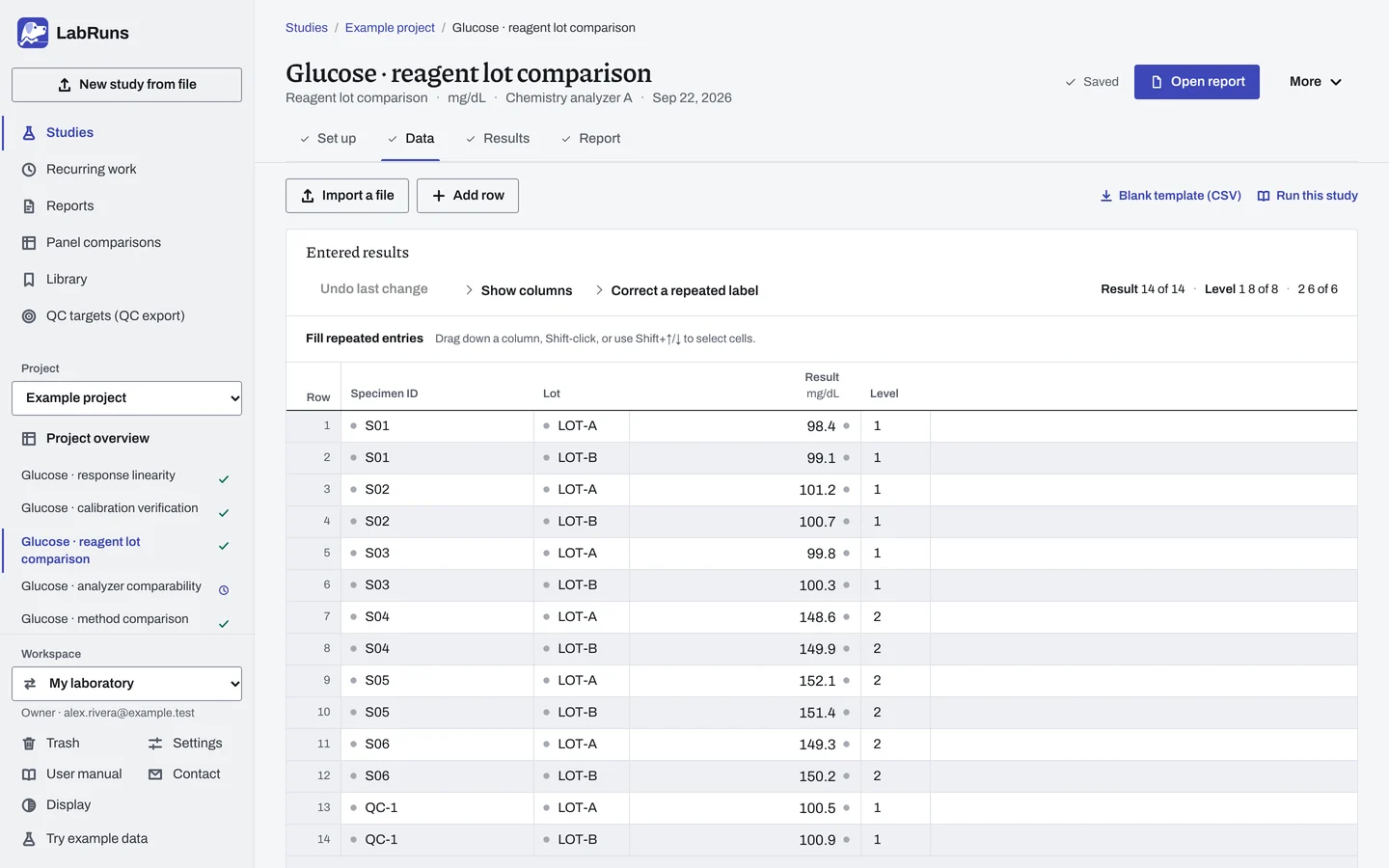
Enter your results. Enter specimen ID, lot and result, with a level for each concentration group, or no level for one group. IDs beginning QC identify control material. For a ready-made file, use Blank template (CSV) on Data, or download the example file.
Figure 2. Data for Glucose · reagent lot comparison. -
Calculate and check. Save the study, choose Calculate results, then check:
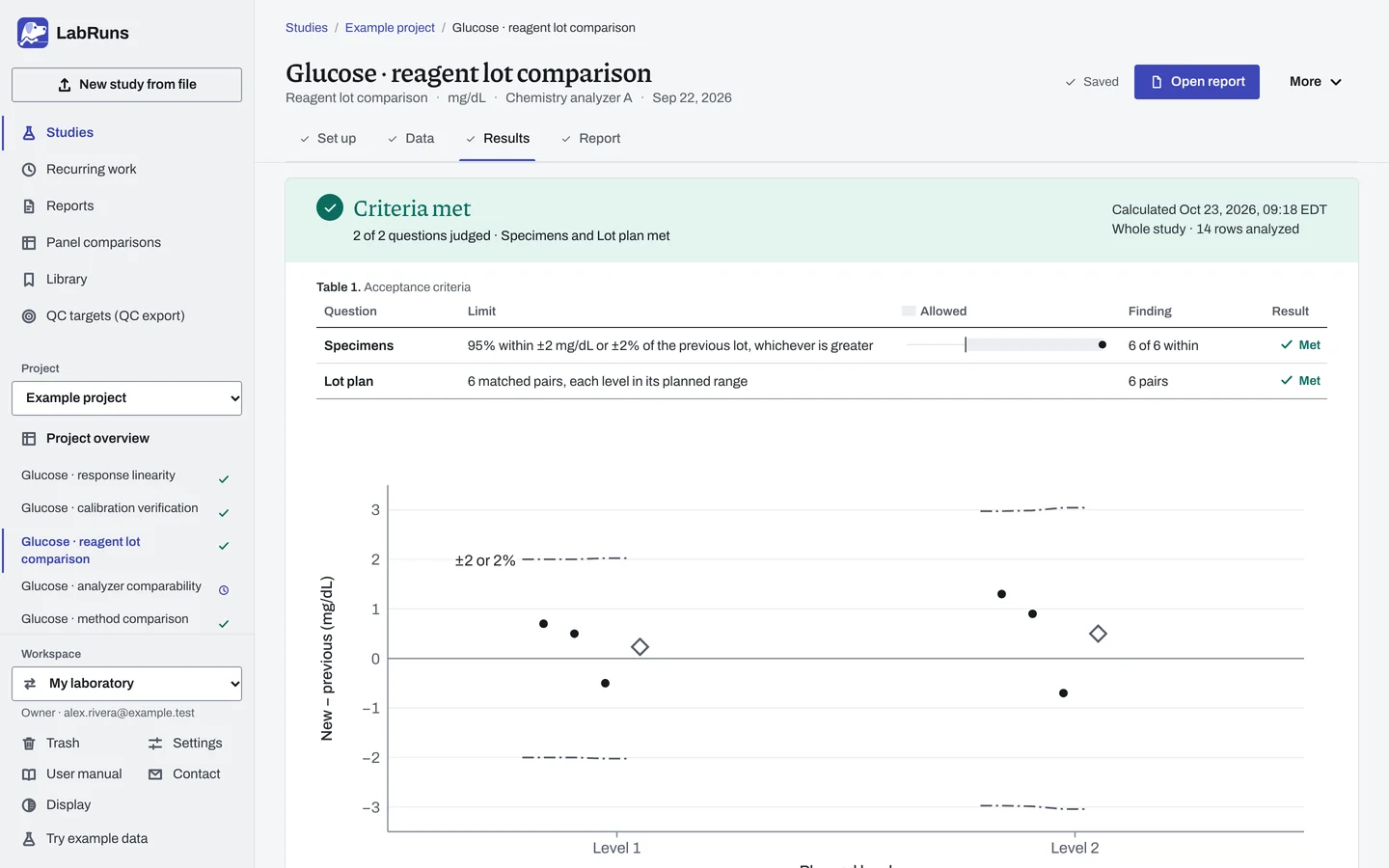
- Coverage of any claimed reportable range, based on the paired results on the reference axis.
- Plan completion and unmatched specimens.
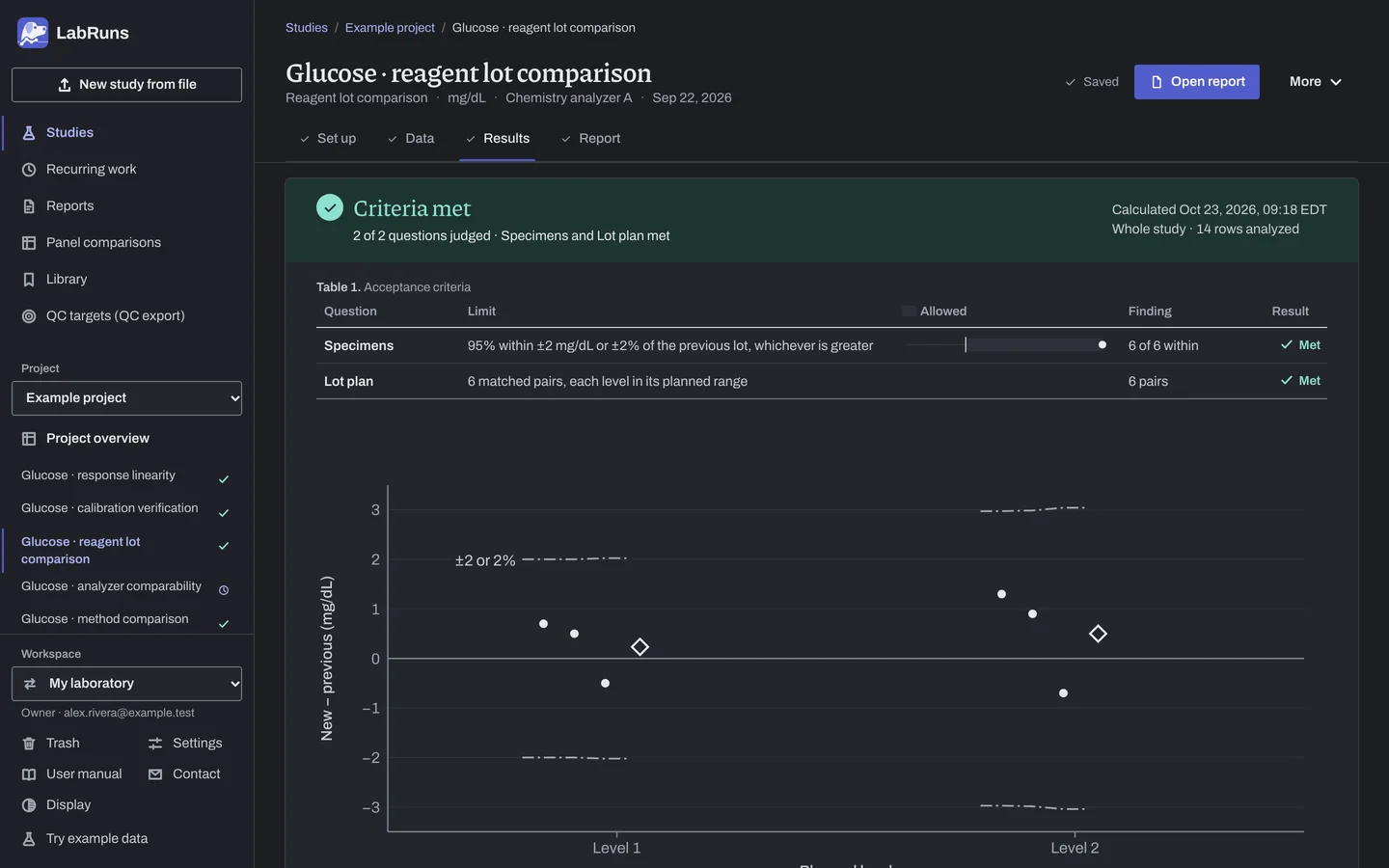
- Each specimen's difference and outcome. Positive differences mean the new lot reads higher.
Figure 3. Results for Glucose · reagent lot comparison. -
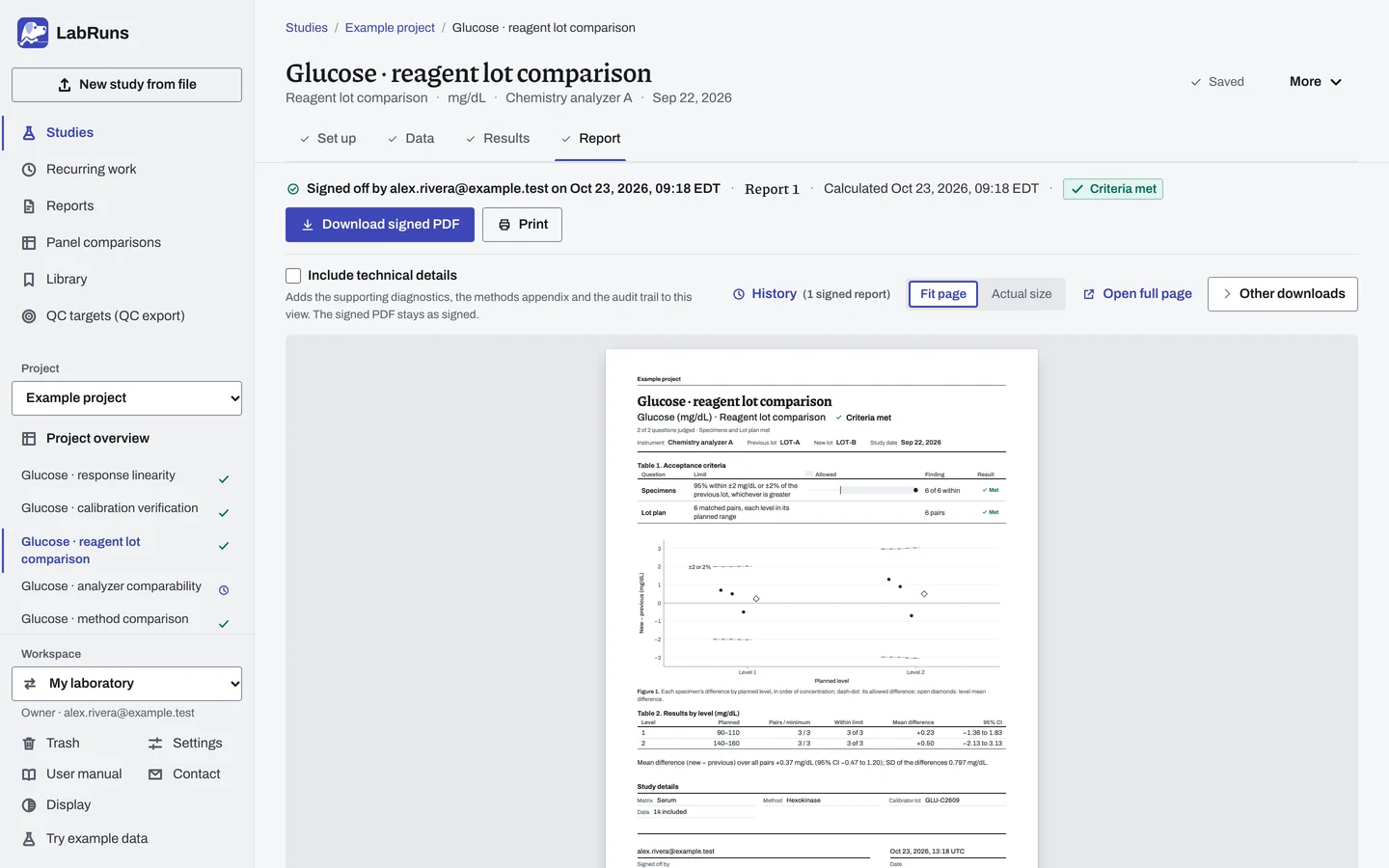
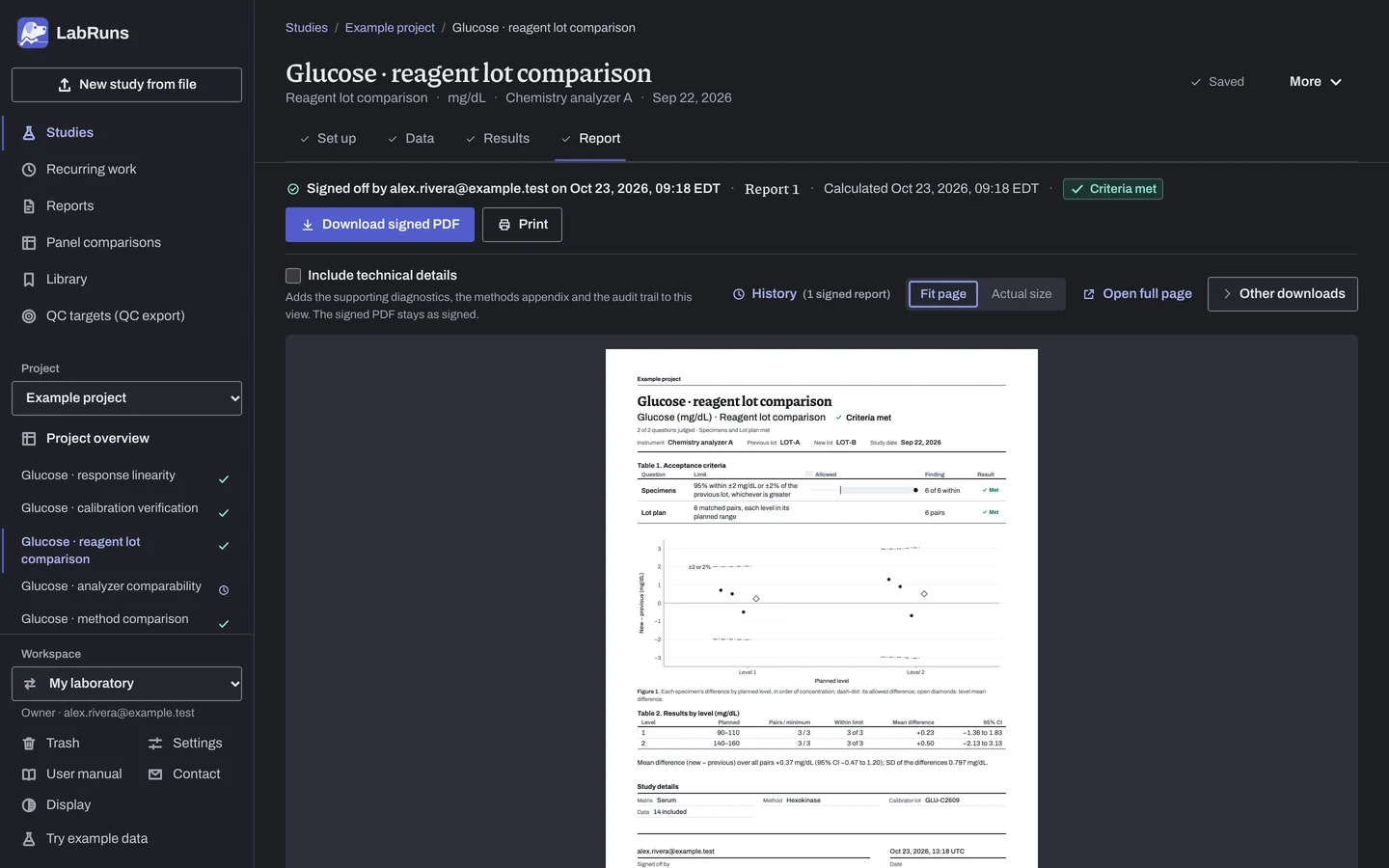
Report your decision. Open Report, look over the result and the study details, then download or print the report. Sign-off is optional.
Figure 4. Report for Glucose · reagent lot comparison.
Set up
Section titled “Set up”- Choose New study. Select Reagent lot comparison under Comparison and bias, fill in Previous lot name and New lot name if you know them, then enter Analyte and Unit. Choose Create study, or Create and import data if you already have results.
- On Set up, check Previous lot and New lot under Study details. When your data name two lots that these don't match, answer Which lot is in use now?; the other lot is the new lot.
- Under Acceptance limits, choose Enter your own limit and enter the allowance for each specimen: a percentage of the previous-lot result, an amount in the study unit, or both, passing when within either or only when within both. For a different limit at each concentration, choose Concentration-dependent limits in that dialog and enter each range's limit. See Acceptance limits.
- Under Lot plan, edit Planned concentration groups to match the groups and pairs you plan to collect: edit a group's Level or Required pairs, or add Range low and Range high in the study unit. Add concentration group adds a group of 20 pairs.
- To require every specimen however many you test, tick Every specimen must be within its limit under Specimens that must pass.
- Optionally, under Reportable-range coverage (optional), enter the Claimed lower reportable limit and Claimed upper reportable limit.
- On Data, choose Import a file, or Add row and type or paste into the grid. On an empty grid with both lot names entered, choose Create entry rows under Lay out the grid for a row for every planned result (Laying out the grid). See Columns.
Reuse the plan for the next lot
Section titled “Reuse the plan for the next lot”- To reuse the plan in another study with the same analyte and unit, choose Save as a lot plan under Lot plans, name it and choose Save lot plan.
- In the other study, pick it under Saved lot plan and choose Load lot plan. Set the acceptance limits in that study, or copy them with Reuse limits from a saved set or another study.
- For the next delivery, choose More → New study from this setup. For a scheduled delivery event, choose Create next study from the event.
When a limit is not met
Section titled “When a limit is not met”- Failed specimen: review preparation, stability, instrument and lot records. Correct a mistyped result in its row. Excluding a result asks for a reason.
- Unmatched specimen: check the specimen ID and lot spelling. Enter the missing result or exclude the row with a reason.
- Uncovered group: check the level name, then add specimens until the group has its planned count within its range.
Common mistakes
Section titled “Common mistakes”- A lot name that matches neither lot. The row is marked. Correct the lot in the row, or the lot names on Set up.
- No allowable difference under Acceptance limits. The lot stays Undecided. Enter one with Enter your own limit.
- Planned ranges in another unit. Enter Range low and Range high in the study unit.
- A specimen in more than one level. Give each specimen one level.
- Only
QCrows. IDs beginning withQCare control material, and the study needs patient specimens. Add them.