


PT and INR
Run this study
Section titled “Run this study”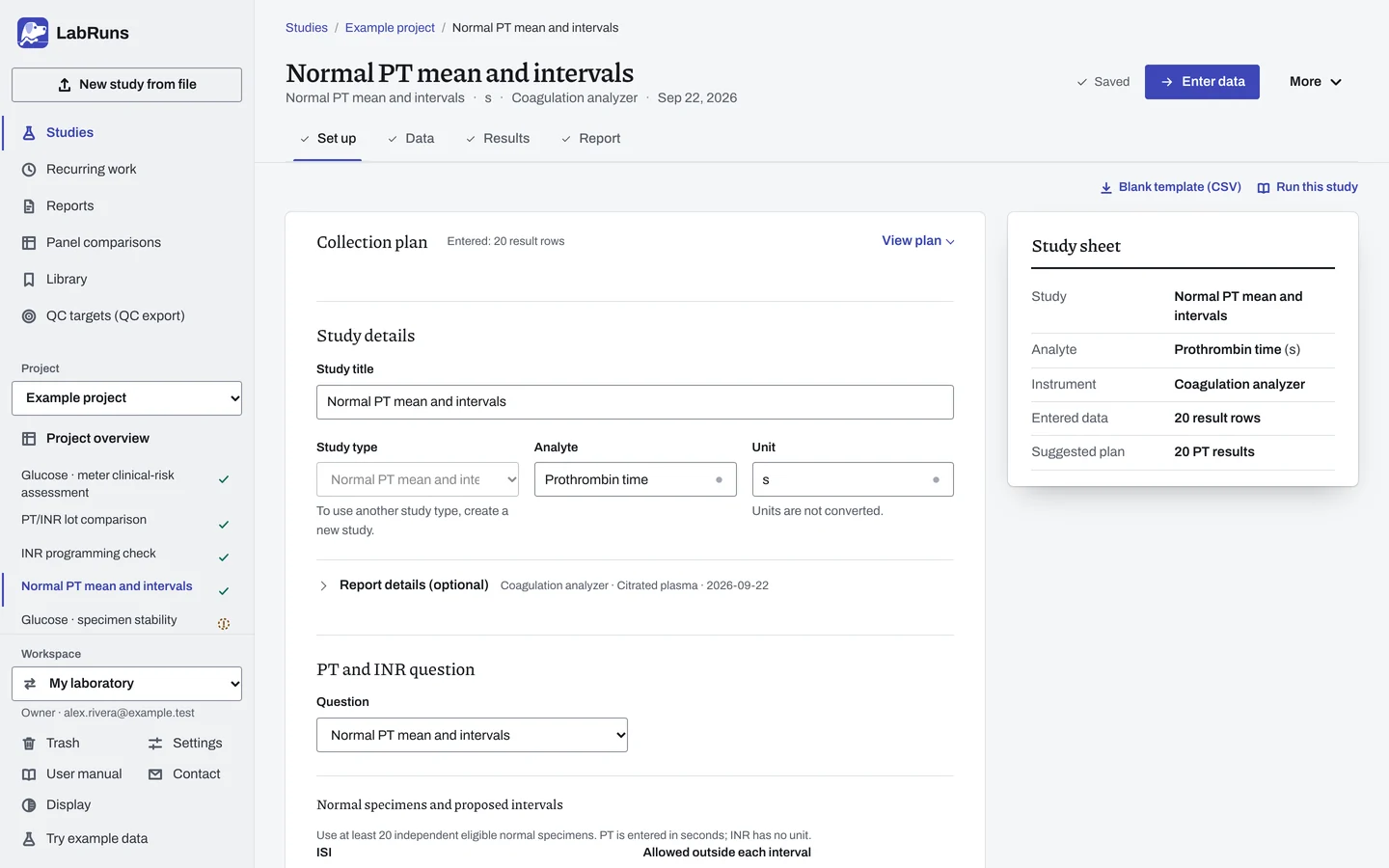
Normal PT mean and intervals
Section titled “Normal PT mean and intervals”- Your question
-
What is the geometric mean normal PT, and how many normal specimens fall within the proposed PT and INR intervals?
- Prepare
-
At least 20 eligible independent normal specimens appropriate to the laboratory's normal population, handled by the laboratory's usual preanalytical procedure. The reagent/instrument ISI and the proposed PT and INR intervals. Use coded specimen IDs and PT in seconds.
- Suggested starting plan
-
- 20 independent normal specimens × 1 PT measurement, distributed across at least 3 days. 20 PT results.
WHO guidance uses a geometric mean from at least 20 normal samples and recommends measurements across at least three days. WHO thromboplastin guidance, TRS 979 Annex 6.
- Calculation minimum
-
20 included independent normal specimens. Repeats of one specimen are averaged and still count once.
-
Decide before collecting. Create the study and fill these in on Set up:
- Select the normal population and exclusion rules before collection.
- Enter ISI, both proposed intervals and the allowed count outside each interval, initially 2. This is a laboratory-selected count rule.
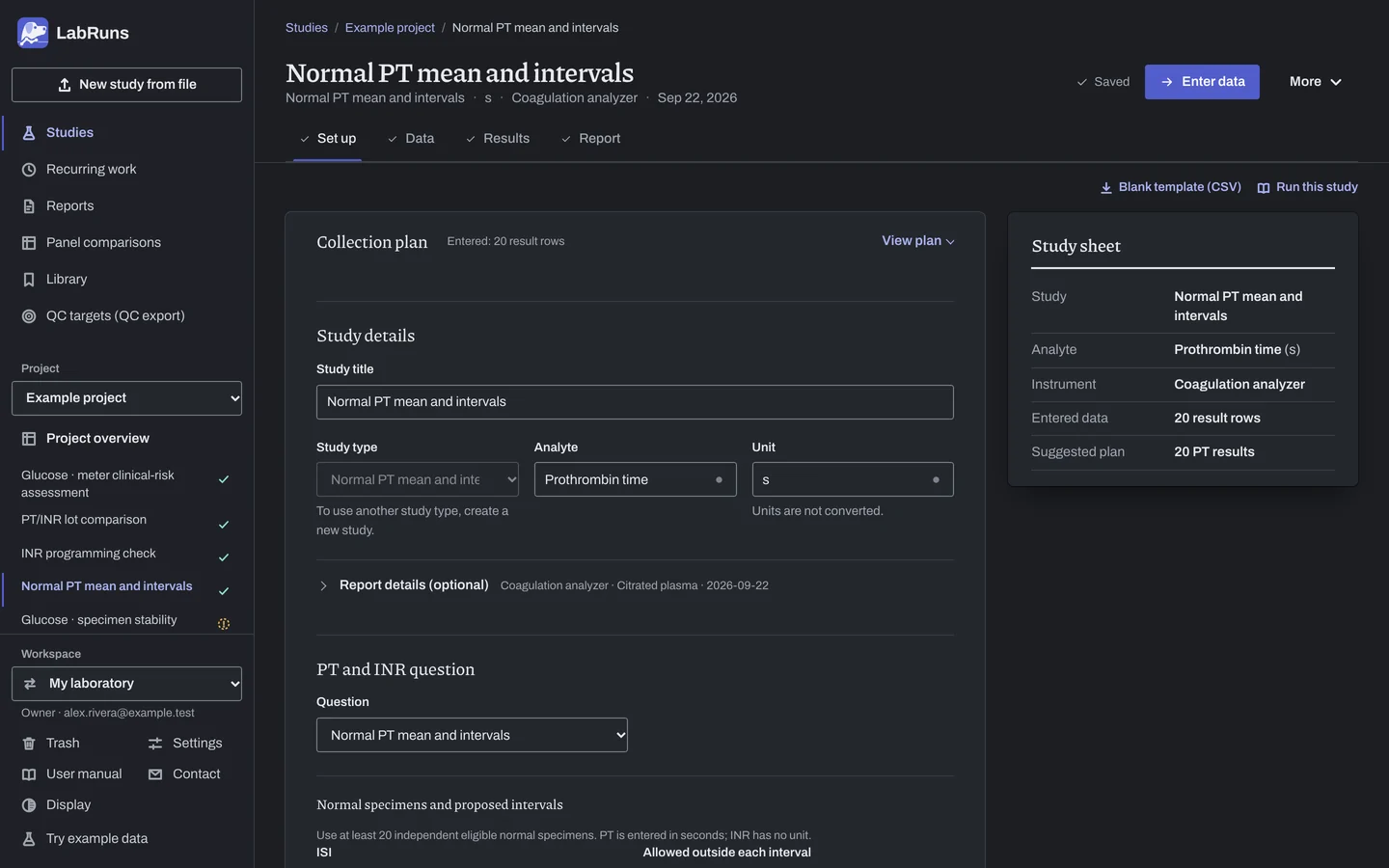
Figure 1. Set up for Normal PT mean and intervals. -
Collect and record. Collect the results as planned above and label each one with the specimen or material, level, day, run and replicate your design tracks.
-
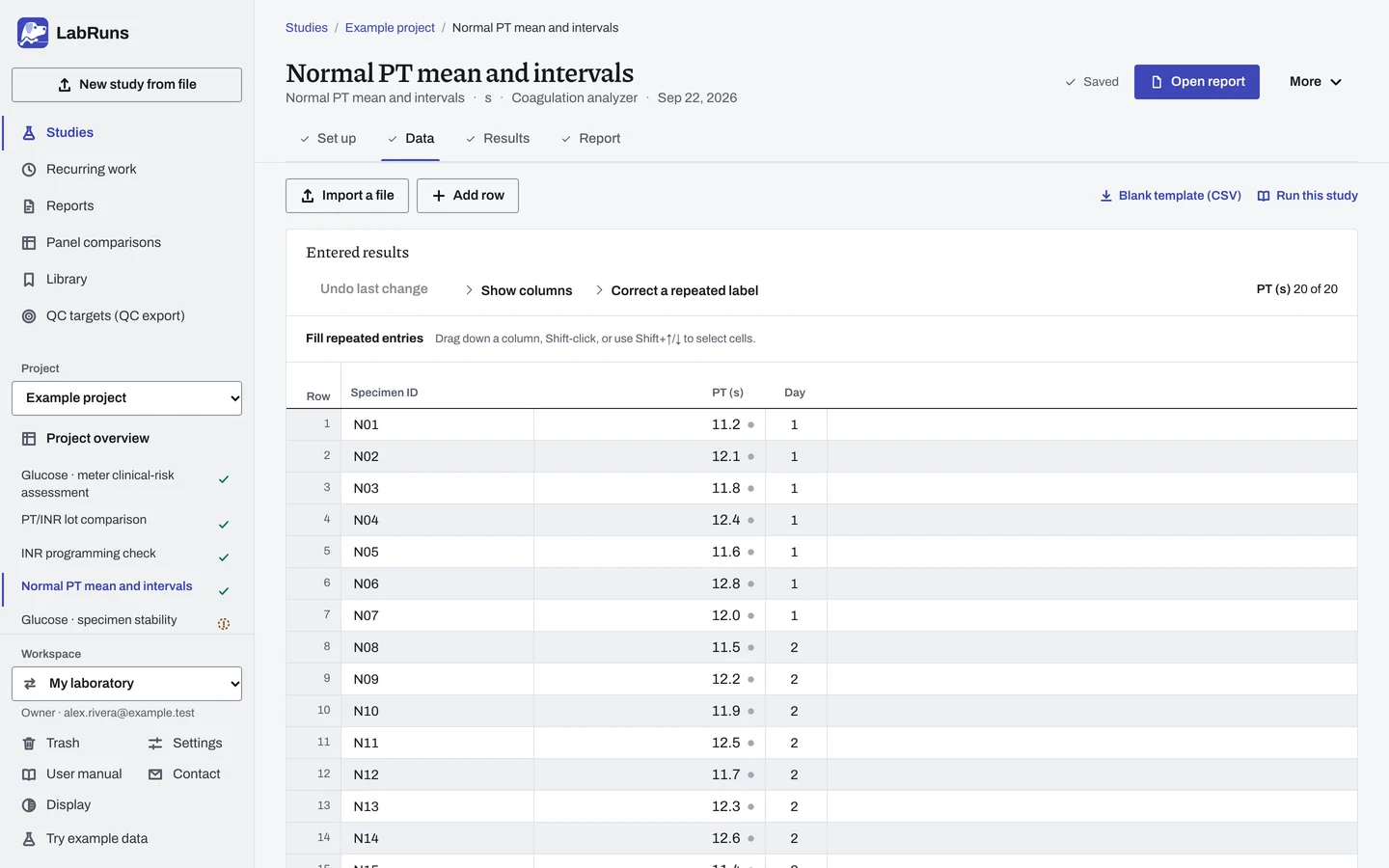
Enter your results. Measure each normal specimen, enter its coded ID, collection day and PT in seconds, and retain separate rows for any replicates. Use the same ID for repeats. Exclude a result only with a reason. For a ready-made file, use Blank template (CSV) on Data, or download the normal PT template.
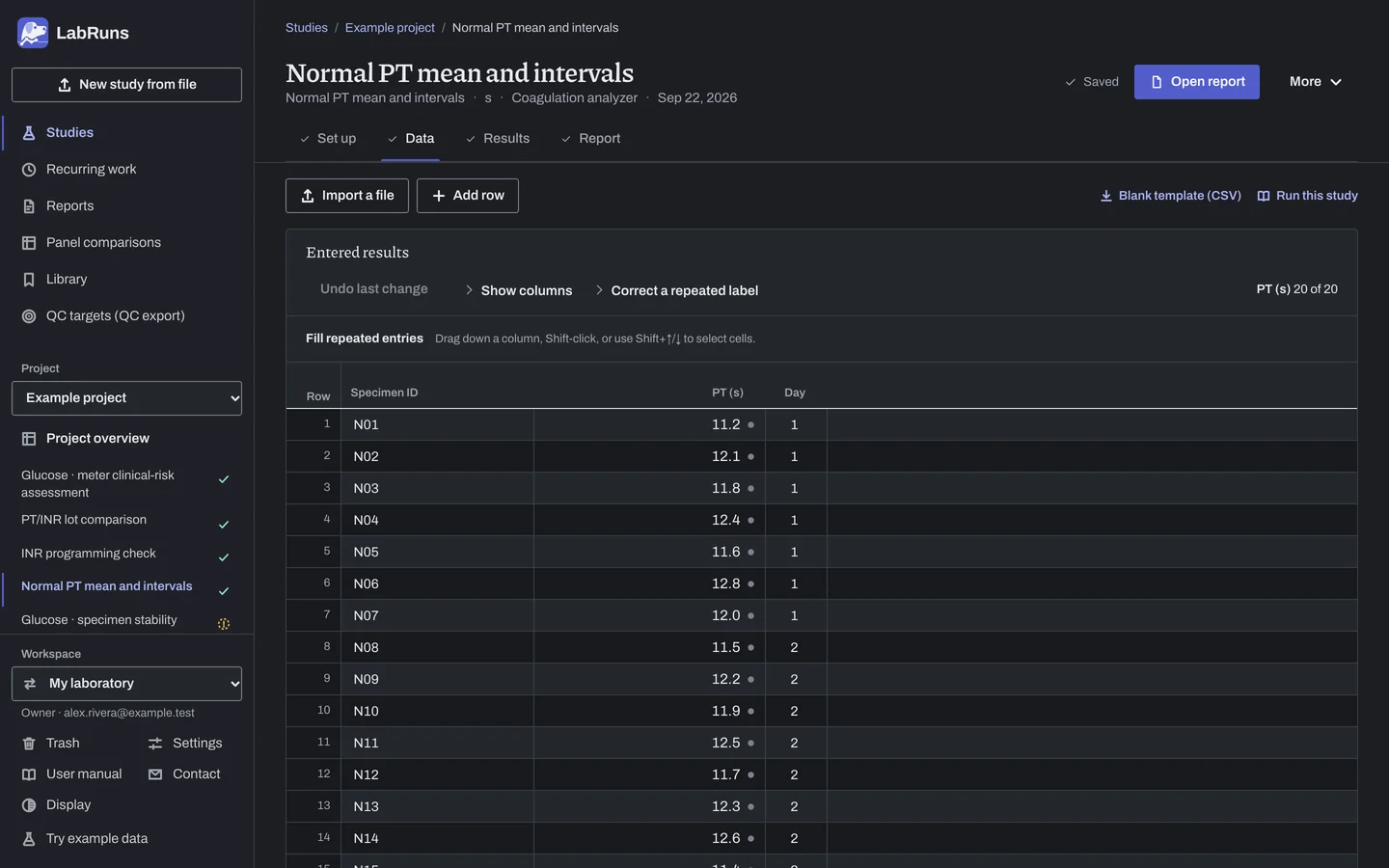
Figure 2. Data for Normal PT mean and intervals. -
Calculate and check. Save the study, choose Calculate results, then check:
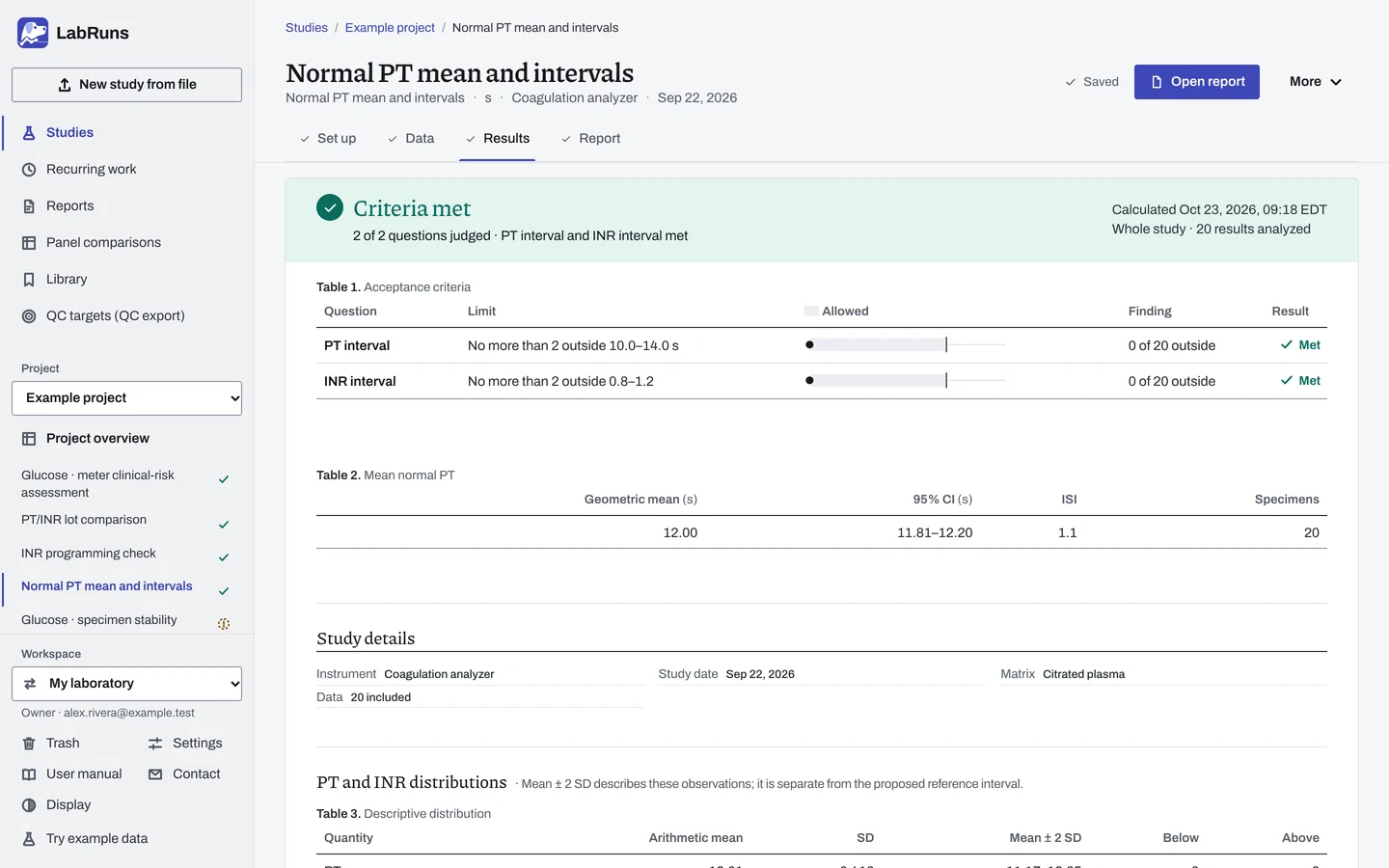
- Confirm at least 20 independent included normals, the geometric mean PT and its confidence interval.
- Check the calculated INR values and the number below, within and above each proposed interval. Mean ± 2 SD ranges are descriptive; they are not established reference intervals.
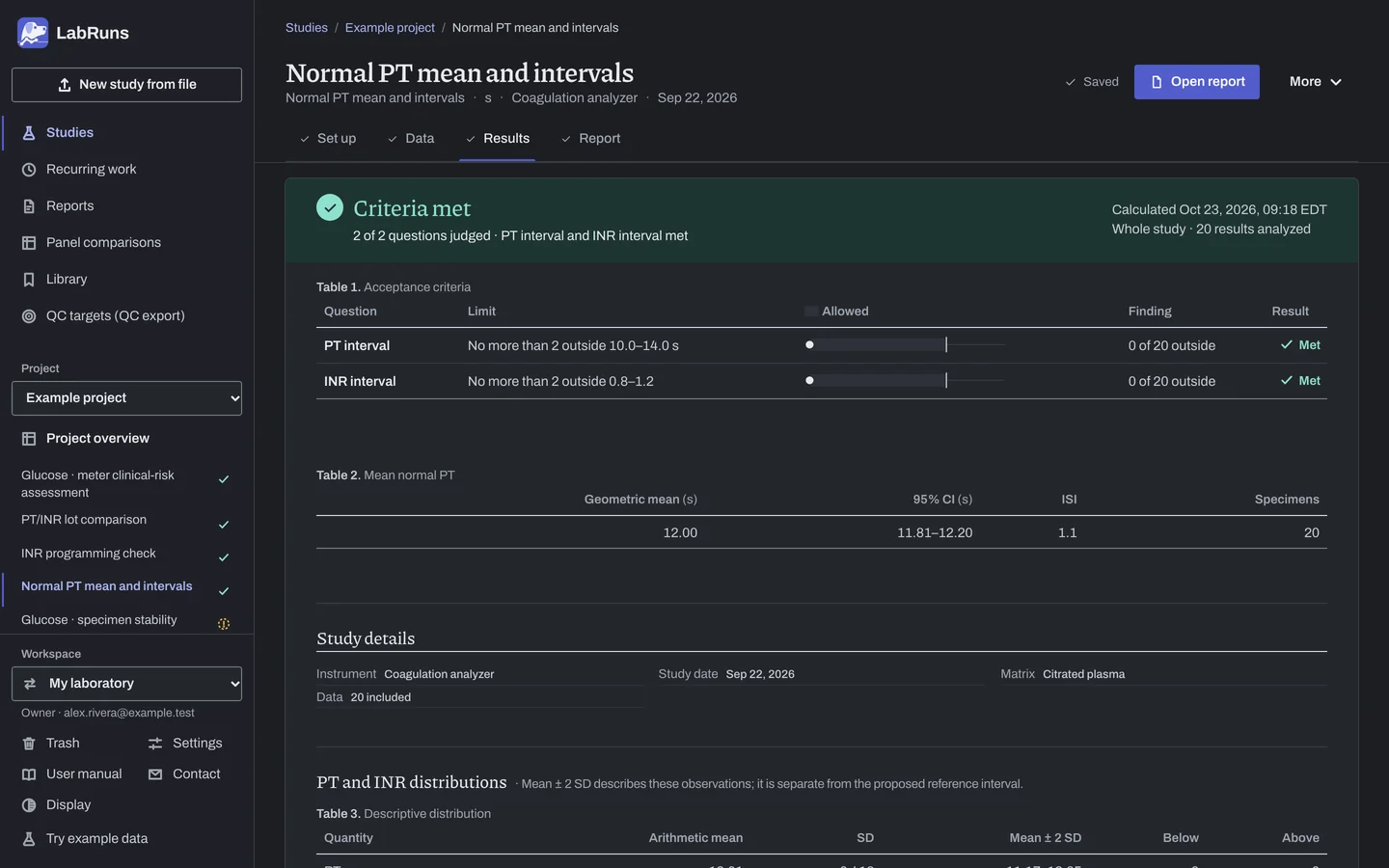
Figure 3. Results for Normal PT mean and intervals. -
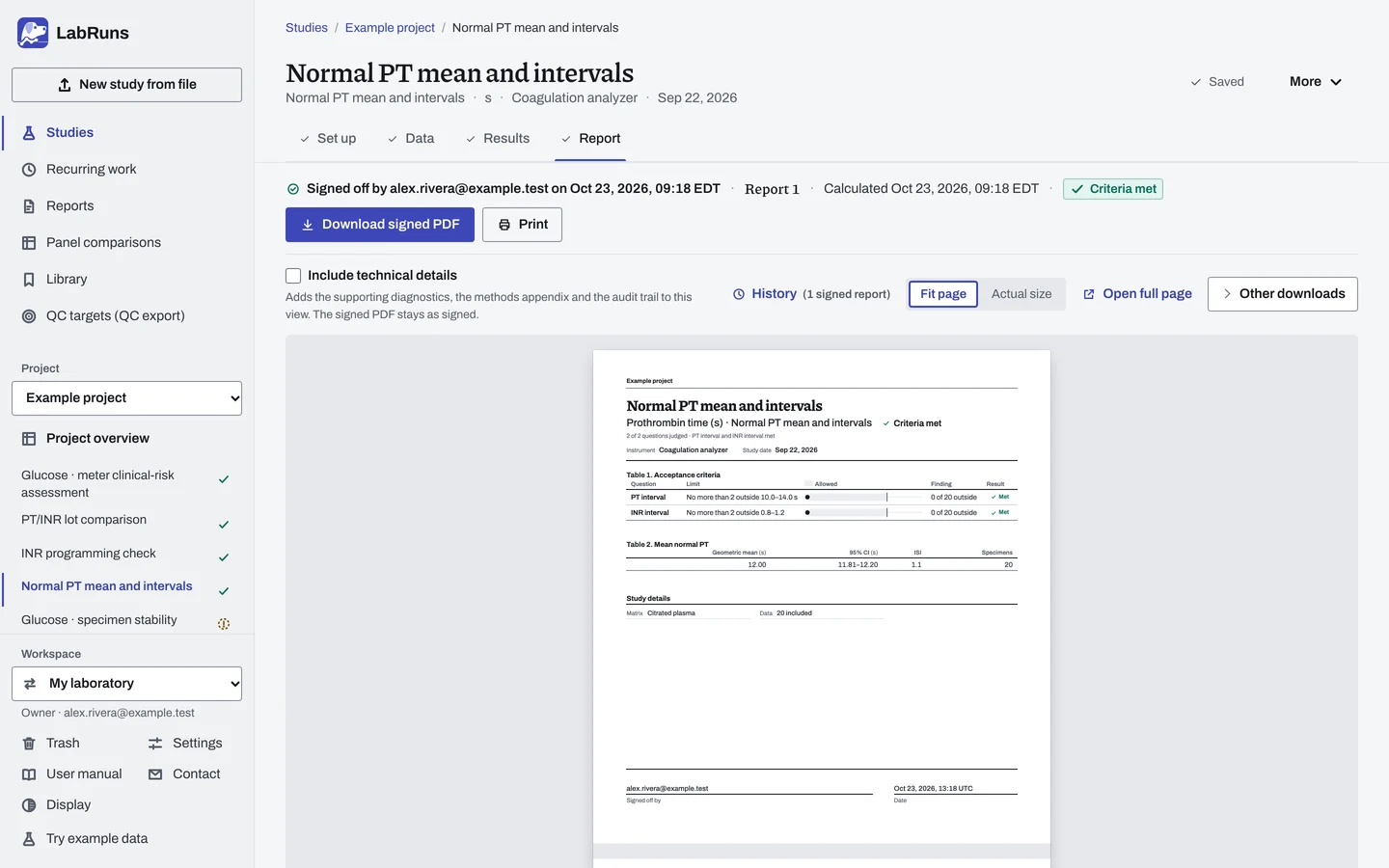
Report your decision. Open Report, look over the result and the study details, then download or print the report. Sign-off is optional.
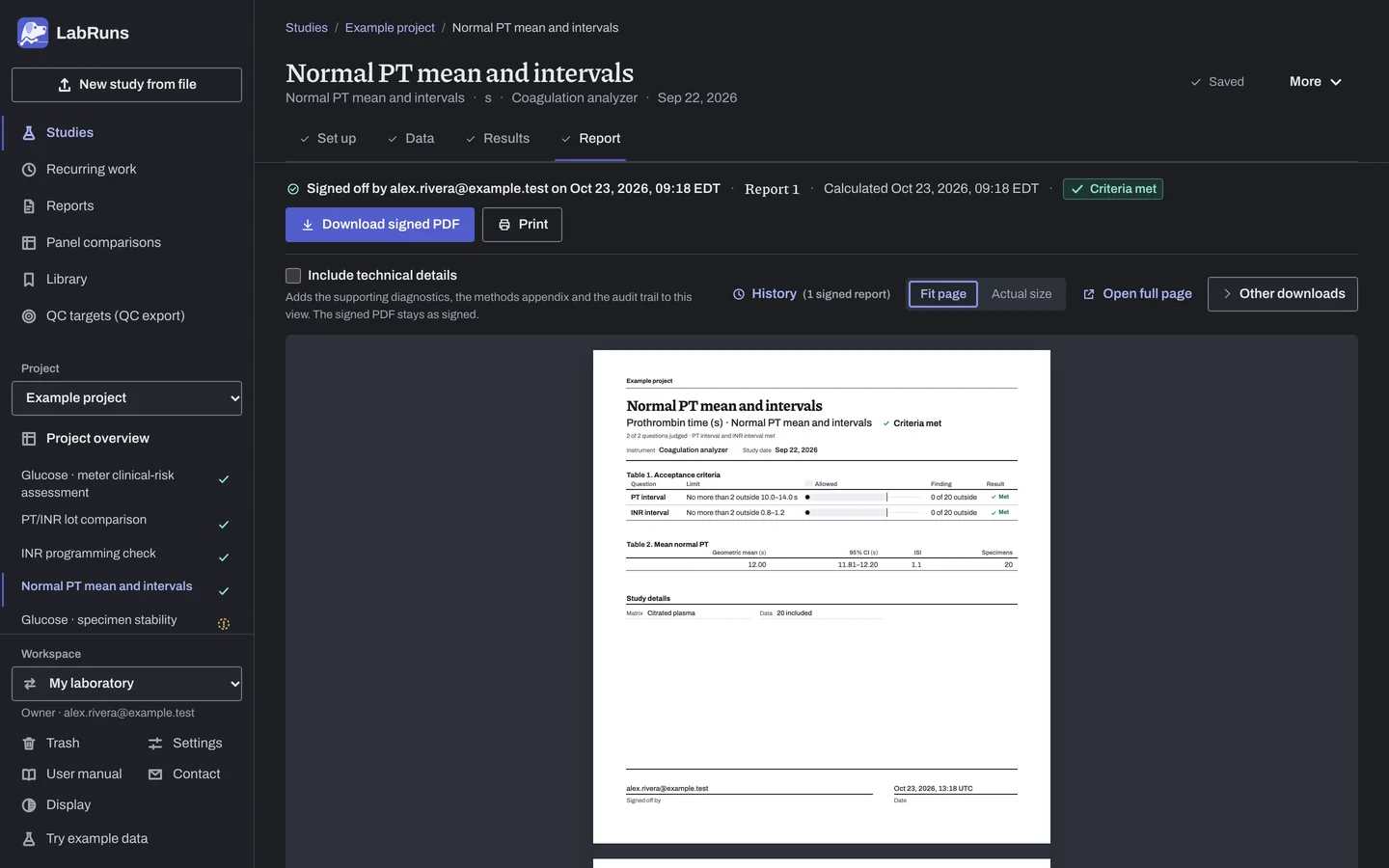
Figure 4. Report for Normal PT mean and intervals.
INR programming check
Section titled “INR programming check”- Your question
-
Does the instrument's reported INR agree with its programmed mean normal PT and ISI?
- Prepare
-
The programmed mean normal PT in seconds and the reagent/instrument ISI. At least three independent specimens or appropriate materials giving low, middle and high PT/INR results across the working range.
- Suggested starting plan
-
- 3 independent specimens or materials × 1 PT and 1 reported INR in the same run. 3 PT/INR pairs.
This is an application arithmetic check using the WHO INR equation. WHO thromboplastin guidance, TRS 979 Annex 6.
- Calculation minimum
-
Three independent pairs with three different PT results. More points may be used to cover the reporting range.
-
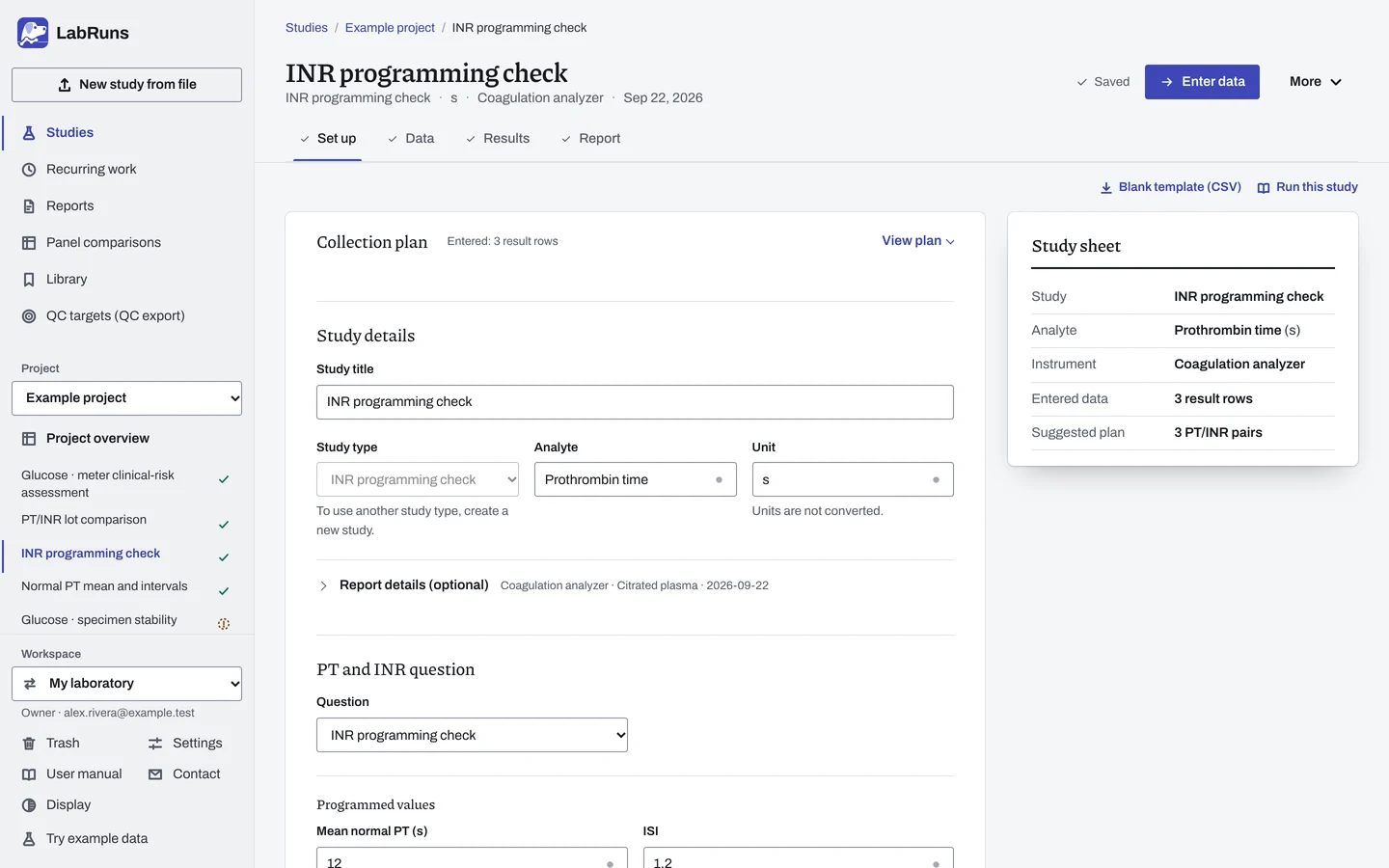
Decide before collecting. Create the study and fill these in on Set up:
- Confirm the programmed mean normal PT and ISI for this reagent and instrument.
- Keep every entered INR decimal place, including trailing zeros. It sets that row's reporting precision.
Figure 5. Set up for INR programming check. -
Collect and record. Collect the results as planned above and label each one with the specimen or material, level, day, run and replicate your design tracks.
-
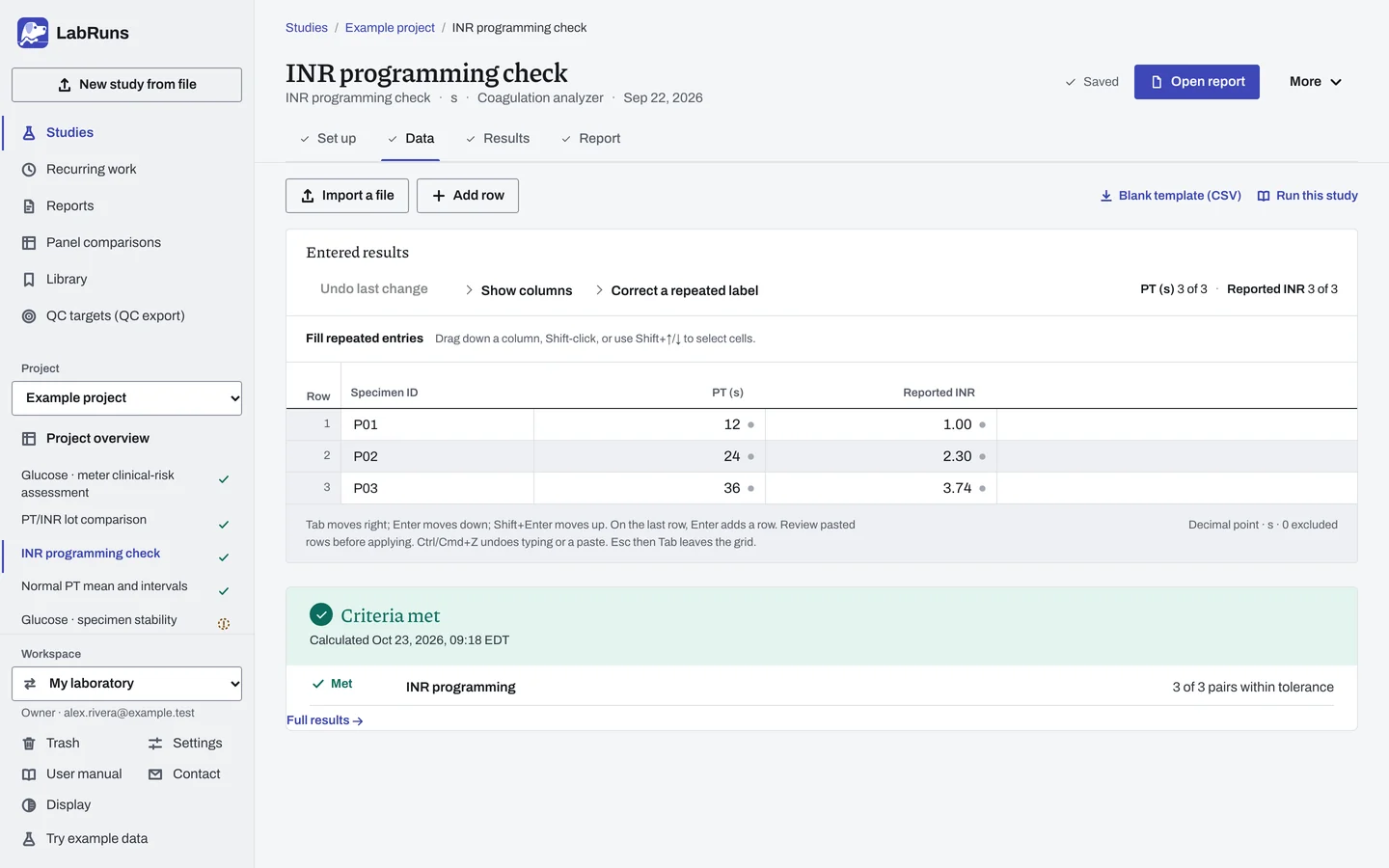
Enter your results. Enter specimen ID, PT in seconds and the INR exactly as reported. Enter 2.30 when the instrument reports two decimals; do not shorten it to 2.3. For a ready-made file, use Blank template (CSV) on Data, or download the INR programming template.
Figure 6. Data for INR programming check. -
Calculate and check. Save the study, choose Calculate results, then check:
- Check the derived INR beside the reported INR for every pair.
- Each rounded derived INR must differ by no more than one unit in the last entered decimal place. Every pair must meet this application tolerance.
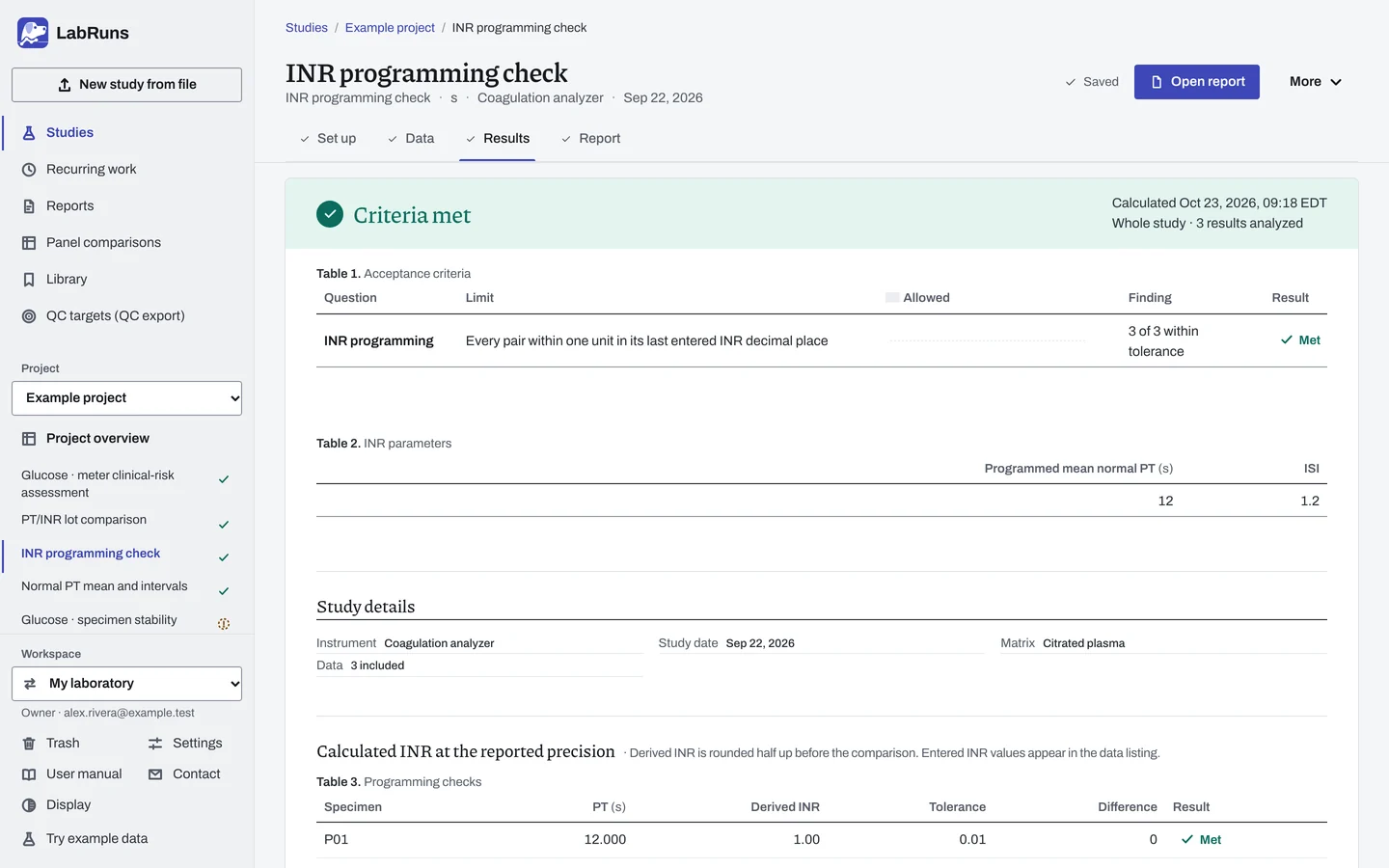
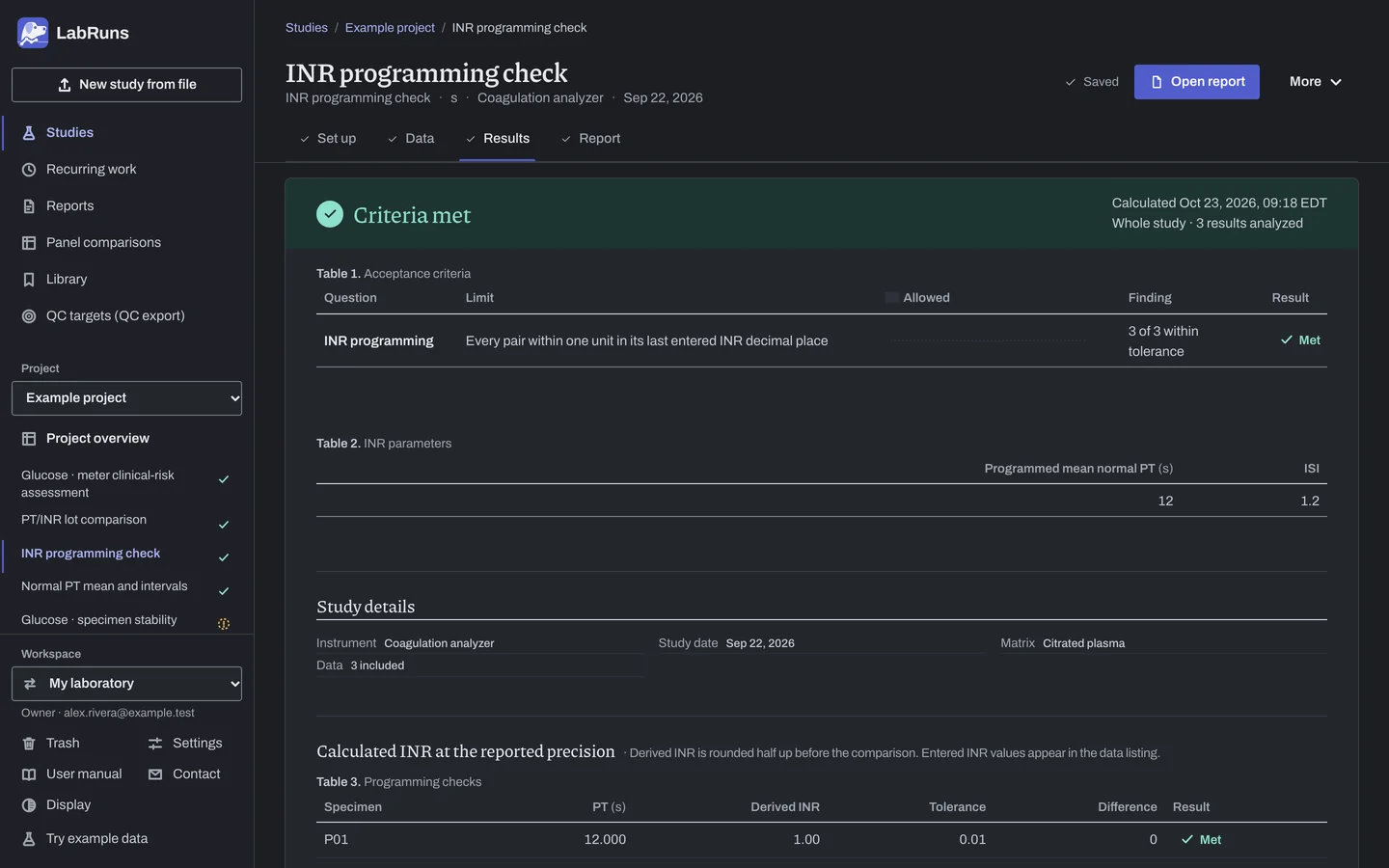
Figure 7. Results for INR programming check. -
Report your decision. Open Report, look over the result and the study details, then download or print the report. Sign-off is optional.
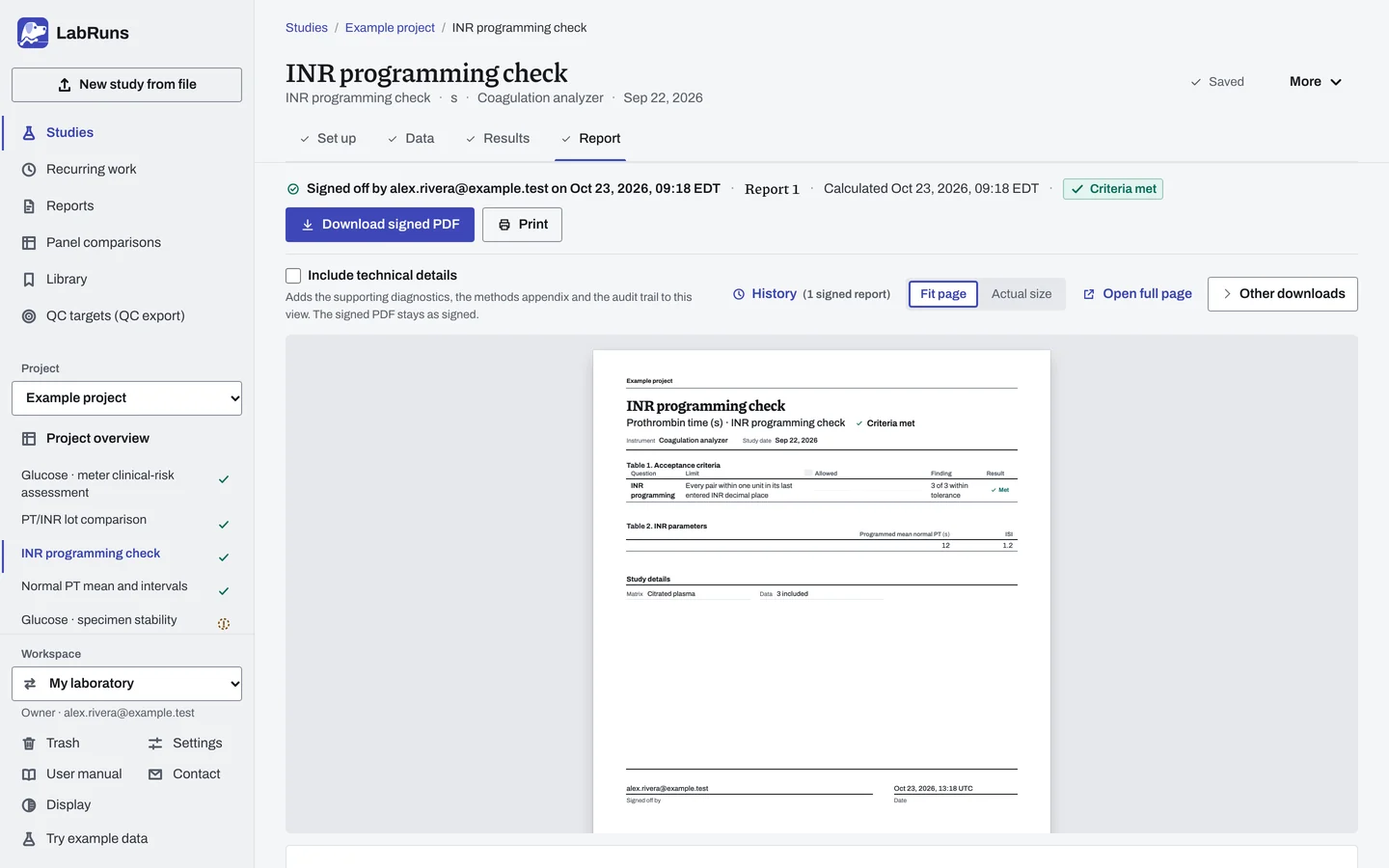
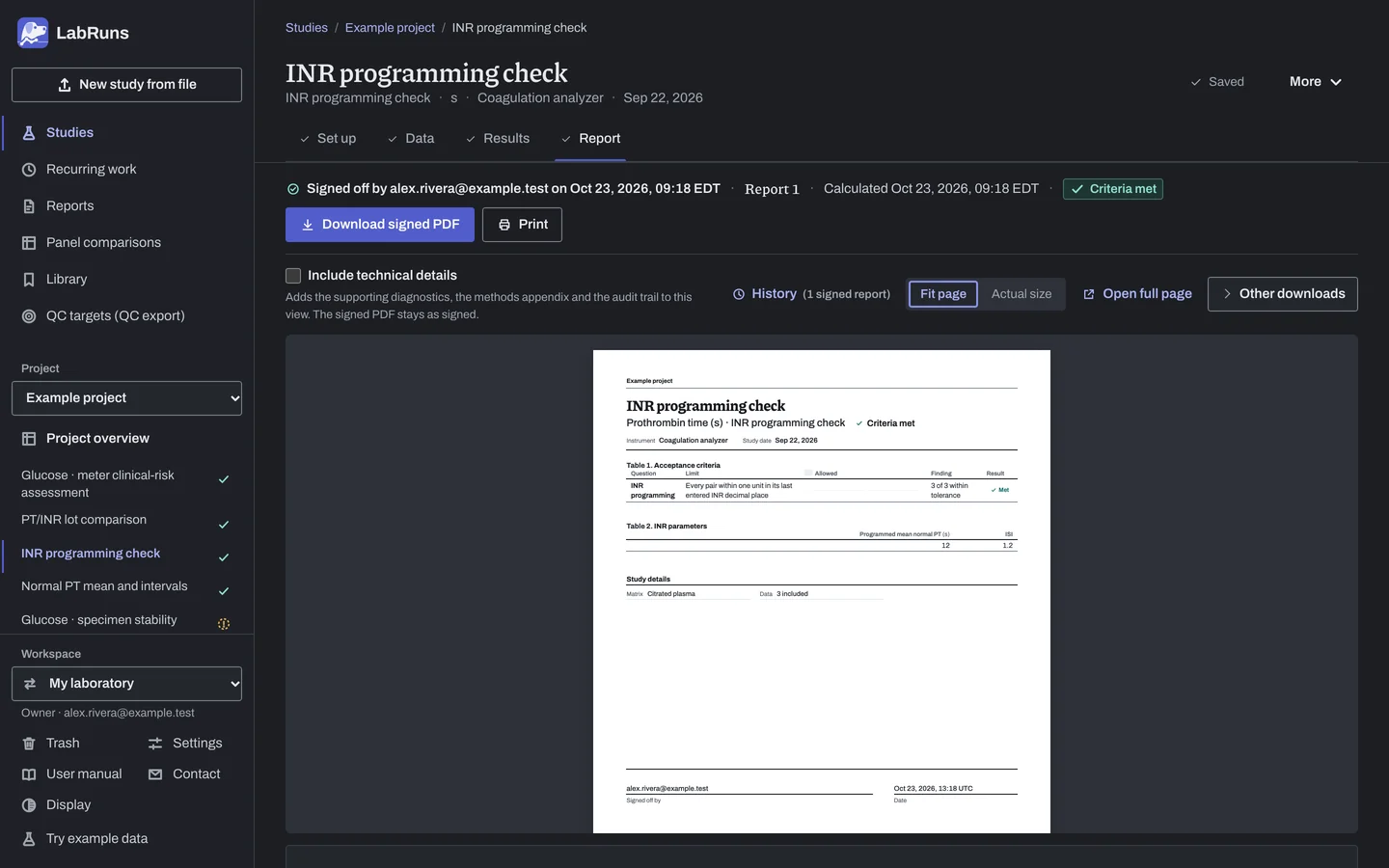
Figure 8. Report for INR programming check.
PT/INR lot comparison
Section titled “PT/INR lot comparison”- Your question
-
Are PT and derived INR results from a new reagent lot within your laboratory's specimen allowances?
- Prepare
-
20–40 independent paired specimens spanning normal, therapeutic and high PT/INR results. Both reagent lot identities and each lot's own ISI and mean normal PT. Measure each specimen with both lots under comparable conditions.
- Suggested starting plan
-
- 20 independent specimens × 1 measurement on each of 2 reagent lots in paired runs. 20 pairs · 40 PT measurements.
This is a laboratory-designed paired lot study using the WHO INR equation and separate specimen limits. WHO thromboplastin guidance, TRS 979 Annex 6.
- Calculation minimum
-
Two independent paired specimens, with every planned concentration group complete. Repeats are averaged within specimen and lot.
-
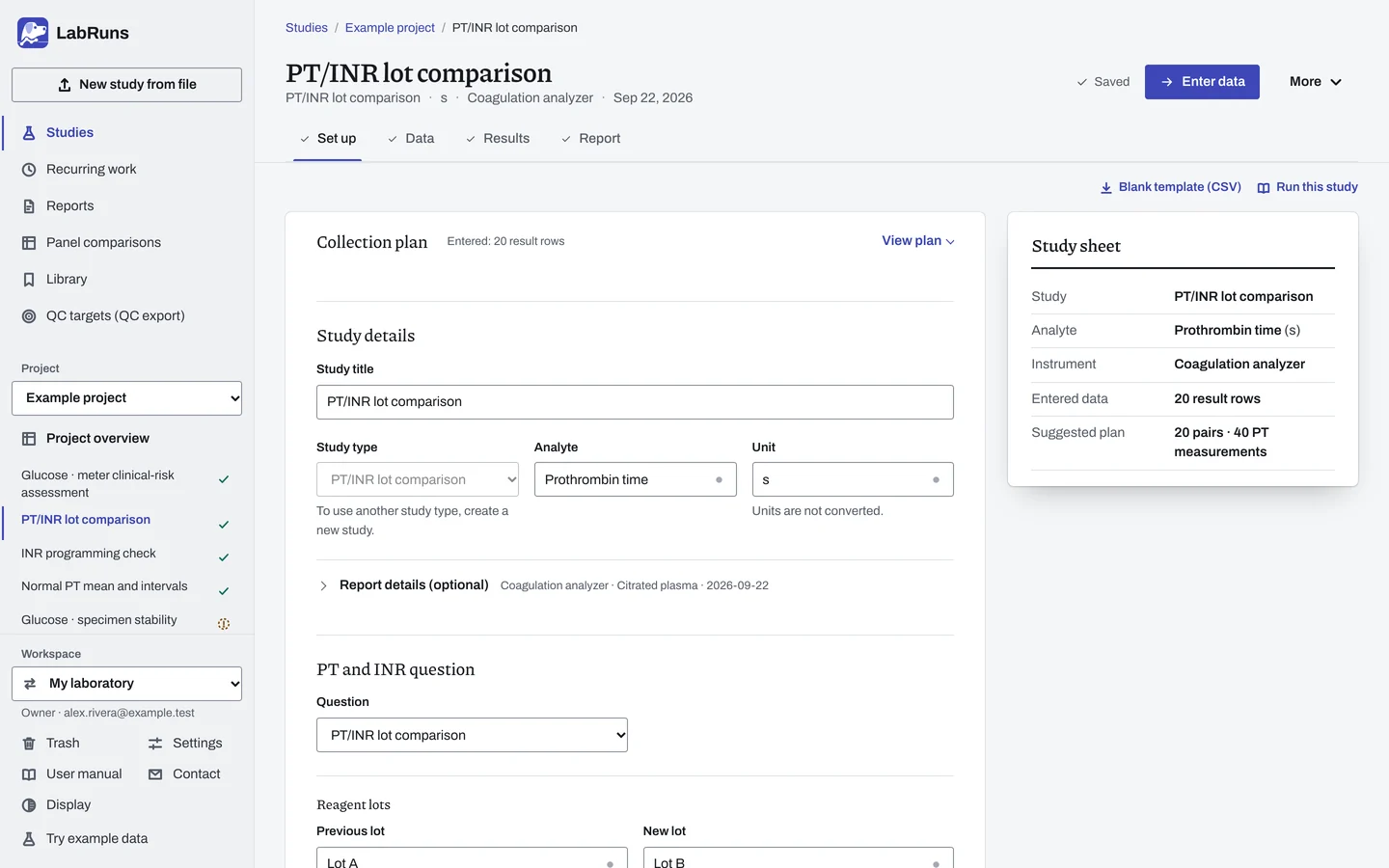
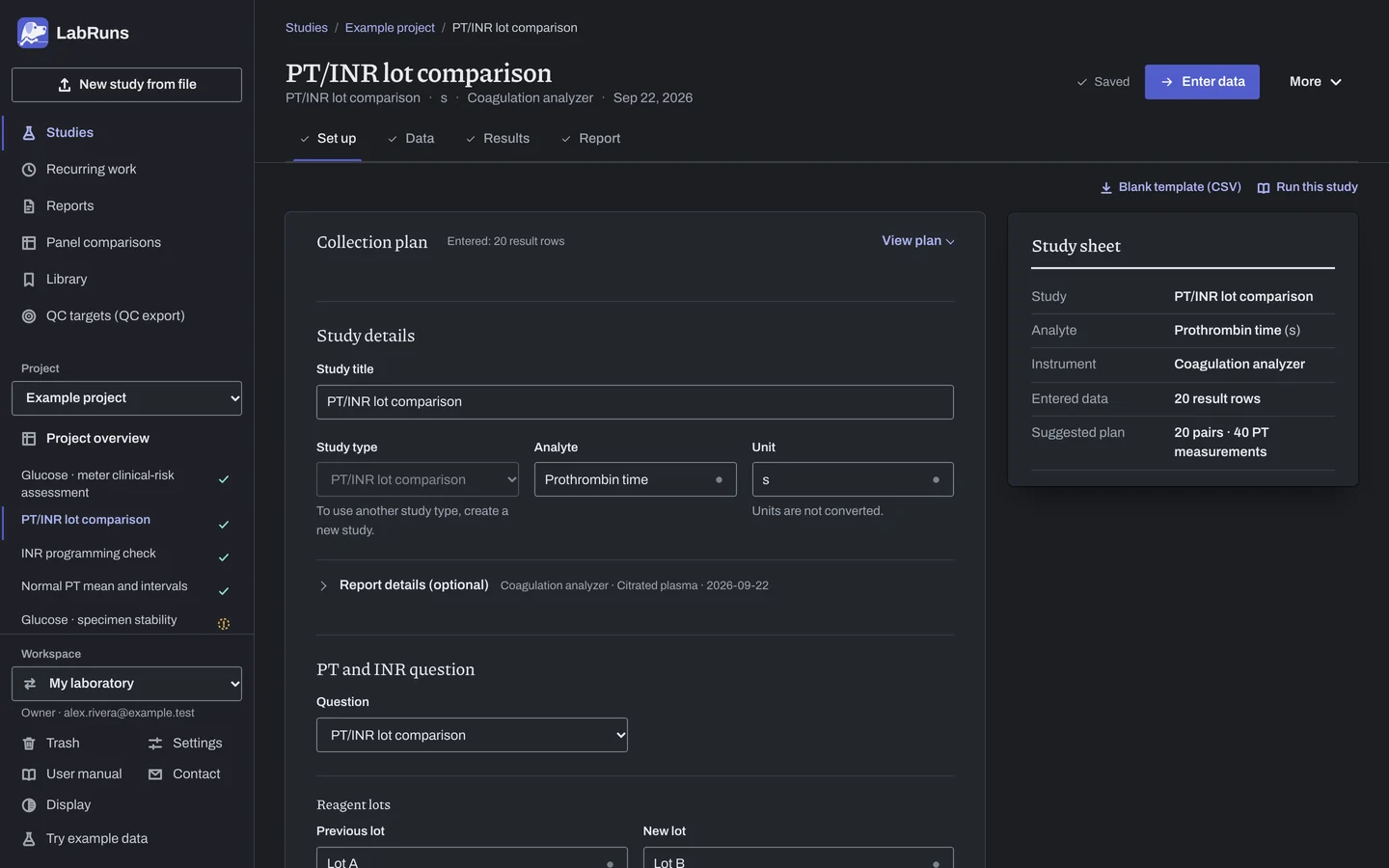
Decide before collecting. Create the study and fill these in on Set up:
- Set the required pair count and optional previous-lot PT range for each planned concentration group.
- Set separate PT and INR allowances in absolute units, percent of the previous-lot result, or both. When both are entered the larger applies.
- At least 95% of specimens must meet each allowance; every one is required with fewer than 20. Select Every specimen must be within its limit to require all specimens.
Figure 9. Set up for PT/INR lot comparison. -
Collect and record. Collect the results as planned above and label each one with the specimen or material, level, day, run and replicate your design tracks.
-
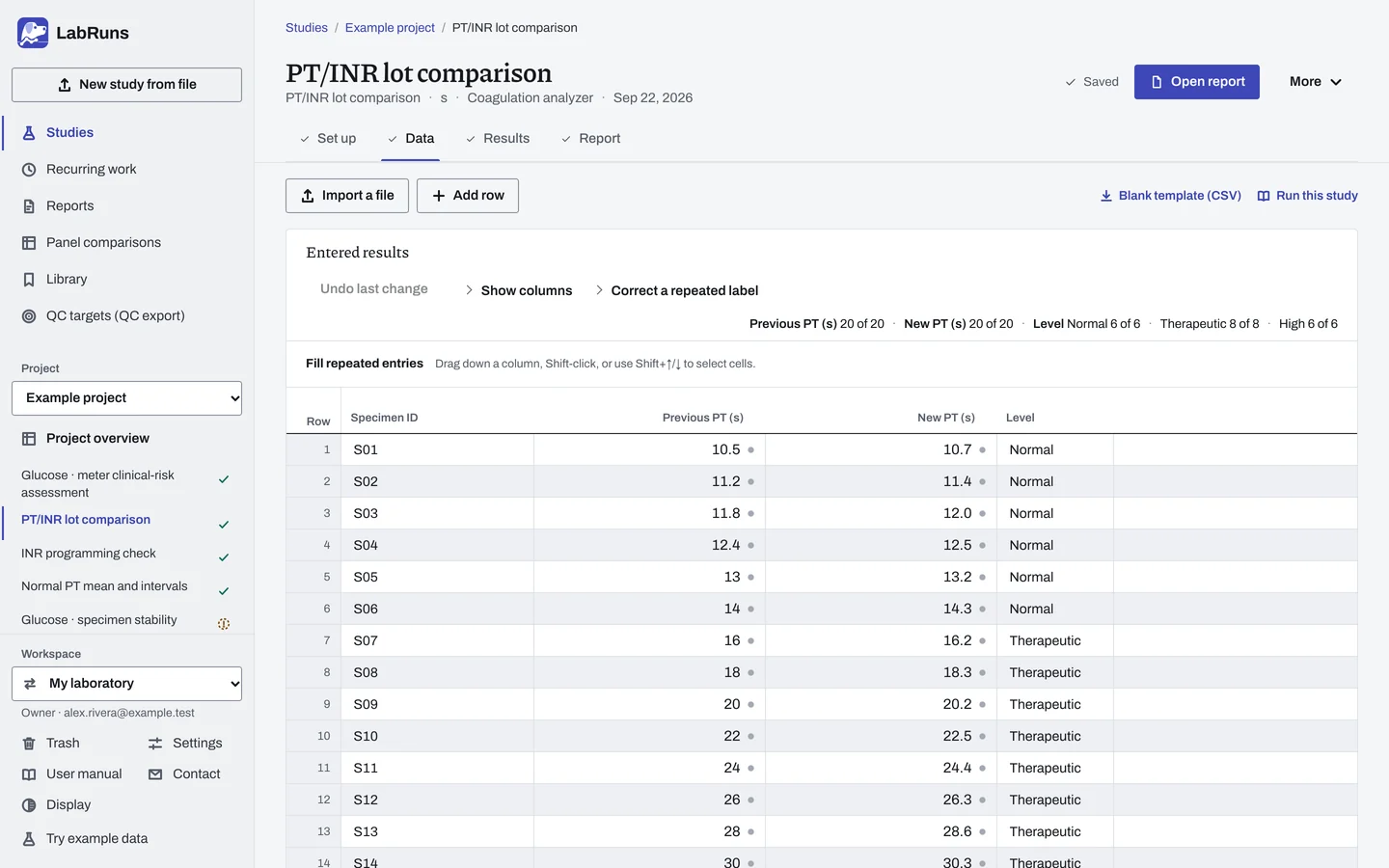
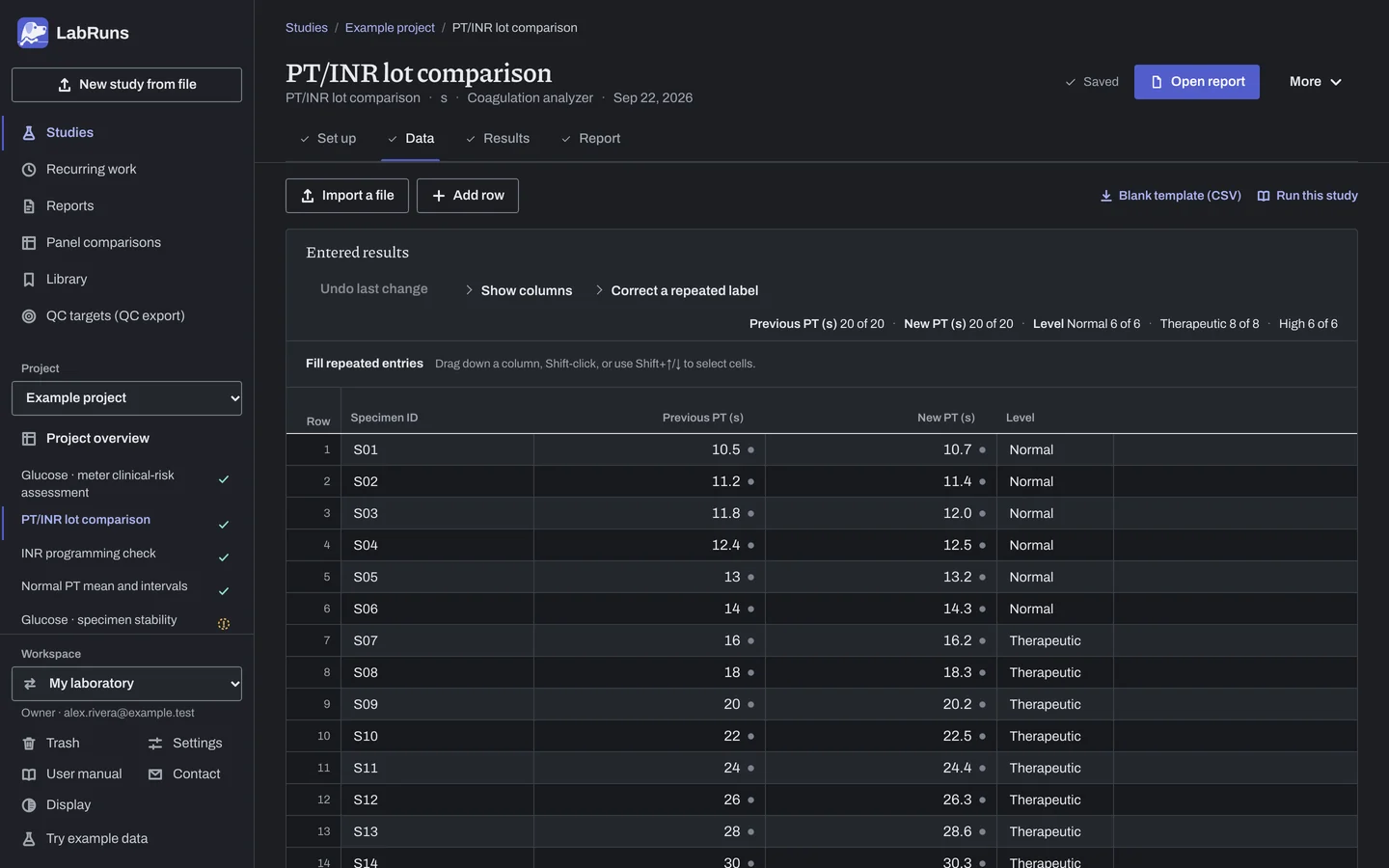
Enter your results. Enter specimen ID, previous-lot PT, new-lot PT and the planned level on each row. Use the same ID for replicate pairs. All PT values are in seconds. For a ready-made file, use Blank template (CSV) on Data, or download the paired-lot template.
Figure 10. Data for PT/INR lot comparison. -
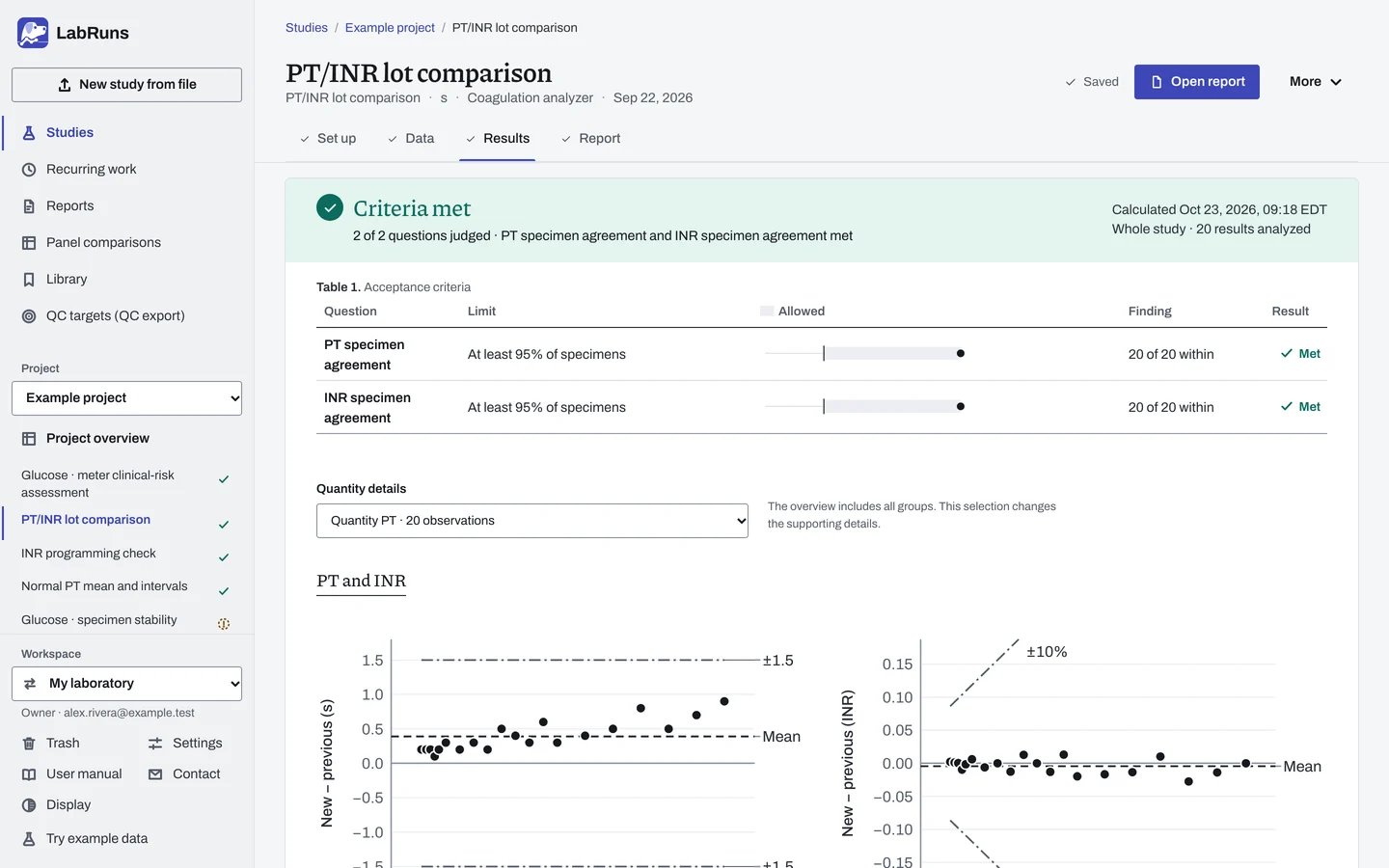
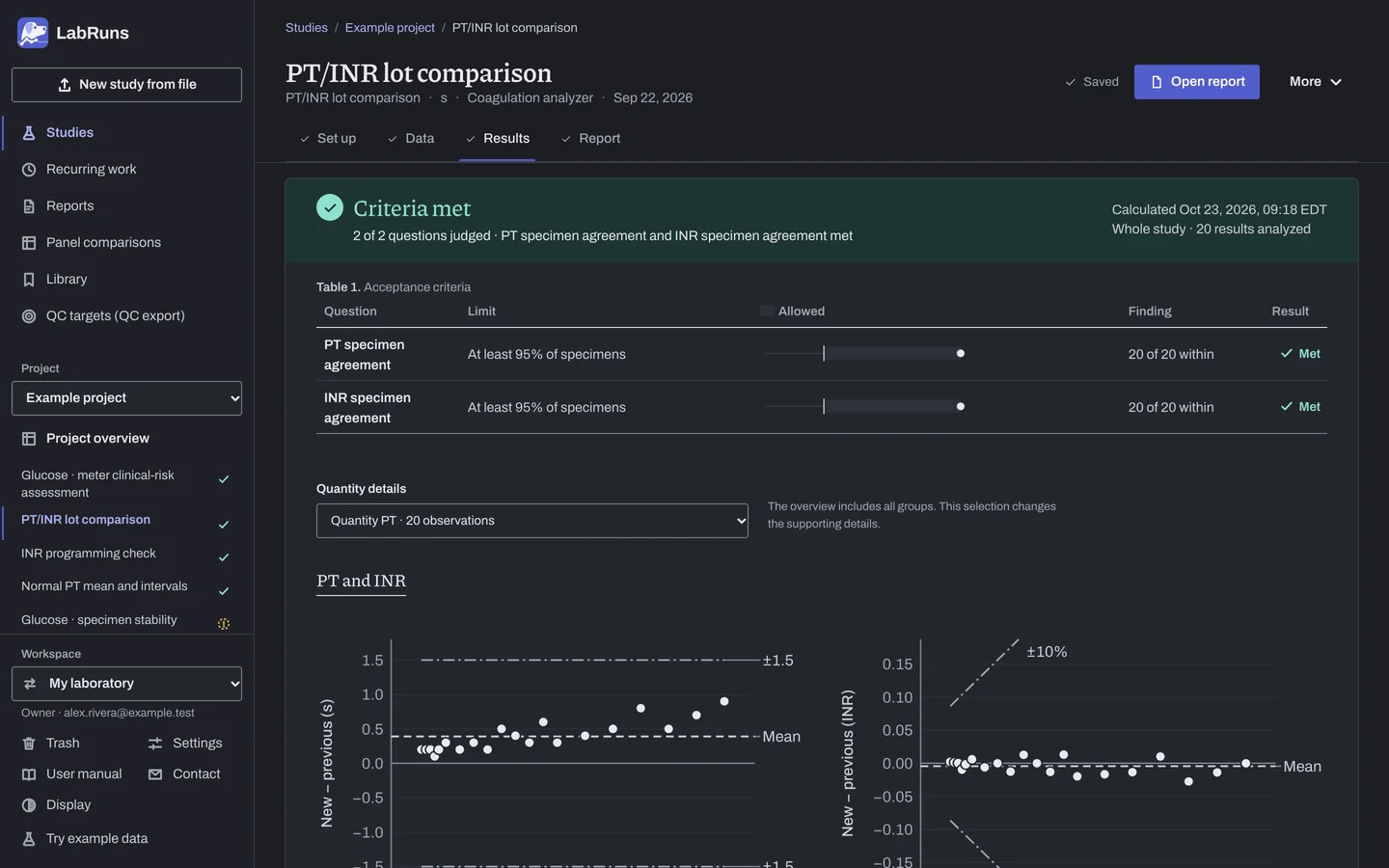
Calculate and check. Save the study, choose Calculate results, then check:
- Review separate PT and INR specimen decisions and the completeness of the lot plan.
- Check the regression model and stated Deming variance ratio when used. Correlation and regression intervals support interpretation; they do not replace specimen acceptance.
Figure 11. Results for PT/INR lot comparison. -
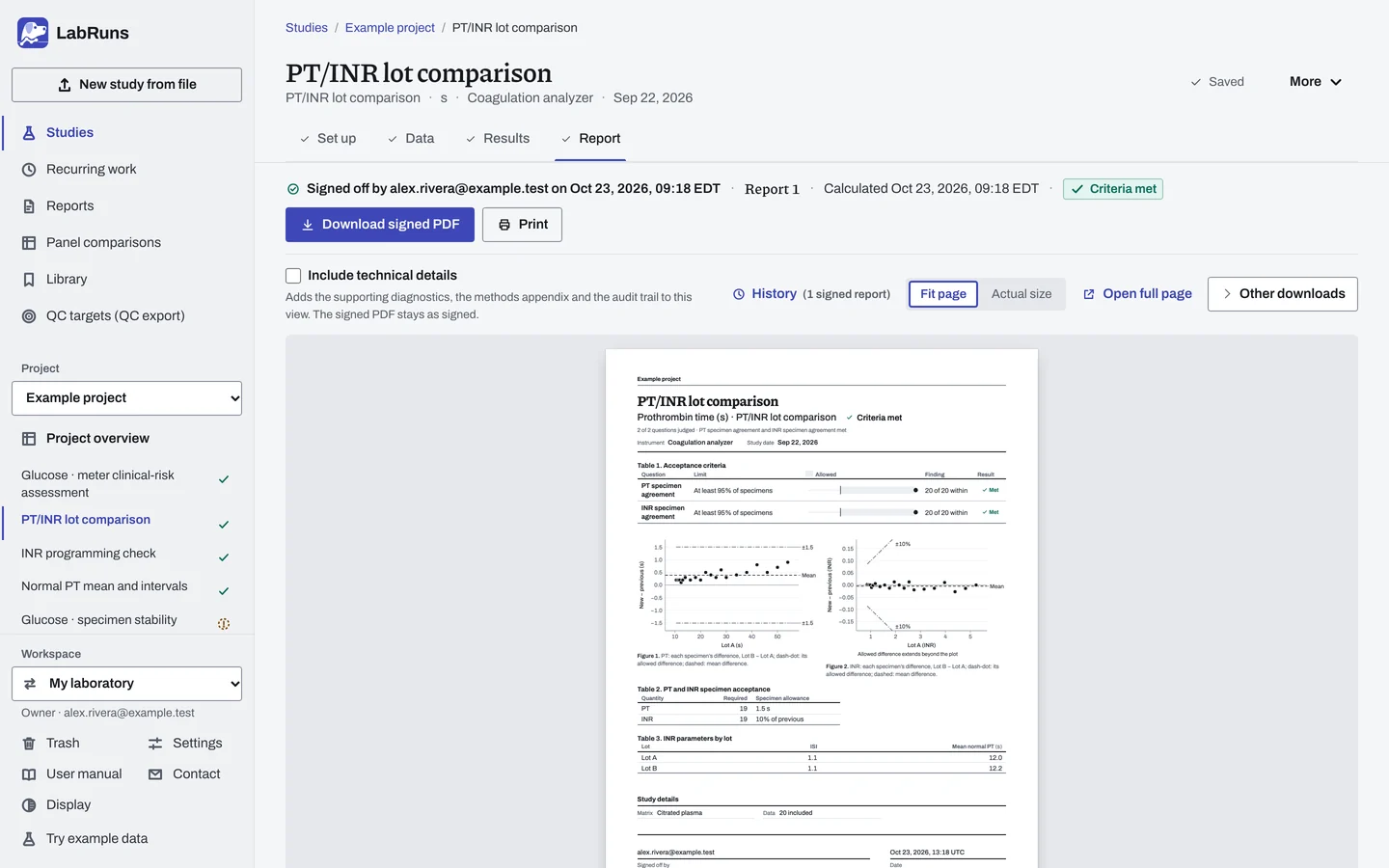
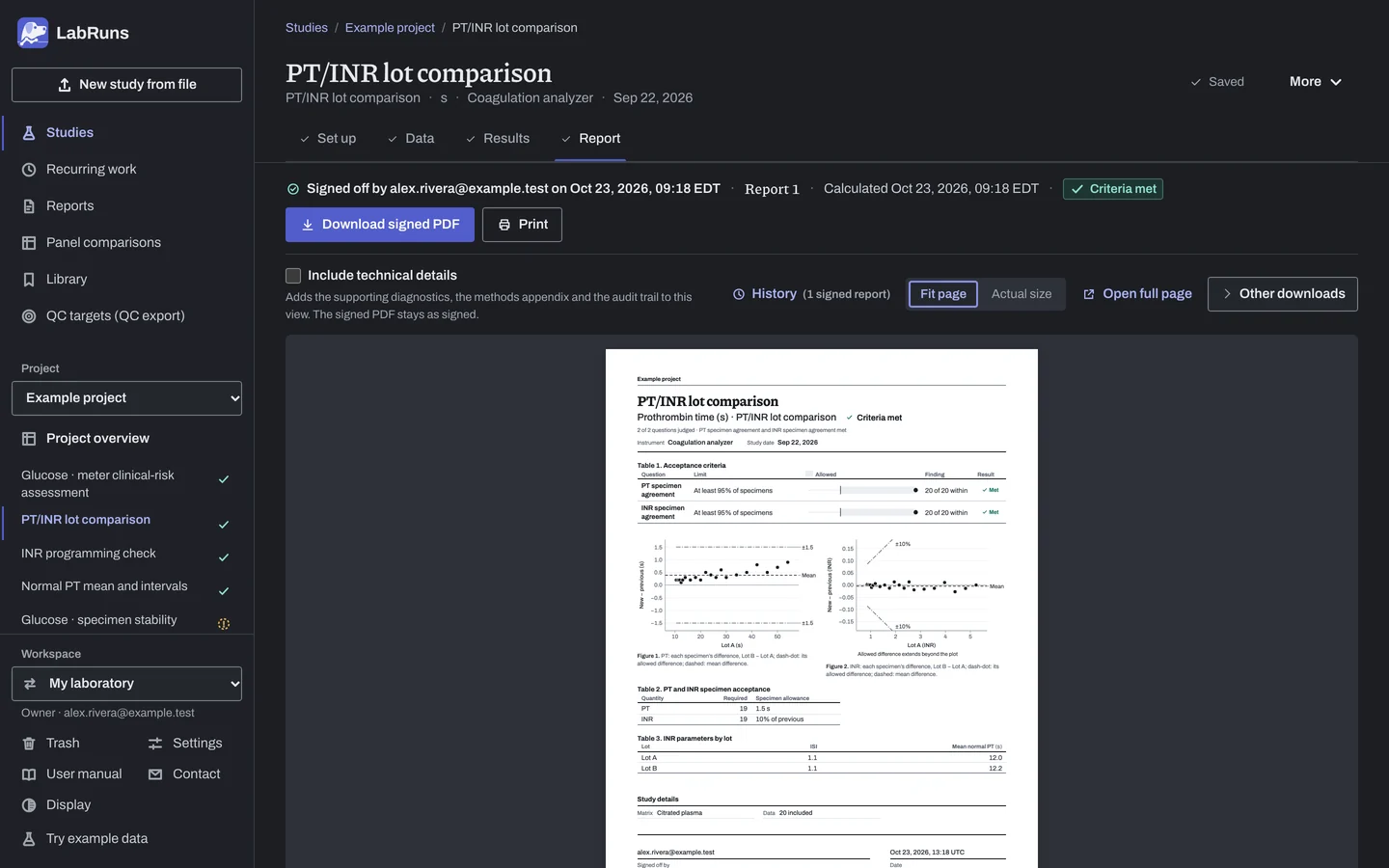
Report your decision. Open Report, look over the result and the study details, then download or print the report. Sign-off is optional.
Figure 12. Report for PT/INR lot comparison.
Set up
Section titled “Set up”- Choose New study and select the question under Comparison and bias: Normal PT mean and intervals, INR programming check or PT/INR lot comparison. Enter Analyte, and
sas the Unit (PT is in seconds). Choose Create study, or Create and import data if you already have results. - On Set up, under PT and INR question, check the Question before entering data, because the question determines the data columns.
- Fill in the settings for your question, below. See Settings.
- On Data, choose Import a file, or Add row and type or paste into the grid. Enter coded specimen IDs, with repeated measurements under the same specimen ID. See Columns.
Normal PT mean and intervals
Section titled “Normal PT mean and intervals”- Under Normal specimens and proposed intervals, enter the ISI and Allowed outside each interval, the number allowed outside each interval. It starts at 2.
- Enter the Lower PT interval limit (s) and Upper PT interval limit (s), and the Lower INR interval limit and Upper INR interval limit.
- On Data, record each specimen's collection Day.
INR programming check
Section titled “INR programming check”- Under Programmed values, enter the programmed Mean normal PT (s) and ISI.
- On Data, enter each Reported INR with the instrument's trailing zeros, such as
2.30.
PT/INR lot comparison
Section titled “PT/INR lot comparison”- Under Reagent lots, enter the Previous lot and New lot names, then each lot's mean normal PT and ISI.
- Under Specimen allowances, set separate PT and INR allowances, each as an absolute amount, a percentage of the previous-lot result, or both.
- To require every specimen, tick Every specimen must be within its limit.
- Under Supporting regression, choose the Primary regression. A Deming model shows its Error-variance ratio, initially 1.
- Under Lot plan, set each level's Required pairs and, optionally, its Previous PT low (s) and Previous PT high (s). Add level adds a level.
- On Data, enter Previous PT (s) and New PT (s) on the same row, with the planned Level.
When a limit is not met
Section titled “When a limit is not met”- Normal PT mean and intervals: check the ISI and both proposed intervals on Set up, and that each specimen's PT is in seconds, with repeats under the same specimen ID.
- INR programming check: check the Mean normal PT (s) and ISI on Set up against the values programmed in the instrument, and check that each Reported INR keeps the instrument's decimal places.
- PT/INR lot comparison: check each lot's ISI and mean normal PT, and that each specimen's previous-lot and new-lot PT are in the right columns. If the lot plan is incomplete, add paired specimens to each planned level.
Common mistakes
Section titled “Common mistakes”- A unit other than
s. PT results are in seconds. Set the study Unit tos. - A reported INR shortened, such as
2.3for2.30. The tolerance becomes0.1; for2.30it is0.01. Keep the instrument's trailing zeros. - The question changed after data entry. The question determines the data columns. Choose it before entering data.
- Repeats entered under different specimen IDs. Each ID counts as a separate specimen. Use the same specimen ID for repeated measurements.
- Lot-comparison rows without the planned Level. The Level places each specimen in its lot-plan group. Enter the planned level on each row.