Reading results
After Calculate results, check the included count, each acceptance decision and the plots. The Results stage shows the saved calculation; see calculate results when data or limits change.
How the page is laid out
Section titled “How the page is laid out”The study status and acceptance decisions come first, followed by the study's plots and tables. Each study guide explains what to check in them.
The summary line
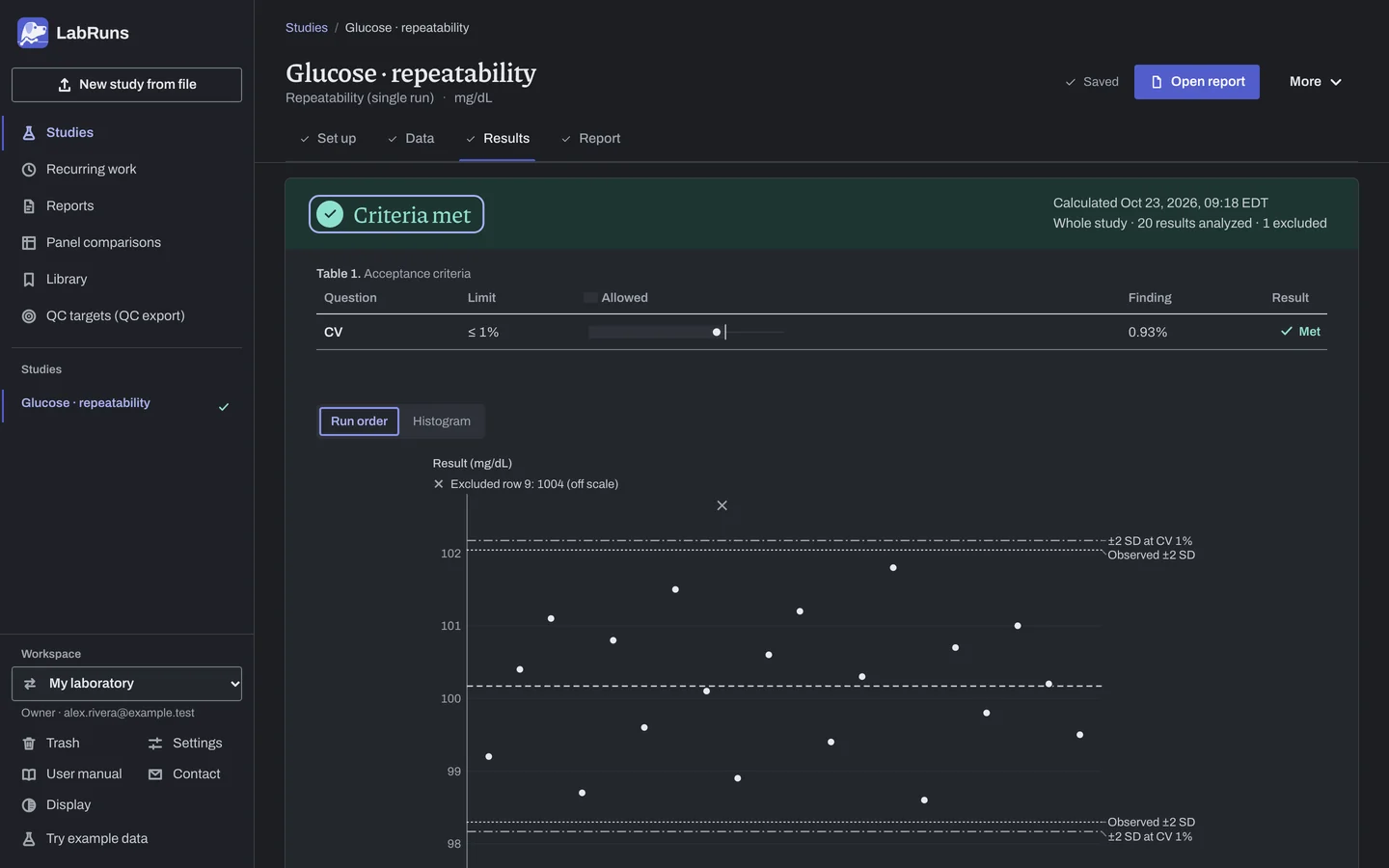
Section titled “The summary line”The summary gives the saved acceptance status for All entered acceptance limits, with counts such as Whole study · 20 results analyzed · 1 excluded. Check these against what you collected and excluded. A completed calculation with no acceptance decision is labeled Descriptive results in the study, Projects and Reports.
In a study that needs an acceptance limit but has none, the page explains that there is no pass or fail yet and offers Add your laboratory’s limit. If limits exist but none applies, the page names that problem. Descriptive workups can report statistics without an acceptance decision. Study-specific settings, such as Minimum acceptable sigma, can add a decision without using the shared limit editor. See About acceptance decisions.
Findings and study notes
Section titled “Findings and study notes”Findings are short sentences written from the saved values. Descriptive, multi-day precision and bias studies show additional estimates and confidence intervals in Key results under the plot; repeatability names its remaining estimate under the plot as Supporting estimates. The acceptance table gives each judged estimate with its limit and outcome. Key results retains any interval or study note needed to interpret that estimate.
Study notes follow. They explain data issues and estimates that could not be calculated. See Study notes and unavailable results.
Acceptance decisions
Section titled “Acceptance decisions”The acceptance table, Table 1, lists each question with its limit, the finding and its outcome. Select a question to open its limit on Set up. A limit covering several levels, pools or dilutions gets one line per check. An Undecided, Not evaluated or Not applicable outcome gives its reason.
For method, instrument and reagent lot comparison, a specimen limit's observed value is the count within limits, for example 19/20 (95%). Below the figures, expand Specimen decisions, Differences by specimen or Specimen results to read the individual differences and outcomes. An instrument comparison with several limits lists each limit's specimen outcomes. Each specimen table appears once and starts closed.
If the limits changed after this calculation, a warning asks you to choose Recalculate results. Until then the outcomes use the old limits.
A value marked † looks equal to its limit after rounding. The decision uses the unrounded value. See Criterion outcomes.
Plots and the group selector
Section titled “Plots and the group selector”With more than one group, a selector below the whole-study decision chooses the supporting details. Notes for that group appear beside the selector. The decision and its counts continue to cover the whole study; a figure labeled Whole-study overview includes all groups.
| Study type | Selector |
|---|---|
| Most quantitative studies | Concentration level details |
| Reference interval | Partition details |
| Interference | Analyte level details |
| Stability | Condition details |
| Instrument comparison | Instrument details |
| 21-position carryover | Run details |
| Glucose meter error grids | Meter details |
| PT and INR | Quantity details |
| Proficiency tracking | Level details |
| Measurement uncertainty | Estimate details |
The results plot switches between Run order and Histogram. Reference-interval plots offer Raw points and Histogram. Excluded results are listed under the plot with their reasons, and the plot draws them as crosses. Excluded values are left out of every estimate. Review entered data opens the Data stage.
Descriptive, repeatability, multi-day precision and reference interval studies also show a normal Q–Q plot and a box plot with the raw points under Supporting diagnostics. They describe the shape of the data only.
Methods and sources
Section titled “Methods and sources”This section holds the method statements saved with the calculation and links to the published sources. The Method ID and the report-generation version are in the report's C Audit trail (tick Include technical details). Calculation file (JSON), Results summary (CSV) and Study data (CSV) download from here. See Reports and exports.
Choosing a saved calculation
Section titled “Choosing a saved calculation”Every calculation is kept. Once the study has more than one calculation, the Calculation selector lists them by date at the top of Results. An earlier calculation opens under a warning that gives its date and the latest one's. Show latest calculation returns to the latest. See About records and history.
From a plot point to its data row
Section titled “From a plot point to its data row”Most plots link to the data:
- Click a point, or Tab to it and press Enter or Space. A screen reader reads out its row, ID and value.
- Data opens at that row's result cell. In method comparison and qualitative agreement, that is the comparative-method result.
- Correct the value, or exclude the row with a reason, then save and recalculate.
A point for a specimen or subject mean opens its first row. If a later import replaced the row, a notice says so. Its original values stay in the earlier calculation.
Downloading a plot
Section titled “Downloading a plot”Some plots have SVG and PNG buttons beside the plot's name:
| Study type | Plots you can download |
|---|---|
| Method comparison | Regression plot and difference plot |
| Reagent lot comparison | Lot difference plot |
| Descriptive, repeatability, multi-day precision, bias against an assigned value | Results plot (with Run order selected) |
| Glucose meter error grids | Glucose error grid |
| PT and INR lot comparison | PT/INR lot comparison |
| Proficiency tracking | Proficiency bias history |
These plots are also under Other downloads › Plots on the Report stage.
The file comes from the saved calculation, with the study title, result count, units and labeled lines. Short notes below the graph explain limits, difference direction and excluded values. The file name starts with the study title.
- SVG: vector with embedded fonts, for documents and slides.
- PNG: made on the server. If one can't be made, download the SVG.
Going on to the report
Section titled “Going on to the report”Open Report. If the data or settings changed since the calculation, a banner says the results are out of date and the main button reads Recalculate results. Continue with review, print and sign off a report.