


Proficiency and peer-QC tracking
Run this study
Section titled “Run this study”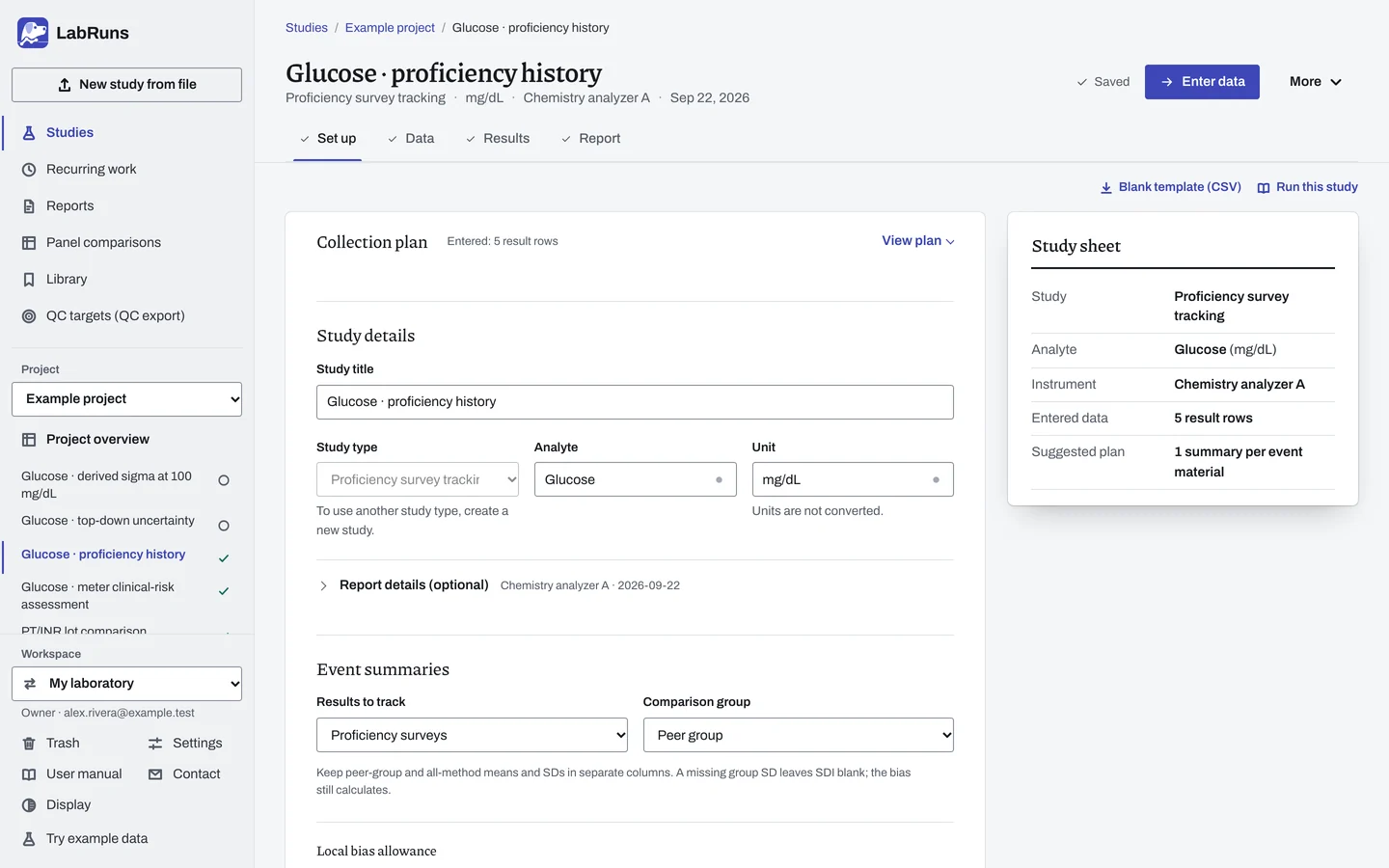
- Your question
-
How do survey results or monthly QC summaries compare with the selected peer or all-method group?
- Prepare
-
The provider's event or monthly summary: laboratory result or mean, peer-group mean and SD when available, and any all-method mean and SD. Event name, date, material identity, concentration level and any provider grade. Keep different analytes, units and instruments in separate studies.
- Suggested starting plan
-
- 1 row per event × material × level; append each survey or monthly QC summary as it arrives. 1 summary per event material.
Use the survey results or monthly QC summaries supplied by your provider. Eurachem proficiency testing guide, third edition.
- Calculation minimum
-
Calculation needs one included laboratory result and its selected group mean. SDI also needs the group SD.
-
Decide before collecting. Create the study and fill these in on Set up:
- Choose survey results or monthly QC summaries, and whether peer-group or all-method values are the comparison.
- Set the laboratory's absolute or percentage bias allowance before review. When both are entered, the larger applies. With neither, the local result is descriptive.
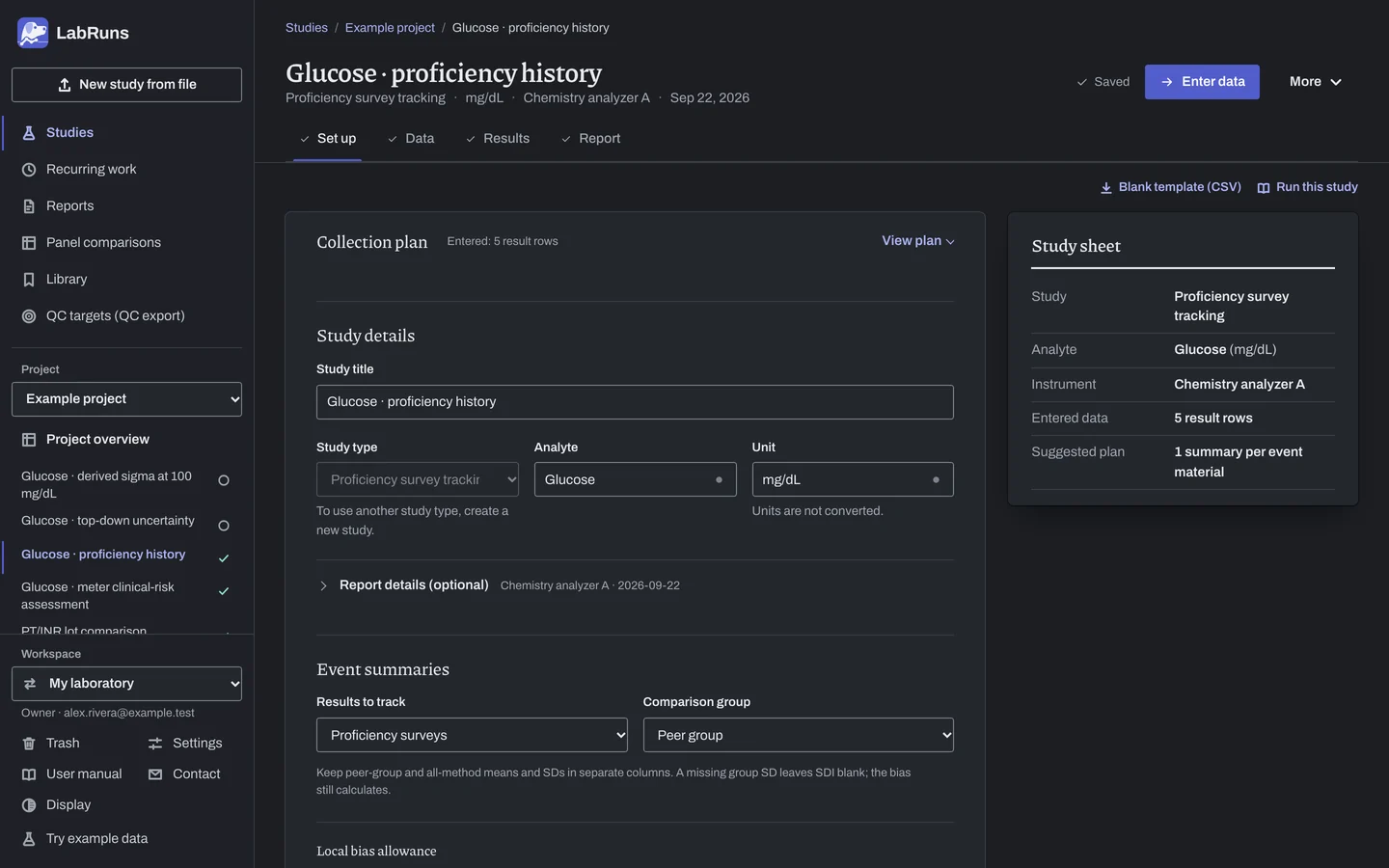
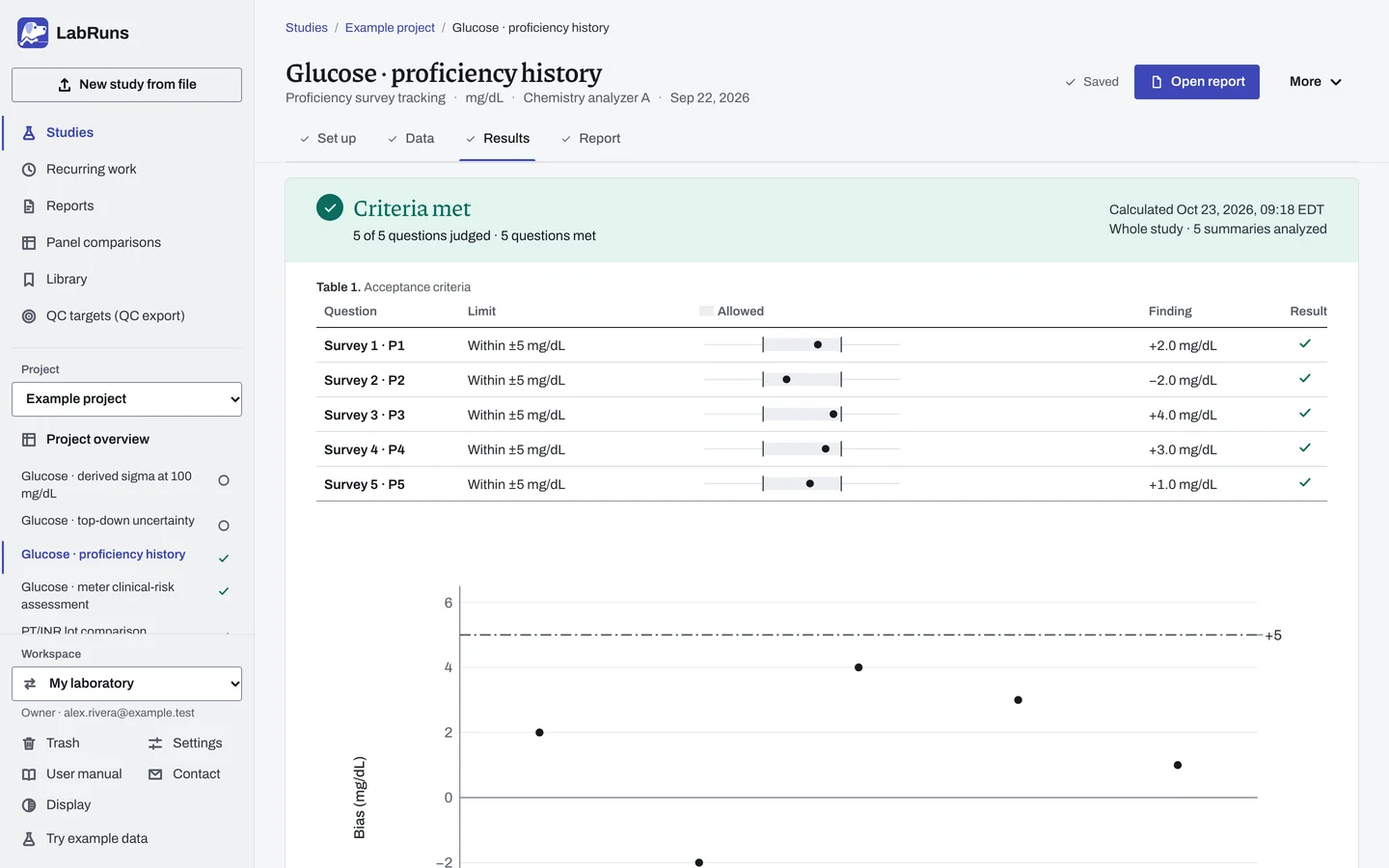
Figure 1. Set up for Glucose · proficiency history. -
Collect and record. Collect the results as planned above and label each one with the specimen or material, level, day, run and replicate your design tracks.
-
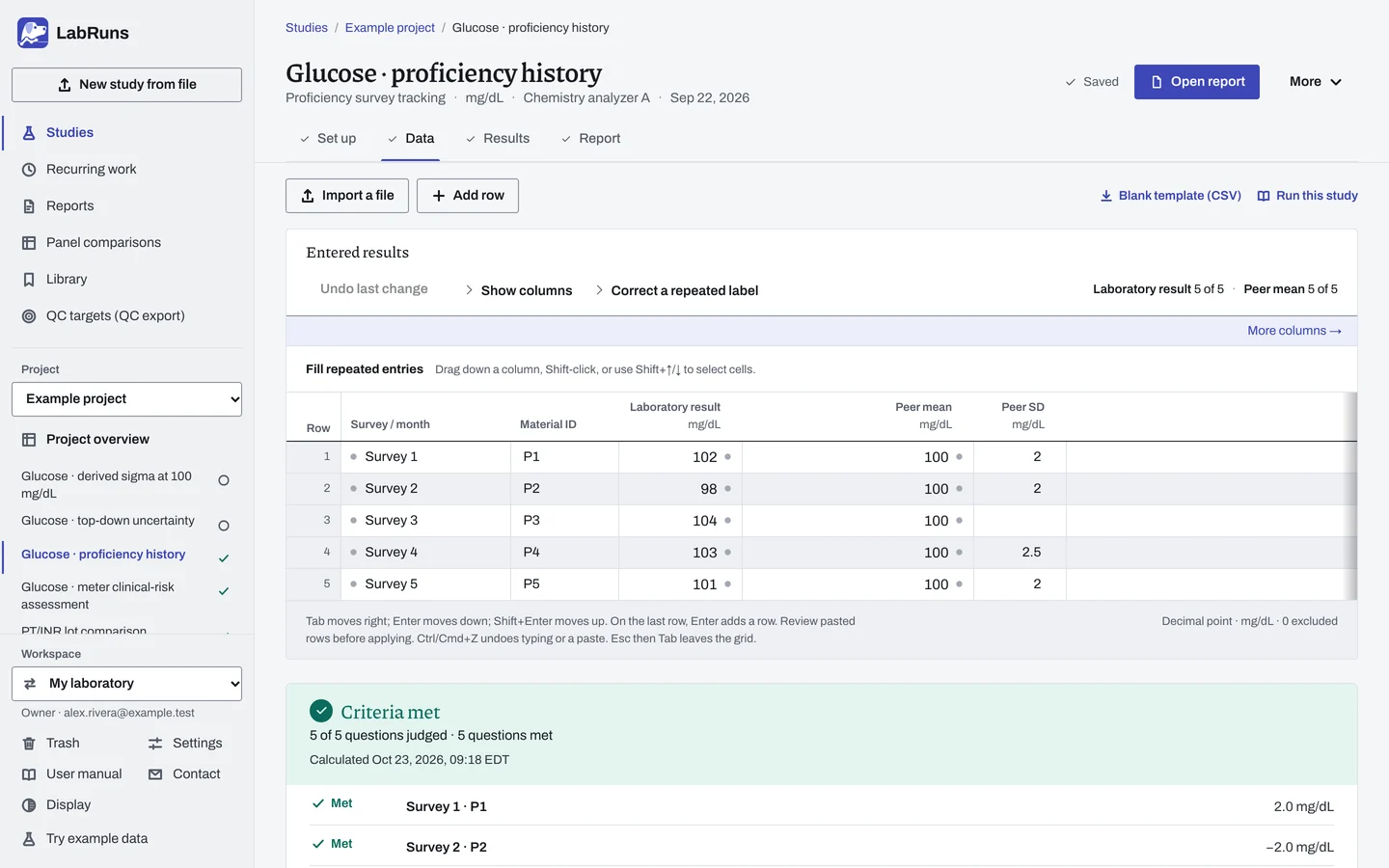
Enter your results. Enter each event's laboratory result and the provider's selected group mean. Keep peer and all-method statistics in their separate columns; leave an unavailable SD blank. Copy a provider grade exactly as given. For a ready-made file, use Blank template (CSV) on Data, or download the proficiency and monthly-summary template.
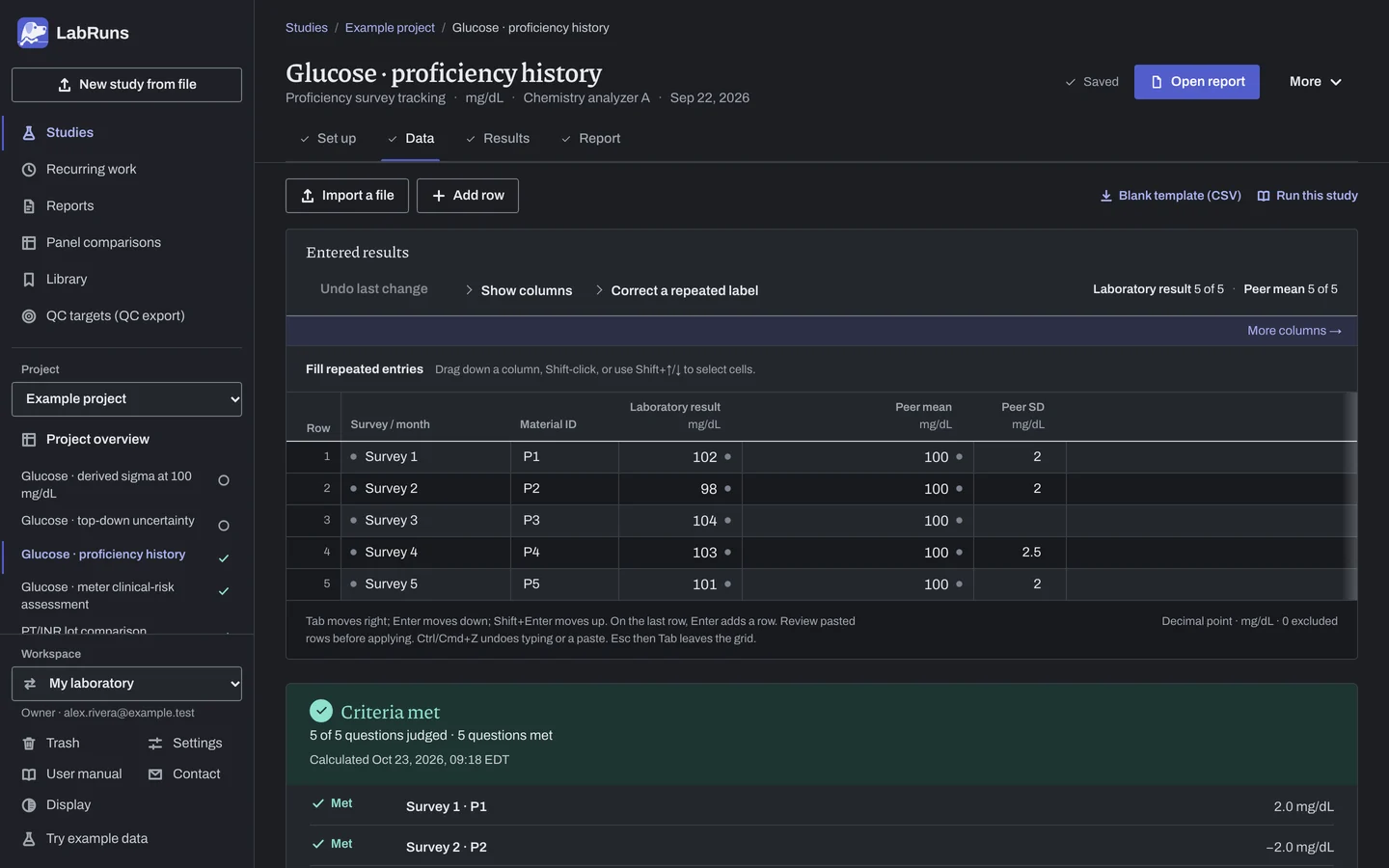
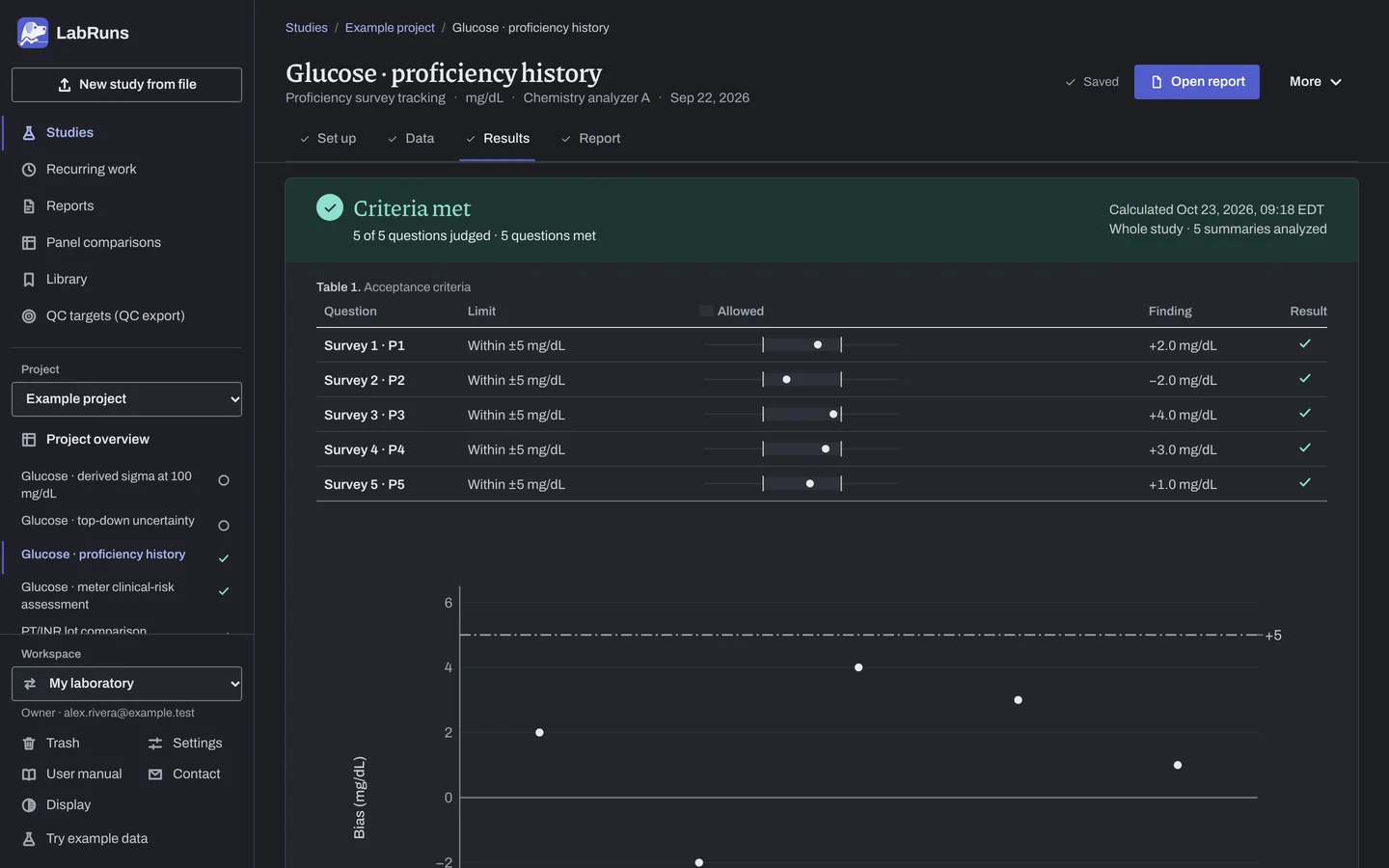
Figure 2. Data for Glucose · proficiency history. -
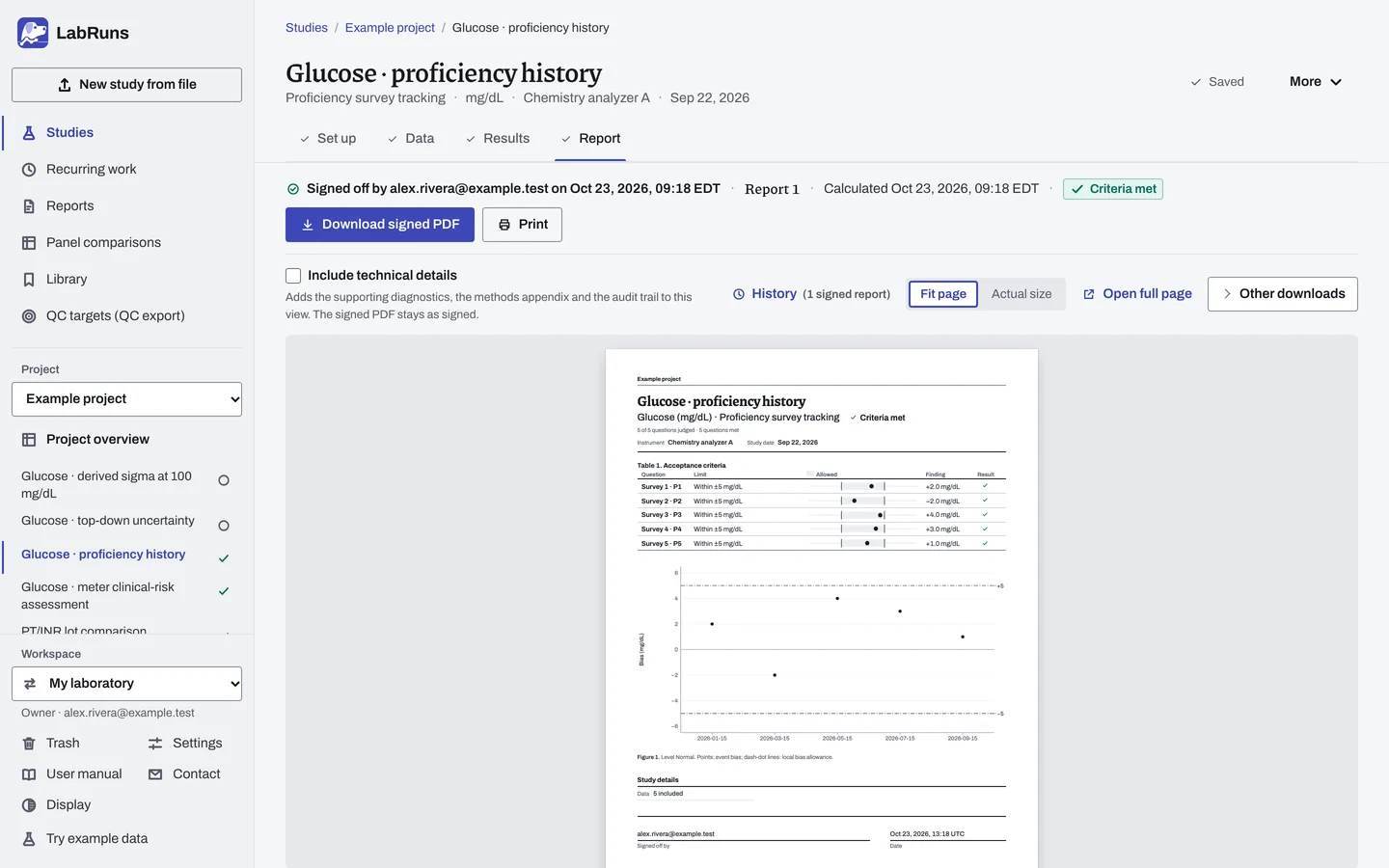
Calculate and check. Save the study, choose Calculate results, then check:
- Check used and total rows, the selected group, event history and missing SDI counts.
- Review each local bias decision separately from the provider grade. A missing group SD does not remove its bias result.
Figure 3. Results for Glucose · proficiency history. -
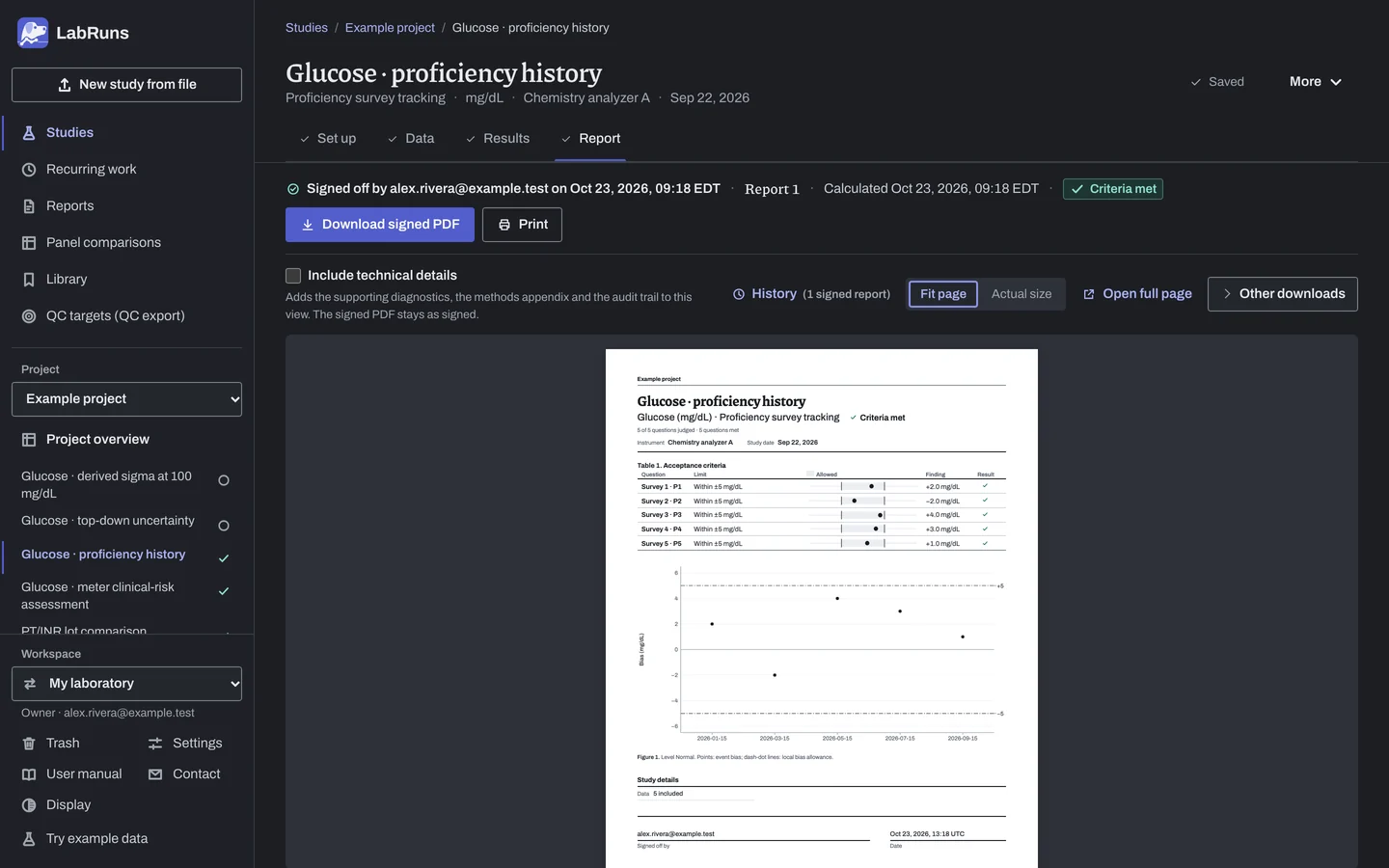
Report your decision. Open Report, look over the result and the study details, then download or print the report. Sign-off is optional.
Figure 4. Report for Glucose · proficiency history.
Set up
Section titled “Set up”- Choose New study, select Proficiency and peer-QC tracking under Summaries, enter Analyte and Unit, and choose Create study, or Create and import data if you already have results.
- On Set up, under Event summaries, choose Results to track (Proficiency surveys or Monthly peer-QC summaries) and Comparison group (Peer group or All methods).
- For a local decision, enter an Absolute bias allowance, a Percentage bias allowance (%), or both, under Local bias allowance. See Acceptance limits.
- On Data, choose Import a file or Add row and enter one row for each event material. See Columns.
- Choose Calculate results. See Calculate results.
When a limit is not met
Section titled “When a limit is not met”- Check that Comparison group names the group whose mean you entered, and check the used and total counts.
- Review the event's laboratory result, group mean and bias against the rest of the history.
Common mistakes
Section titled “Common mistakes”- The selected group's mean is missing: enter the mean of the group chosen under Comparison group.
- No SDI for an event: the group SD is blank or zero. Enter the provider's group SD if one was given; the bias is still calculated without it.