


QC targets (QC export)
Run this study
Section titled “Run this study”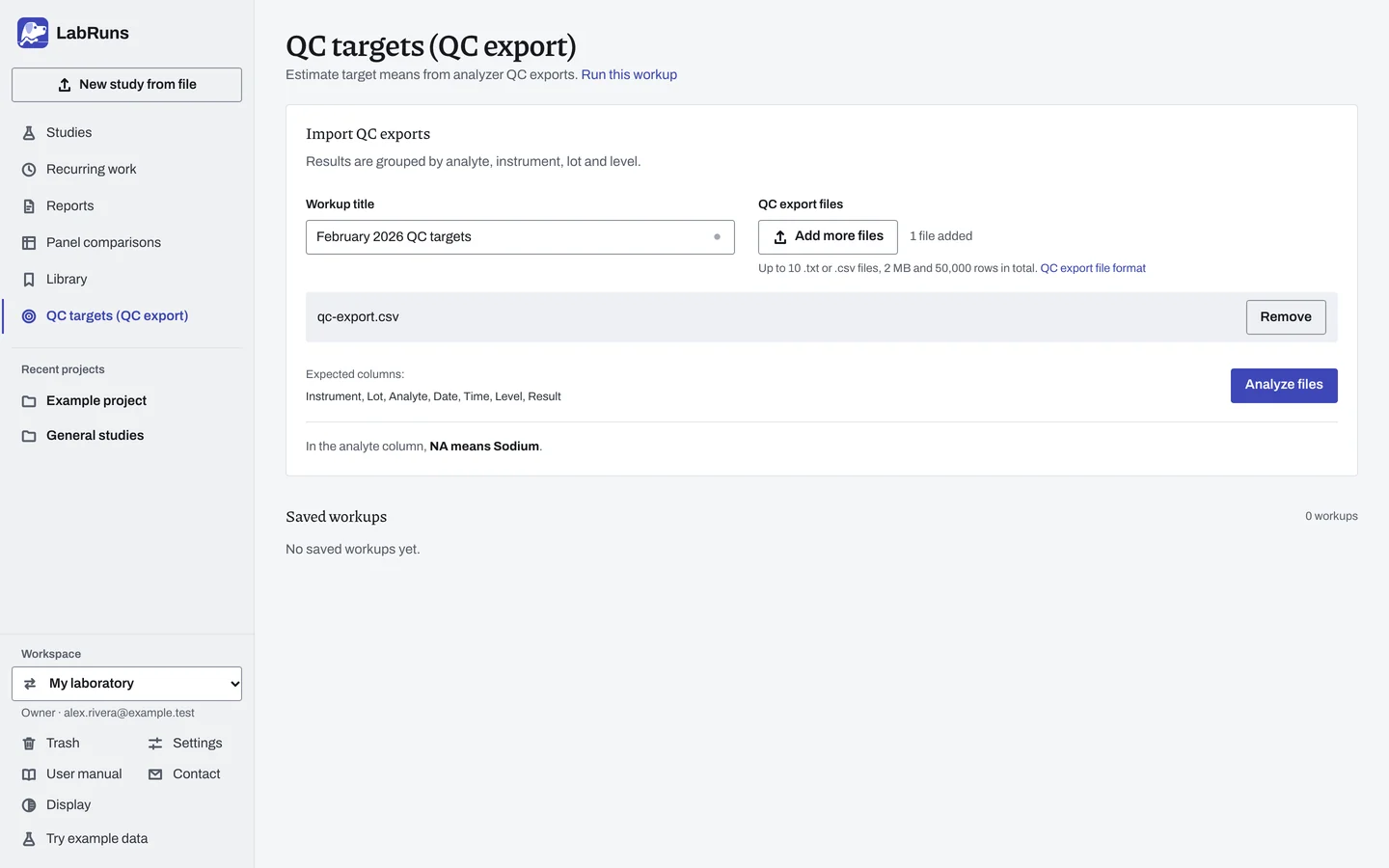
- Your question
-
What target mean and SD do your existing QC records support for each instrument, lot, analyte and level?
- Bring
-
the original QC text exports (
.txtor.csv; 1 to 10 files at a time, up to 2 MB and 50,000 result rows altogether) and the dates of a baseline period. Every result needs its instrument, lot, analyte, date, time, level and result. You can also give each analyte a unit and each QC material a QC name and expiration date; all of them print on the report. When you start a new workup, it picks up the unit you last saved for each analyte code and the QC name and expiration date you last saved for each lot. - Suggested starting plan
-
one QC result per day for 20 days, 20 results per group. Each combination of instrument, lot, analyte and level is its own group, so two glucose control levels on two analyzers make four groups. Take the records from a period when the method was stable. Extra runs on the same day add results without adding days. To calculate at all, a group needs at least two numeric results. The WHO laboratory quality management system handbook, pp. 81–83, describes collecting repeated control measurements to set the mean and SD.
-
Decide the baseline period. Pick one stable period for each instrument and QC lot.
-
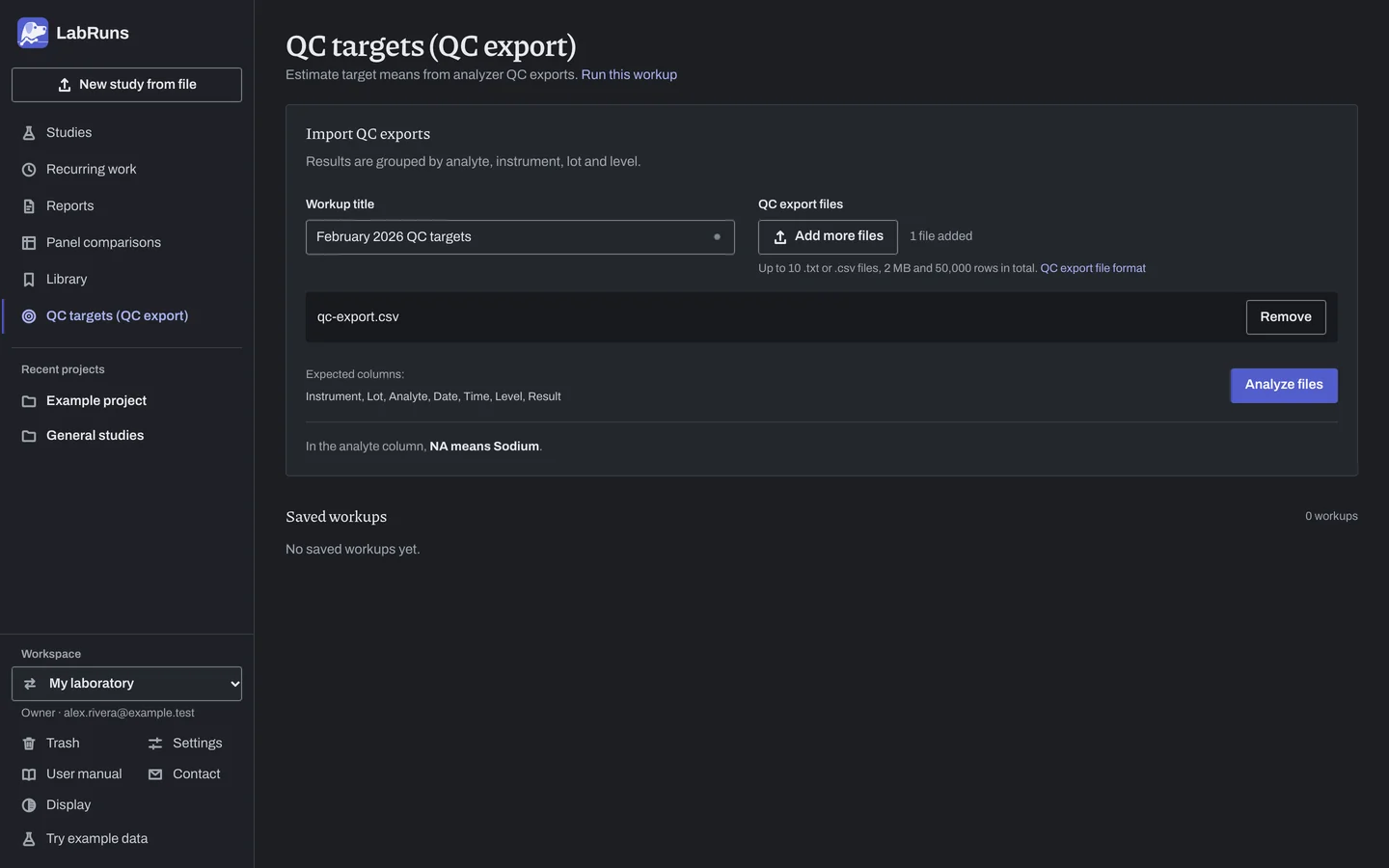
Upload the original exports. The example column layout shows the seven columns in order. In the menu, open QC targets (QC export), pick your files with Choose files, check the Workup title and choose Analyze files.
Figure 1. Import QC exports for February 2026 QC targets. -
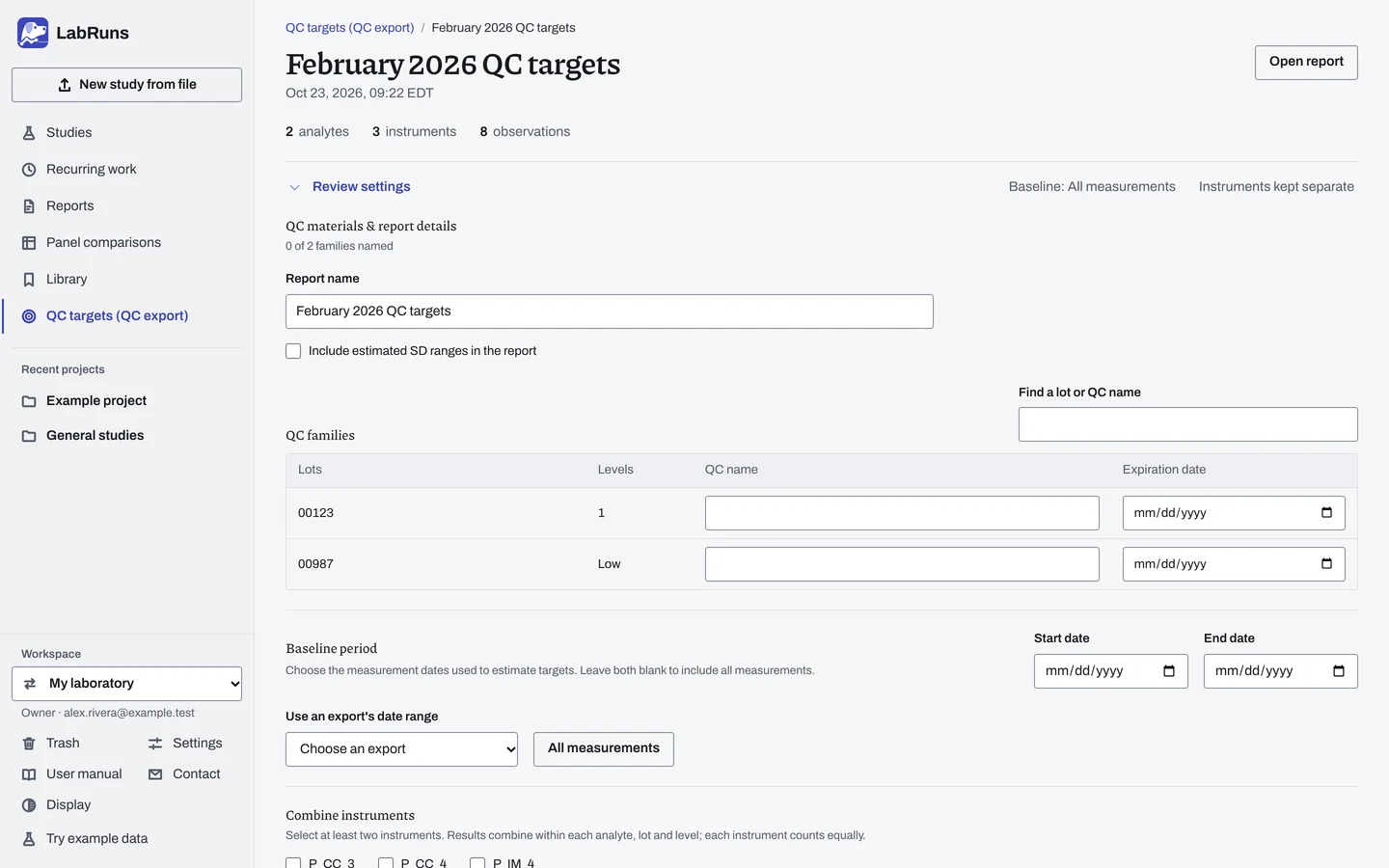
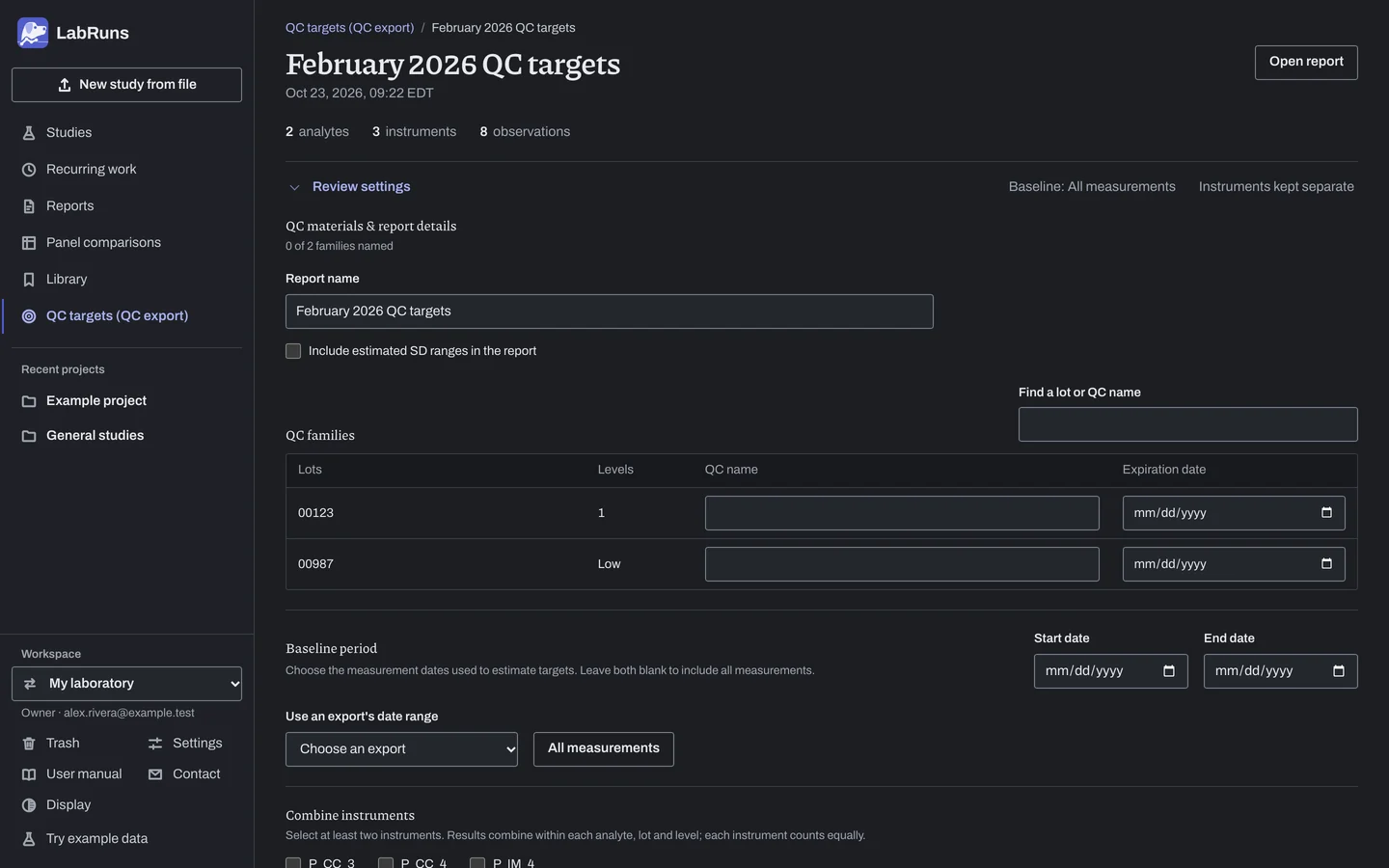
Set the baseline. Open Review settings and, under Baseline period, enter the Start date and End date, or fill both from one file with Use an export's date range.
Figure 2. Review settings for February 2026 QC targets. -
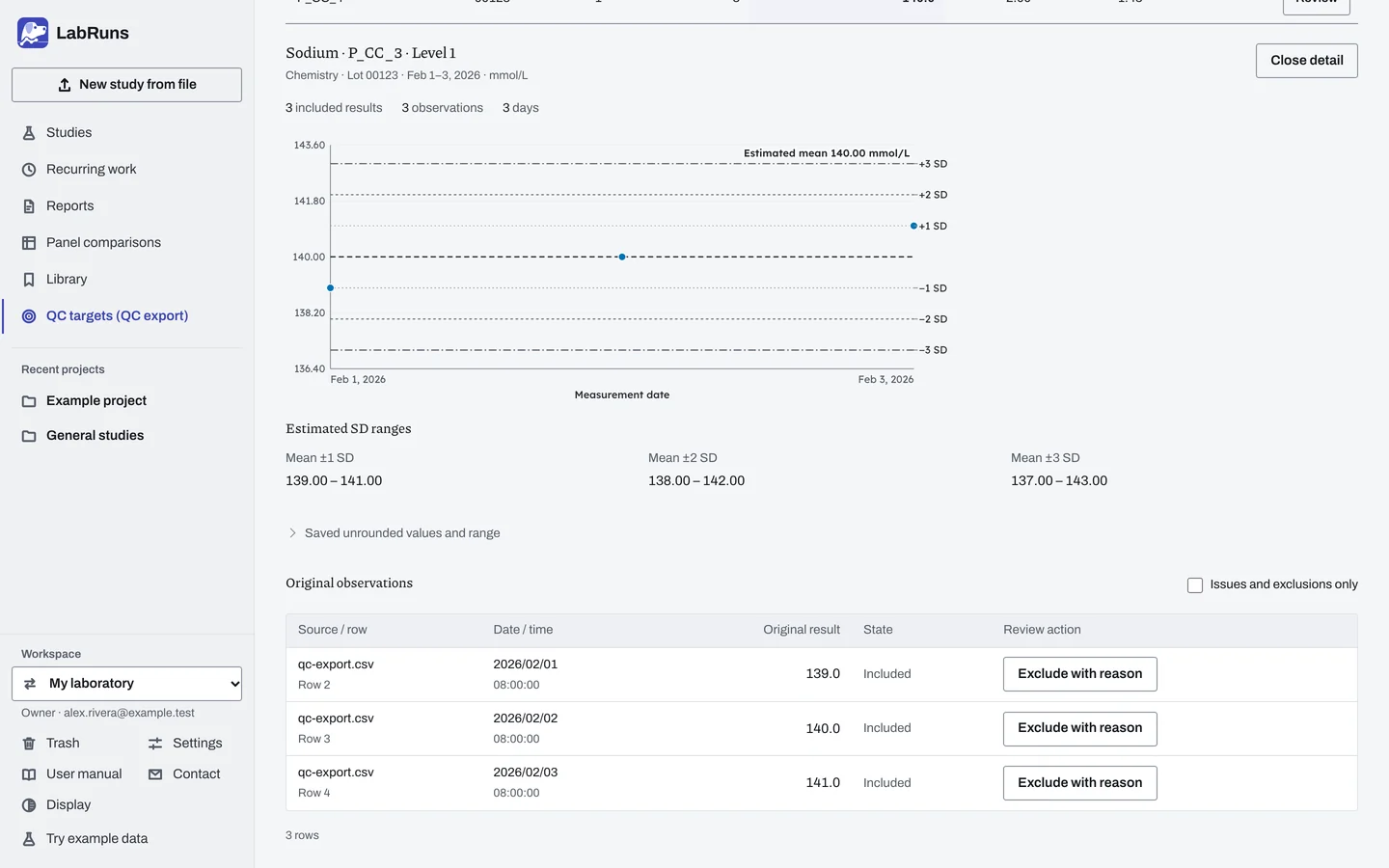
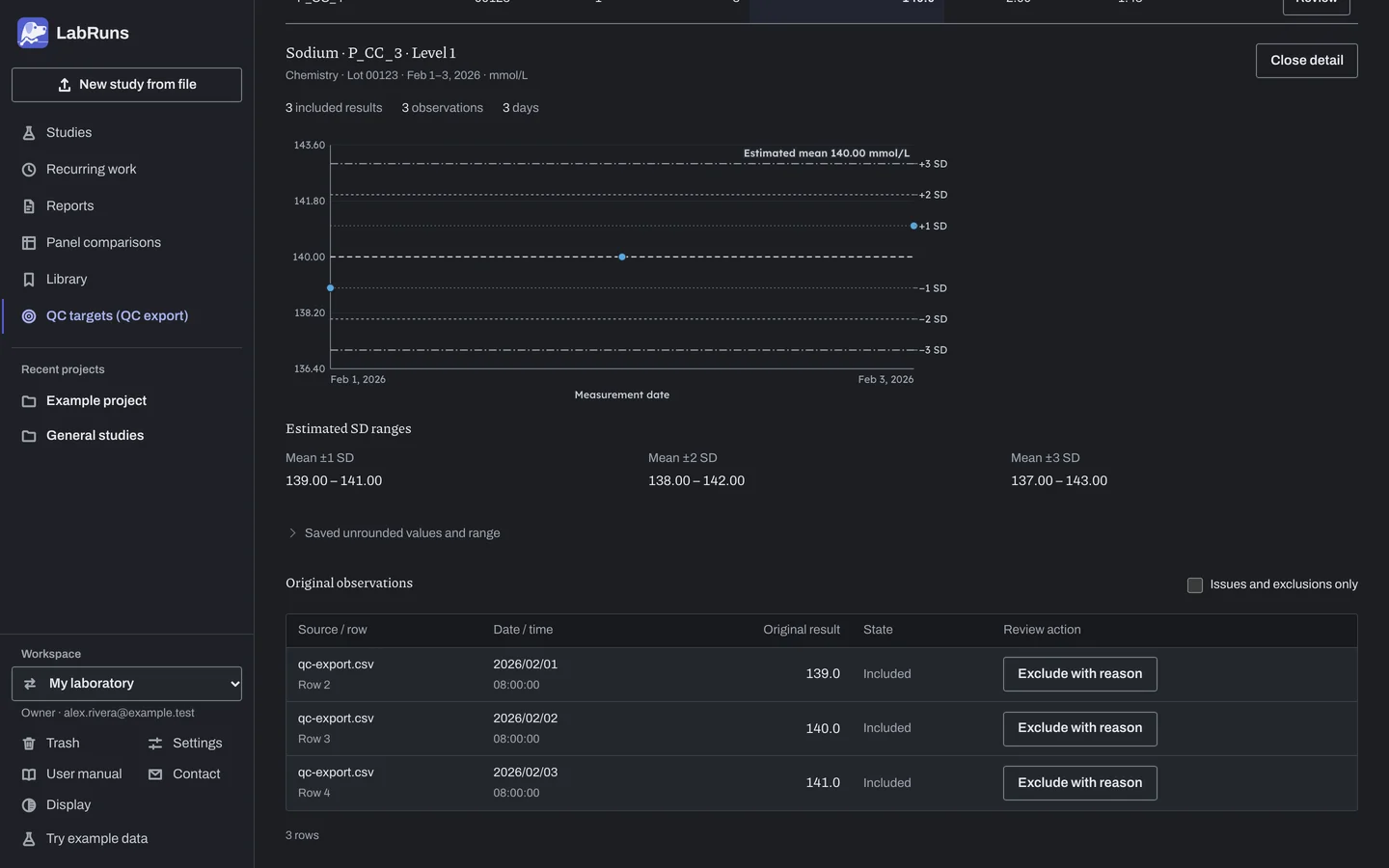
Review each group. Enter the Unit above each analyte's comparison table, then choose Review on a group. If the targets need different rounding, change Target precision under Reporting for the analyte. Look through the time plot and Original observations for shifts, duplicates and flagged results, and give a reason for every result you exclude.
Figure 3. Group review for February 2026 QC targets. -
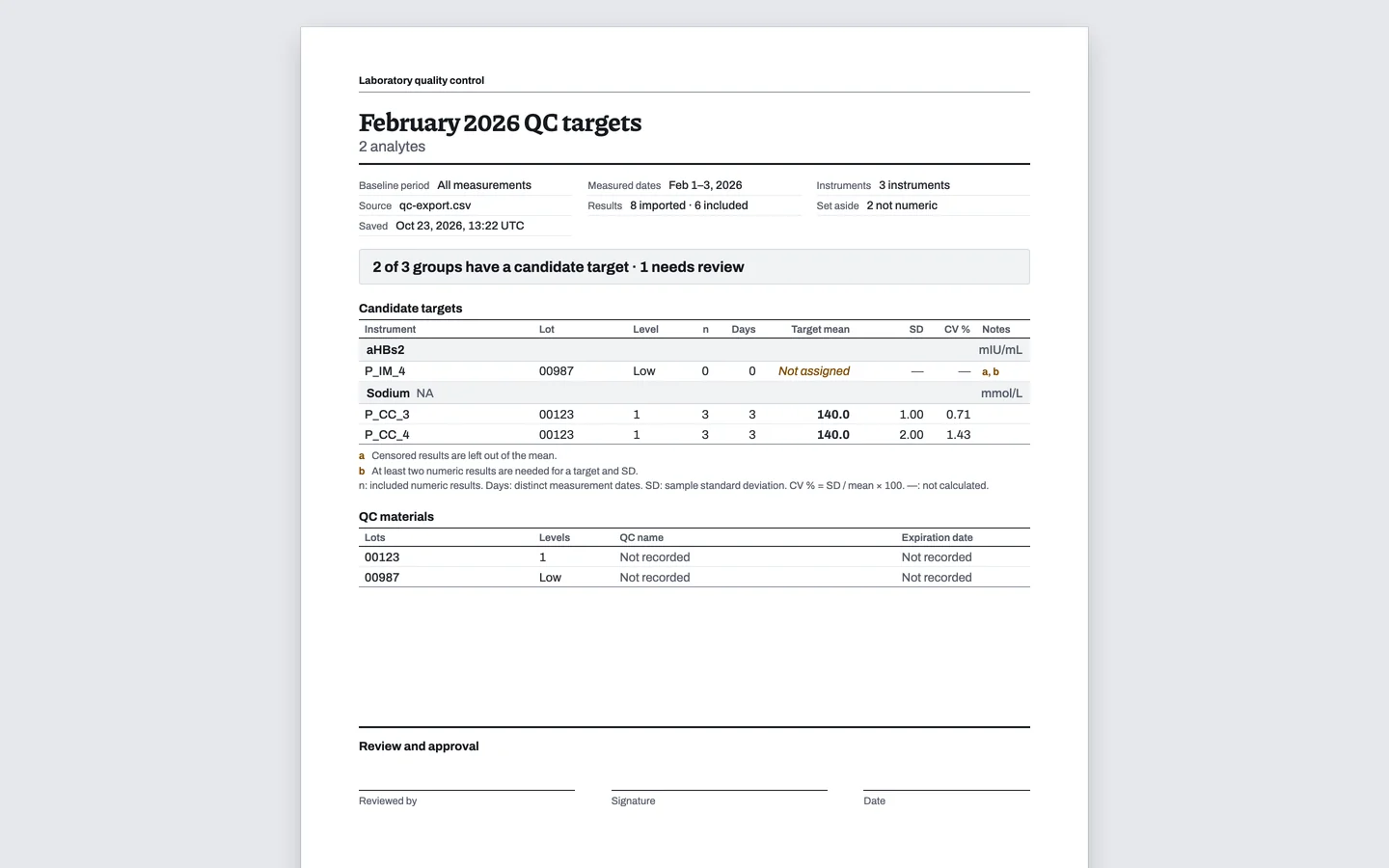
Save and download. In Review settings, set the Report name and, if you want them on the report, the QC name and expiration date under QC materials & report details. Choose Save review, then download the Summary CSV and the report.
Figure 4. Report for February 2026 QC targets.
You get: a candidate target mean, SD and CV for every group, plus estimated SD ranges if you include them. The unit you enter labels the results and converts nothing; every value is used as exported.
Set up
Section titled “Set up”Set the review
Section titled “Set the review”- After Analyze files, open Review settings.
- Under QC materials & report details, change the Report name if you need to. Tick Include estimated SD ranges in the report to add the ±1, ±2 and ±3 SD table. If you like, enter the QC name and Expiration date for each QC family; Find a lot or QC name narrows a long list.
- Under Baseline period, enter the Start date and End date, or pick an export under Use an export's date range to fill them from that file. All measurements clears them.
- To pool instruments that run the same QC material, tick two or more under Combine instruments.
Review groups and exclude results
Section titled “Review groups and exclude results”- Search with Find an analyte, or open Filter groups to narrow by Instrument, Lot, Level and Review state.
- Enter the unit of the exported results in Unit above each analyte's comparison table.
- Choose Review on a group.
- If the targets need different rounding, go to Reporting for the analyte and change Target precision from Source decimal places to Decimal places or Significant figures, then enter the number. The setting applies to every group of that analyte.
- In Original observations, tick Issues and exclusions only to hide the clean rows.
- To exclude a result, choose Exclude with reason, type the Reason for exclusion and choose Apply to review. Include again brings it back.
Save and download
Section titled “Save and download”- Choose Save review; the button stays in view as you scroll through the groups. Discard review edits throws away unsaved edits, and if another tab saved first, Load latest & keep my edits merges the two.
- Under Saved results and source files, choose Summary CSV, Open report or Report PDF.
- If the save button reads Update report or Update estimates, choose it to redraw the report or recalculate with the current method.
When a limit is not met
Section titled “When a limit is not met”A QC targets workup has no acceptance limit to fail. When a group ends up with no candidate target, or a combined row reads Not combined:
- Exclude each missing, censored or unrecognized result with a reason; once at least two numeric results remain, the group gets a candidate target.
- Look at duplicate rows and rows with conflicting timestamps in Original observations, and exclude with a reason any that should not count.
- For Not combined, check that every ticked instrument has its own candidate target.
Common mistakes
Section titled “Common mistakes”- The import stops at a line: the message names the file and the line. Fix the broken row, date or time, save the file as UTF-8, or remove a file you chose twice.
- Columns in a different order: the seven columns have to come in the order shown in Columns.
- Decimal points and decimal commas in one file: each file is read with one decimal mark, so in a file that also has decimal points a result such as
1,23is unrecognized, and the group's review note identifies the decimal comma. Export every result in the file with the same decimal mark and import the file again. - One lot written two ways, such as
00123and123: lots are read as text, so these become two lots. Write the lot the same way in every export. - Downloads without your latest edits: tables, plots and downloads show the last saved review, so choose Save review first.