Review, print and sign off a report
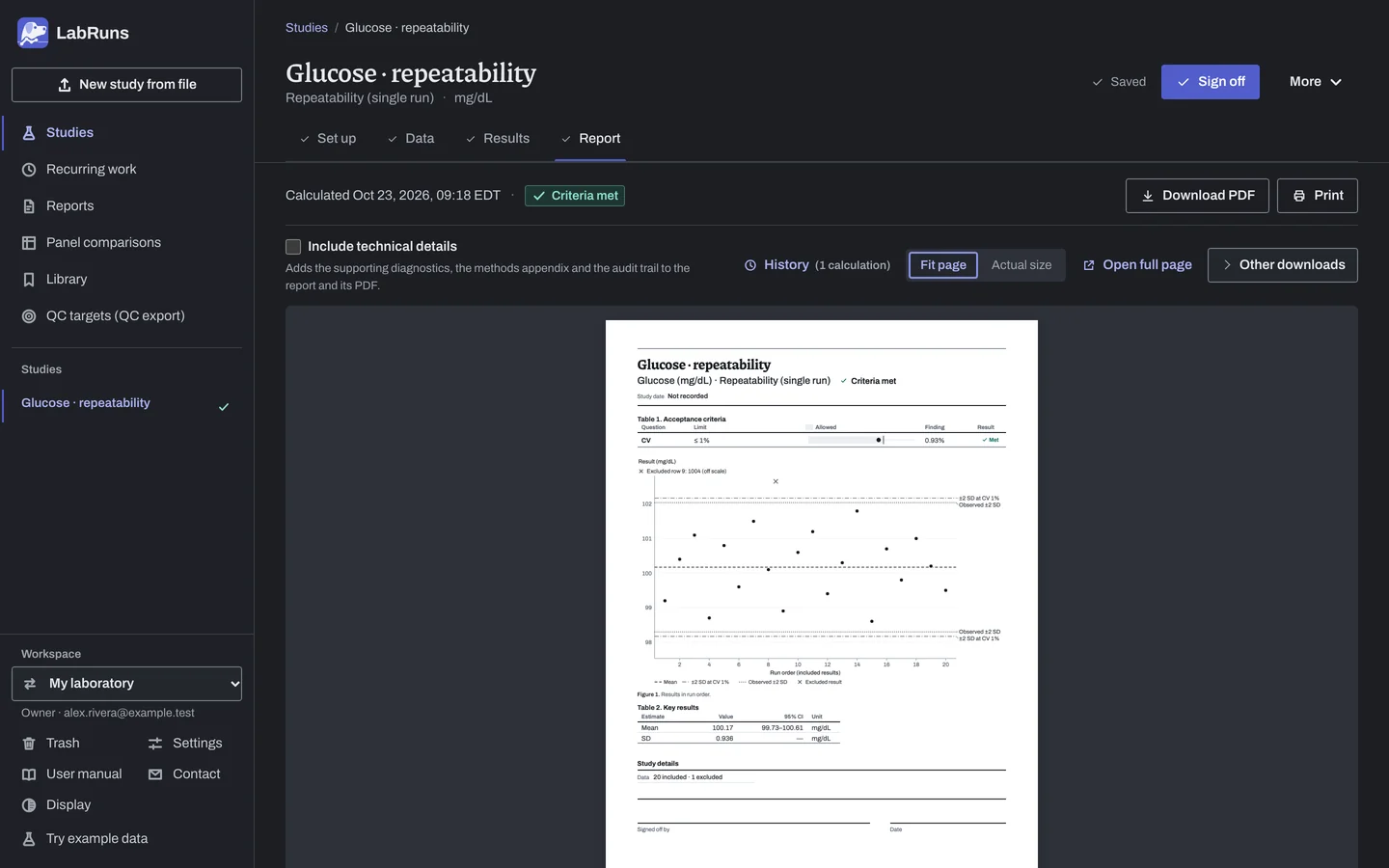
Open Report, the study's fourth stage, to read, print and download the report of the latest calculation. Reports and exports describes each part of the report.
Print or download the report
Section titled “Print or download the report”The calculation's PDF generation time uses your browser's time zone. Check the result and calculation date above the report, then choose:
- Download PDF (Download signed PDF for a signed report) or Print.
- Sign off to record who reviewed it. If it cannot be signed yet, the message under the button gives the next step.
If the data or acceptance limits changed after the latest calculation, the report appears again after you choose Recalculate results. A signed report stays on screen with The data, settings or linked evidence changed after this report was signed. Update the inputs and recalculate to update the report.
Other controls:
- Include technical details adds diagnostics, detailed methods and the audit trail. See Report files.
- Open full page opens the report on its own in a new tab.
- Other downloads holds report copies, data and plots. See Reports and exports for formats and contents.
- History shows the record count and jumps to the list of signed reports and calculations below the report: see Open an earlier report or calculation.
Print in black and white or on another paper size
Section titled “Print in black and white or on another paper size”- For black and white, choose Other downloads › Black & white copy (PDF). Reports otherwise use restrained color for decisions: red for Not met, amber for Undecided and green for Met.
- To change the paper, set Paper size for PDFs (As stored, Letter or A4) in your display settings. A report prints on the chosen size, and for a signed report Other downloads offers a copy on it.
A report always shows in the light Day colors. Your text size, density and legible font settings change how it looks on screen; printouts and PDFs use the standard layout.
Change the laboratory name or add a director line
Section titled “Change the laboratory name or add a director line”Reports print your workspace's name, set in Settings > Workspace, on page 1 and in every page footer. While the workspace is still called My laboratory and the project has no laboratory name, reports use the project name; reports of studies in General studies leave the laboratory name blank.
- To print a different name on one project's reports, open Project details on the project's Overview tab, choose Edit project and fill in Laboratory name.
- To add blank Director approval and Date lines to page 1 for a paper signature, tick Include a director signature line (optional) in Project details → Edit project. It is off for new projects; clear it to omit those lines.
A signed report keeps the settings it had at sign-off. Every other report uses the current settings.
Sign off
Section titled “Sign off”Signing off is optional. A report prints with blank Signed off by and Date lines to sign by hand; Sign off fills them in and locks that version of the report.
- Calculate the statistics.
- Review the report, especially the outcome, explanations below the acceptance table, any * markers and 2 Study notes.
- Choose Sign off and check the calculation date and study status in the dialog. The report and PDF are kept as they are when you confirm.
- Check the signed-in account shown as Signed off by. Sign off from your own account; Viewers may also approve current calculations. Your optional name is set on Account.
- Choose Sign off in the dialog. The date and time are added automatically, in your own time zone (for example
Oct 1, 2026, 20:15 EDT), and the stage then reads Signed off by NAME on DATE.
On new signed reports, Signed off by shows the approving account's name and email. Prepared by shows the saver of the calculated data version when that is a different person. If the PDF can't be made at sign-off, the report is still signed off; see report problems.
Open an earlier report or calculation
Section titled “Open an earlier report or calculation”- On Report, choose History. It lists the study's signed reports and calculations, newest first: for example Report 1 with Signed off by J. Rivera on Sep 29, 2026, 15:09, and Calculated Sep 30, 2026, 10:12. The latest calculation, or its report once signed, is marked (latest).
- Choose Open. A banner marks the record, and its PDF button gives that record's own file. Records in History can't be signed off.
- For an earlier calculation, choose Show in the current report format in the banner to see its saved values in today's report design; Show as first produced returns to the original. A signed report always opens as signed.
- Choose Back to the current report to return.
On Results, the Calculation list does the same for saved calculations. See Reading results.
Amend a signed report
Section titled “Amend a signed report”A signed report can't be edited, and a calculation can be signed off only once.
- In the Data stage, correct the rows concerned or exclude them with a reason, or fix the setting on Set up.
- Choose Save changes. This creates a new data version.
- Choose Recalculate results.
- On Report, review the new report and choose Sign off.
The new report gets the next number, and the stage opens on it. Earlier reports stay under History. Changing your account name applies to future sign-offs; saved reports retain their original attribution. About records and history explains how these records relate.